TL;DR
Design annotations make approvals faster because feedback stays tied to the exact part of the design. They help reviewers define what they mean, reduce conflicting comments, and keep everyone on the same page. In this guide, you’ll learn how to annotate designs online from first ideas to final sign-off. You’ll also see how an annotation tool supports acceptance criteria, access, edge cases, and error feedback, so decisions get made and projects move forward.
Why design annotations matter in every approval round
Studies show our brains start making sense of visual information in a flash. In one 2025 EEG study, the brain encoded key visual details within about 160 milliseconds of seeing them.
It comes as no surprise, then, that design is everywhere, filling everything from our kitchen cabinets to our city streets. What most people don’t see, however, are the many rounds of reviews that go into every single sign, logo, and web banner.
Collaboration and creative development are key to crafting great pieces of design. And love it or hate it, talking through your design choices and taking on feedback are important parts of the job.
That’s where design annotations come in.
Design annotation tools can speed up your approval process in so many ways. And they can be an absolute lifesaver for remote work. In this article, I’m going to take you through the key benefits of visual annotation, as well as the top three design annotation tools for a faster design process.
Sounds good? Then let’s go!
What is a design annotation?
Design annotations, in the simplest terms, are like sticky notes that you can slap on top of your design project to describe aspects and share opinions. A way to discuss different elements of the work and make design decisions, right there on the file. They streamline the whole collaboration process within and between teams by giving people one place to leave comments, make suggestions, and share feedback about the job at hand.
There are tons of brilliant design annotation and markup tools out there to help get your design projects across the finish line as fast as possible (I’ll dive into the top three tools a little later in this article). In fact, adding annotations is an excellent way to get faster approvals on all kinds of files, from PDFs to videos, and more.
But for now, let’s look at some of the designs you can annotate:
- Digital and print ads
- Low-fidelity wireframes
- High-fidelity wireframes
- Infographics
- App layouts
- Product packaging
- Social media graphics
- Photos and editing
- User interface (UI) and user experience (UX) designs
- Presentations
This list is not extensive. But hopefully it gives you an idea of just how much time you could save across a whole range of design deliverables.
But how, exactly? What are the main use cases and benefits of design annotation for you and your team?
Supercharge your design reviews
Manage every comment, version, and approval in one place with Filestage.
Three ways design annotation tools fast-track your visual projects
When you look at the key ingredients for successful collaboration, communication is most definitely at the top of the list. Clear, coherent communication leaves less space for misunderstandings, missed memos, and time-consuming mistakes.
Here are just some of the most notable ways design annotation can enhance user interaction, enabling quicker collaboration and faster approvals.
- Adding design annotations to your work gives stakeholders more context
- Design annotations help your teammates and clients give clearer feedback
- Using design annotation tools makes your feedback rounds more collaborative
Let’s take a closer look.
1. Adding design annotations to your work gives stakeholders more context
When you put design and wireframe annotations on your visual projects, you’re essentially giving collaborators a guided tour through the work. You’re showing them the details, explaining your design rationale, and sharing your opinions or concerns. This provides more context and helps people understand what’s happening in your design. It keeps everyone on the same page, literally.
Design annotation helps speed things up in this way because it cuts out (or greatly reduces) any confusion as to what’s what. Instead of people sitting around wondering why you put the headline at that angle, or *gasp* made the logo smaller, they can look at the written explanations provided and get it right away. Fingers crossed!
Once people understand the story you’re trying to tell with your design, it means they can provide better feedback, the first time around. No impromptu meetings. No lengthy email chains. You and your collaborators can simply focus on getting the design where it needs to be ASAP.
2. Design annotations help your teammates and clients give clearer feedback
With more and more teams collaborating remotely these days, being able to get our point across virtually has become so important. But honestly, design annotation can be a huge time saver for in-office collaboration, too. Efficiency is the name of the game for design annotation, no matter your work environment.
The best design annotation tools offer a variety of features that make it much easier for teammates and clients to provide clear feedback to visual designers.
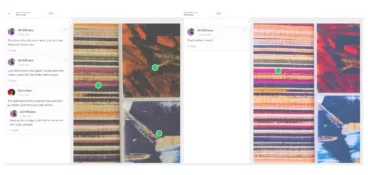
For example, most tools allow reviewers to click, highlight, and draw on specific design elements. This makes it much easier for them to pinpoint the exact design elements they are referring to. They can then leave their comments right where they want them. As you can imagine, this visual clarity makes the designer’s job a whole lot easier, too!
Another handy aspect of design annotation is that it provides a visual history of all annotations and comments made on a design. Being able to look back and reference past feedback is great for tracking the evolution of the current design and keeping notes of client preferences. Your future self will thank you, trust me!
3. Using design annotation tools makes your feedback rounds more collaborative
What do you get when you fuse more context with clearer feedback on design projects? Much better collaboration, of course!
The right design annotation tool can turn any review session into a lively virtual conversation. Team members and clients can also collaborate in real time, making it easy to address issues, brainstorm ideas, and make quick decisions on the spot.
Design annotation tools are also usually super inclusive and user-friendly, which means everyone can get involved with minimal training.
Here are some of the key features to look out for when picking the perfect design annotation, and how they help create a collaborative feedback round:
- Commenting – Leave comments on specific parts of the design for clear communication and open discussion.
- Different markup tools – Draw, highlight, underline, and add shapes and text directly on the design for easy visual feedback.
- Version controls – Keep track of every aspect of your design’s development to cut out any uncertainty about what changed, why, and when.
- Permissions – Assign different roles and permissions to each project participant. This helps keep everything running smoothly from start to finish.
- Integration – Annotation tools that work with popular design software, project, and management platforms are a dream when it comes to seamless collaboration between teams and clients.
Top three design annotation tools with free trials and plans
Now that we’ve seen how design annotation can speed up your review process for faster approval, let’s look at three of the best tools that you can get started with for free.
1. Filestage
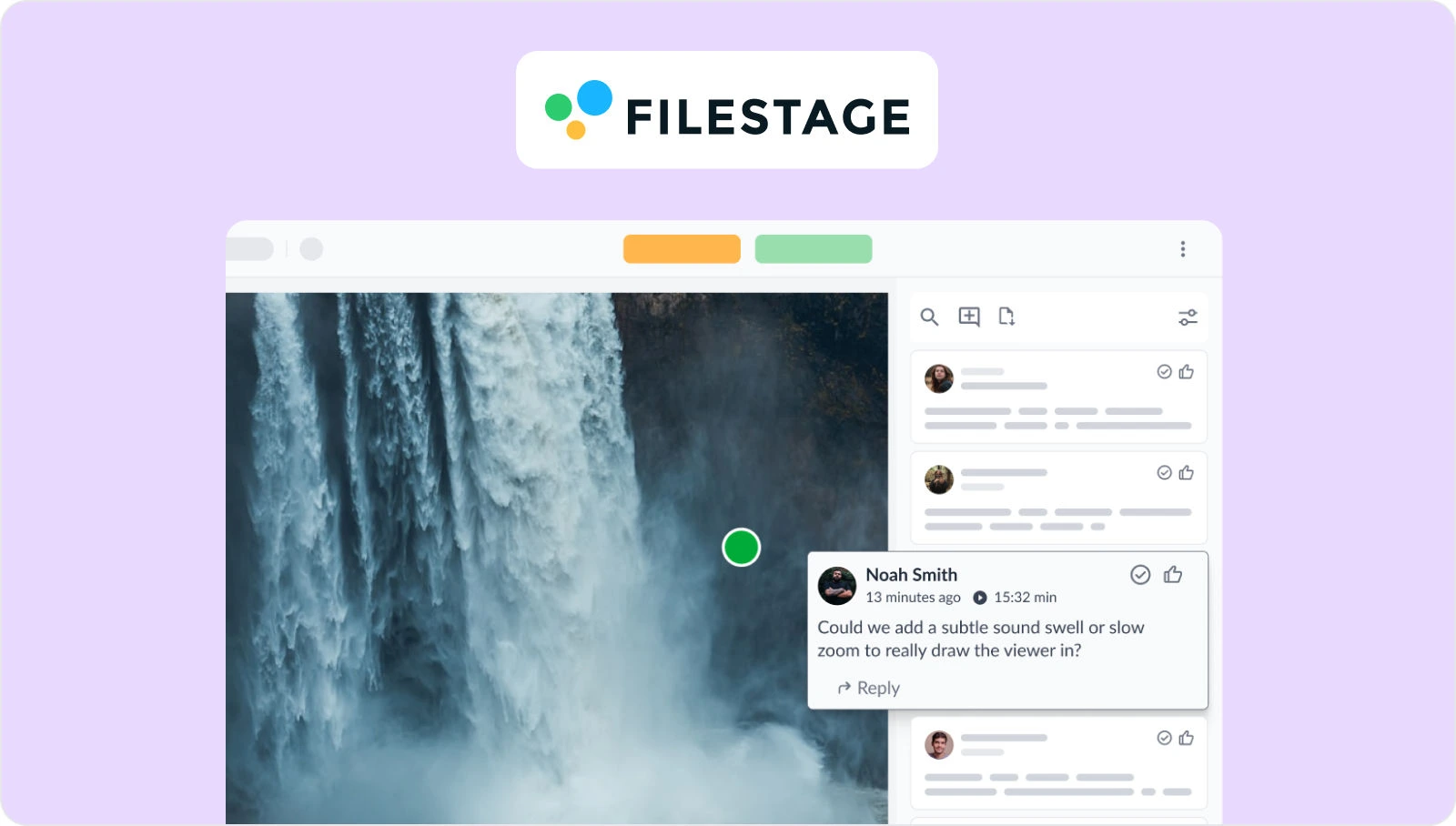
Filestage is design approval software that lets you and your team review and annotate wireframes, digital and print ads, social media graphics, apps, and more.
Filestage makes design and creative collaboration easier for everyone by bringing all your files and your reviewers under one virtual roof. No more juggling different tools for web designs, wireframes, and ad concepts. Instead, you can effortlessly review everything in a single, convenient spot.
Filestage has all the tools you need for speedy annotation, review, and approval. And it’s a great choice for anyone who needs to get feedback from a Creative Director and/or client.
Here are some of Filestage’s most popular design feedback features:
- Comments – Point and click to highlight and add comments right on top of your design
- Review steps – Keep things organized with review steps for different stakeholders
- Due dates – Set due dates and send automated reminders to keep every project on track
- To-do lists – Turn comments into actionable feedback by using them as to-do lists
- Attachments – Attach references and other assets to your comments to keep every piece of feedback in one place
- Compare versions – See two versions side by side to check your design’s development, as well as all the comments on each file
- Status indicators – See which files are approved or ready to be worked on
- Integrations – Connect Filestage with your project management and messenger apps for seamless collaboration
Supercharge your design reviews
Manage every comment, version, and approval in one place with Filestage.
2. FigJam
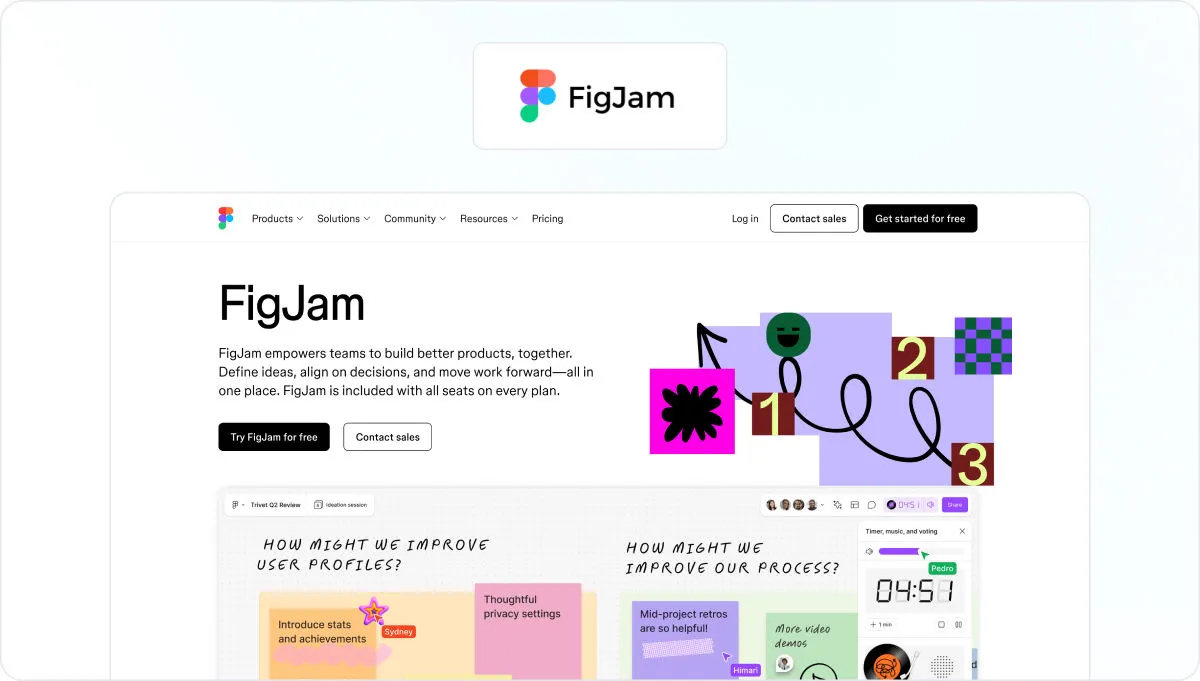
Built by Figma, FigJam is essentially a digital whiteboard where you can gather and discuss feedback on everything from creative concepts to high-fidelity wireframes.
This annotation tool works best for in-house design, product, brand, and marketing teams in the early stages of the design process. It’s a great space for brainstorming ideas and agreeing on next steps for your design deliverables.
Here are some of FigJam’s best features for fast collaboration and user flow:
- Post-it notes – Stick post-it notes right on top of your ideas for clear, visual annotation and feedback.
- Comments – Comment on parts of the design and work together in chat threads.
- Annotation tools – Get creative with arrows, lines, and all kinds of other shapes. This works especially well with wireframes for websites.
- Stamps and stickers – Use them to vote on ideas; great for speeding up the decision-making process.
3. Figma

Last but not least, we’ve got Figma, a fantastic design tool that’s intuitive and easy to use, making it a popular choice among visual designers worldwide.
This cloud-based tool was developed to compete with Adobe, and it was originally used to create web pages and gather feedback. But now it’s kitted out with lots of other nifty annotation tools that make collaboration between team members easier.
Here are some of Figma’s best-loved features:
- Multi-device support – Reviewers can view and comment on your designs from any device they please.
- Comments – Tap anywhere on a design to add a comment with a marker.
- Mentions – Need another opinion? Tag your team members to notify them and get them involved.
- Version history – Revisit old versions and keep track of your iterative process.
- User permissions – Assign specific collaborators to view, comment, and edit your designs.
- Integrations – Connect with all your favorite messenger apps for synced notifications.
Final thoughts
Design annotation can help you get approval faster by making it easier to communicate and collaborate with your team. It’s also a great way to keep your projects organized and improve your iterative process, since everything stays in one place. If you’d like to introduce annotations into your designs and see how Filestage can speed up your feedback process, start a free trial here →
FAQ
1. How do I annotate a design?
Annotating a design means adding clear, visual notes so everyone understands what should change and why. Instead of writing vague feedback like “make this nicer,” you point to a specific element (like a button, headline, or image), say what needs to be adjusted, and give a short reason. Good annotations are specific (“Change this font to match our brand typeface”) and focused on outcomes (“Increase contrast here so the text is easier to read”), helping designers act on feedback quickly without guessing or going back and forth.
2. How do design annotations improve the approval process?
Design annotations turn vague reactions into specific, actionable feedback. Instead of long threads with additional details, reviewers can add annotations directly on the screen, highlight key details, and provide context in a text box. That makes feedback clearer, reduces rework, and helps teams reach final approval faster.
3. How do you ask for design feedback so approvals stay focused?
Set acceptance criteria before the review starts. Tell reviewers what they should focus on and what “done” means for this design. Then prompt them to annotate designs with one of three labels: must-change, question, or nice-to-have. At the end of their review, they can either approve the design or request changes. This keeps the design process moving and prevents scope creep during review rounds.
4. What’s the best way to handle conflicting stakeholder comments on the same design?
Use a single shared review space so other stakeholders can see each other’s feedback. This enables reviewers to reply to a comment they don’t agree with. Then the decision owner can resolve conflicts against the big picture, user flow, and acceptance criteria.
5. How should teams annotate designs online so reviewers do not miss key details?
Keep annotations scannable and link to supporting documents when needed. If the design includes data visualizations or complex components, it is helpful to call out the key details reviewers must check. Make sure reviewers can view, zoom, and rotate the image full size on every device so nothing gets missed.
6. How does Filestage simplify design annotations and approvals?
Filestage helps teams collect design annotations in one place and keep every comment tied to the right version. Reviewers can annotate designs online, discuss feedback in context, and move through a structured approval workflow. That reduces back-and-forth and makes it easier to reach design sign-off with a clear audit trail.