
If you’re a project manager, work as part of a team, or have to get your work signed off by a wide range of stakeholders, you’ll know how much of a difference the right – or wrong – document collaboration software can make to your feedback process.
Document collaboration software helps you and your team work more productively. It makes problem solving faster, brainstorming more effective, and feedback significantly easier to collate.
No more confusing email chains. No more jumbled screenshots.
There are dozens, if not hundreds, of document collaboration tools out there, but we’ve highlighted the best of the bunch. Each of the platforms we’ve selected has its own unique features, tools, and function, but they all have the ultimate goal of making online document collaboration simpler and more streamlined.
Supercharge your document reviews
Share content, get feedback, and manage approvals with Filestage.
What to look for in a document collaboration system
Document collaboration tools are designed to help you create or review a collaborative document. This includes things like articles, employment contracts, and film scripts.
Here are a few key features to look for when choosing the right document collaboration tool:
- File sharing – share files with other team members or invite external partners to upload files
- Comments – tag team members to discuss a collaborative document in context
- Project progress – use task management features to track the status of your documents over time
- Team collaboration – bring multiple users together into a collaborative document or workspace
- Comprehensive access controls – protect your work from data security breaches with password protection and custom user roles
The seven top document collaboration tools
We’ve explored the best document collaboration tools for bringing team members, clients, and other stakeholders together.
Work together on a collaborative document with tools like Google Docs and Microsoft 365. Or review documents and keep a version history with a clear and organized review process in Filestage. Whatever you’re working on, our roundup of the best document collaboration software has you covered.
Here are our seven favorite document collaboration software:
- Filestage
- Google Docs
- Microsoft 365
- Evernote
- Notion
- Trello
- Slack
Let’s dive in.
1. Filestage – best document collaboration tool for feedback management
Filestage is a document approval software that makes collaboration and feedback that much easier. With Filestage, you can set up a document approval workflow so that it’s clear to you – and your collaborators – who and what is involved at each step of the review process.
Here are three ways it helps with document collaboration and feedback management:
One platform for team document collaboration and approval
The usual scenario: You send your document by email and await feedback. It trickles in gradually. Some in the same email thread, some in another. Some via Teams, others in person.
It’s time-consuming. It’s confusing. And it’s very, very frustrating.
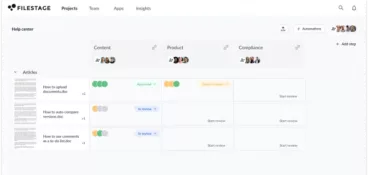
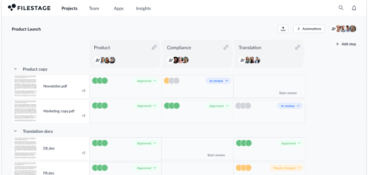
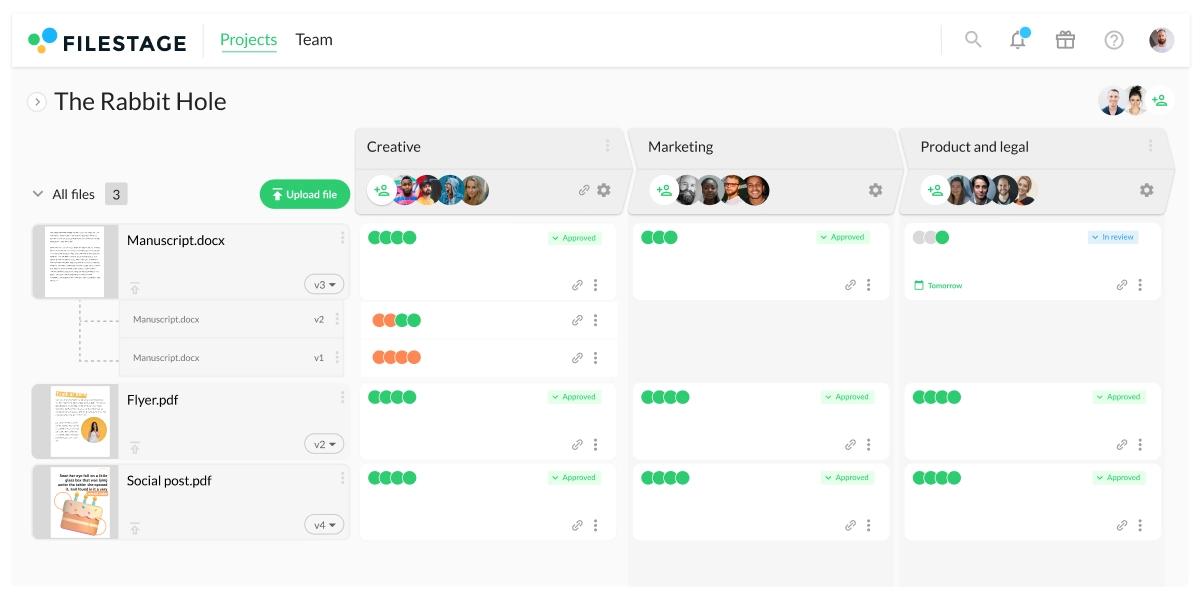
With Filestage, you upload your document to our online platform. You invite as many people as you like to review the document. And you set up a clear and consistent collaboration and approval process.
Here’s what’s included:
- Creating review steps for each stage of your project
- Setting due dates to keep your projects on track
- Inviting unlimited reviewers with no need for account set-up
- Keeping a clear document version history so you can verify edits in seconds
- No download links – it’s all online, in one place
Comments and annotations for real-time document collaboration
The standard feedback process tends to involve all sorts. Screenshots. Long-winded descriptions. Not to mention a whole bunch of conflicts and contradictions.
And you rarely get it all in one go, which means you’re left piecing it all together, going back on yourself, and spending a lot more time on amends than you should be.
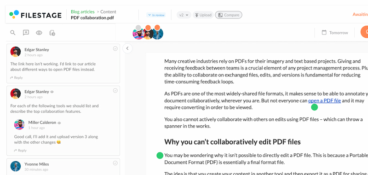
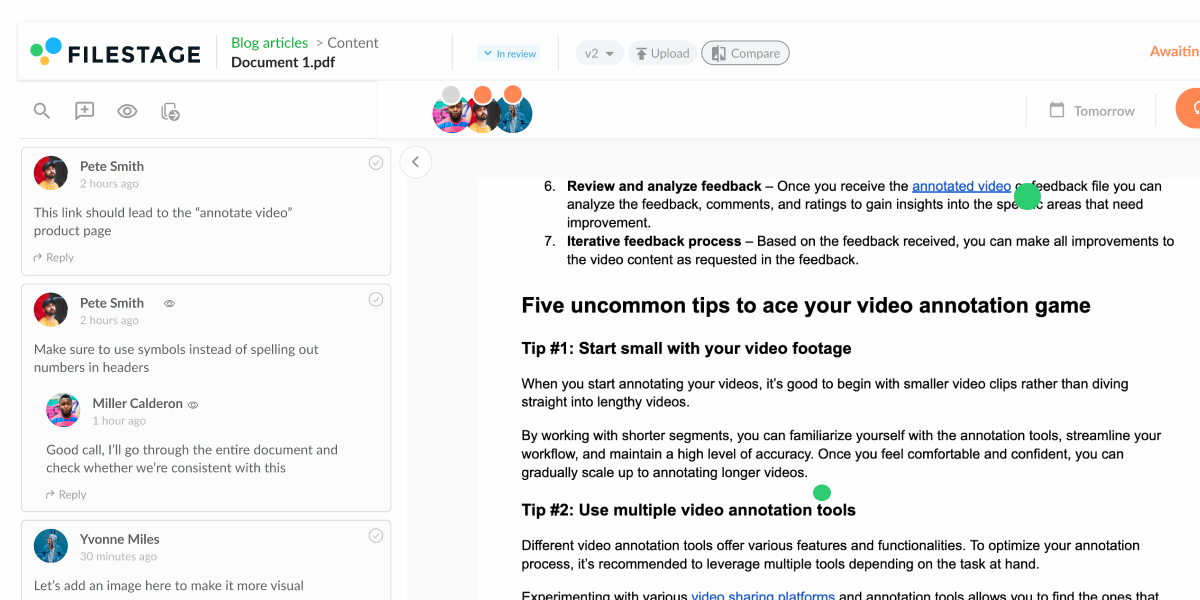
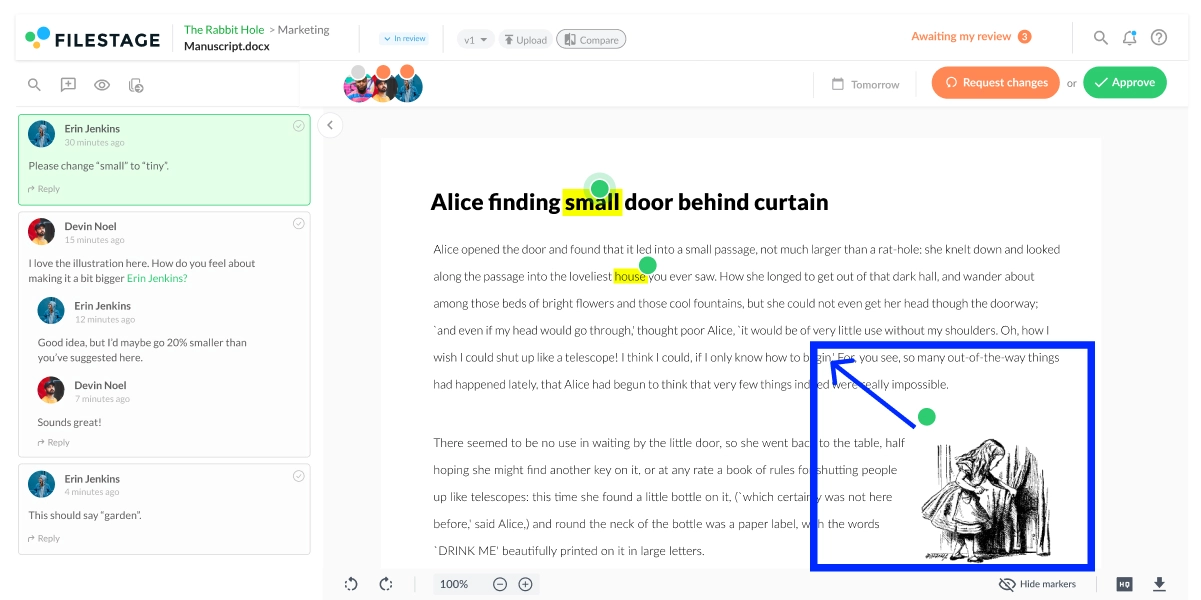
Filestage keeps collaboration transparent and organized. Reviewers can see what others have already suggested, and they can leave feedback in a way that helps them explain themselves best:
- In-context comments that show up in real time
- Team-only comments to keep certain conversations private
- Visual annotations to bring comments to life
- Highlights and strikeouts to make sure feedback is clear
- Attachments to share references and anything else your team may need

“Filestage allowed us to reduce the number of versions. We no longer need to send heavy files or set up box folders to exchange documents for review.”
Sarah Chen, Medical Director at Publicis Health
Passwords and email verification for secure document collaboration
When you’re working with marketing content that’s under embargo, or other sensitive content that needs to stay under lock and key, knowing you have full security is vital.
Filestage helps you collaborate securely on documents, so you can rest easy knowing your content is safe. Here’s how:
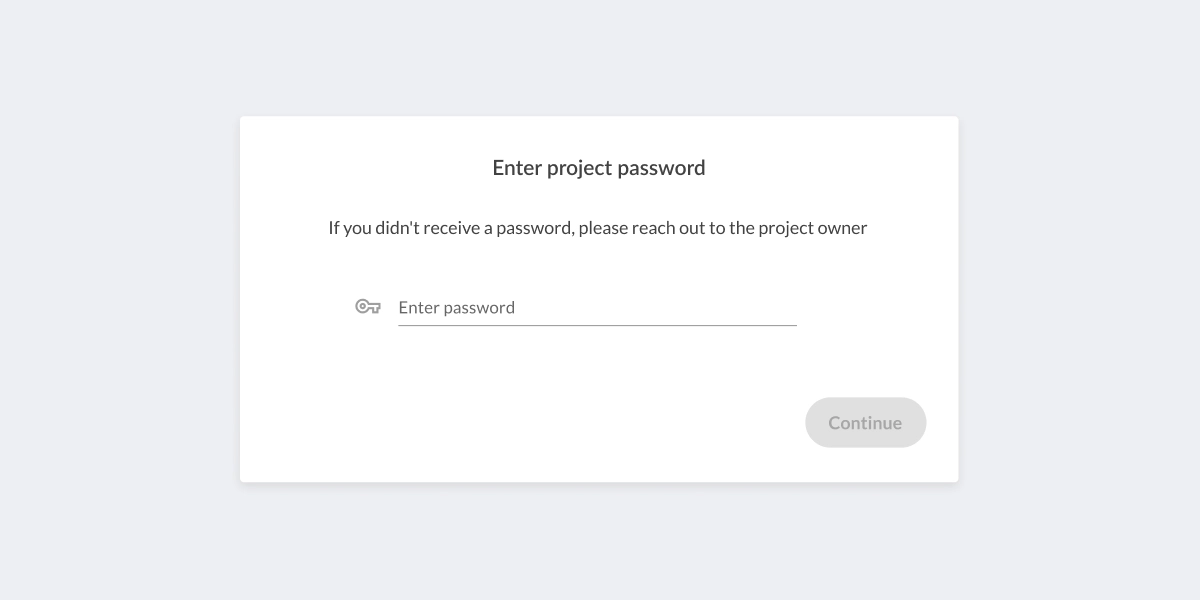
- Password-protected review links to give your files an extra layer of protection
- Single sign-on (SSO) for maximum security
- Email address verification to confirm who your reviewers are before they share their feedback
- Secure storage and file encryption using the latest technology
Pricing
There’s a free version, or the Basic plan starts from $109/month for unlimited reviewers.
2. Google Docs
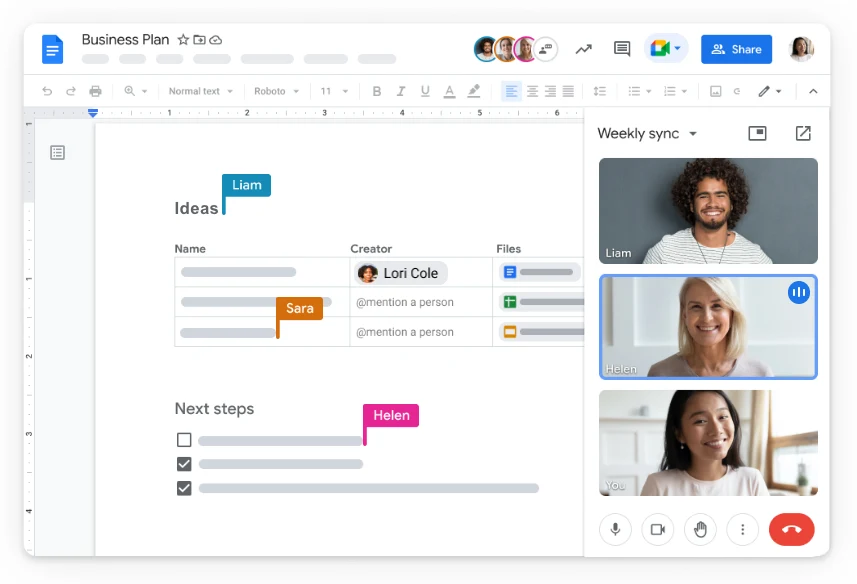
Google Docs is a free online word processor and document creation tool available to anyone with a Google ID or Gmail workspace account. It’s a great team collaboration platform for collaborating with just one or two other people, but it doesn’t stand up for document sharing when you need to get feedback or approval from multiple stakeholders.
Some of its key features include:
- Cloud storage, so you can access your files on any device
- Autosave, so your files are automatically backed up
- 15 GB of free cloud storage (you can upgrade for as little as $6/month for more)
- Multiple sharing permissions, so you can boost your collaborative efforts and choose whether collaborators can view, comment, or edit
Pros
- Easy-to-use interface
- Integrates well with other Google apps
Cons
- Doesn’t support PDF annotation
- Comments disappear and are hard to find once they’ve been marked as resolved
- No side-by-side version comparison
- No option for setting due dates for feedback
- You can’t stop reviewers from making copies and sharing new versions
Pricing
Free, with the opportunity to upgrade from $6/user per month.
Supercharge your document reviews
Share content, get feedback, and manage approvals with Filestage.
3. Microsoft 365
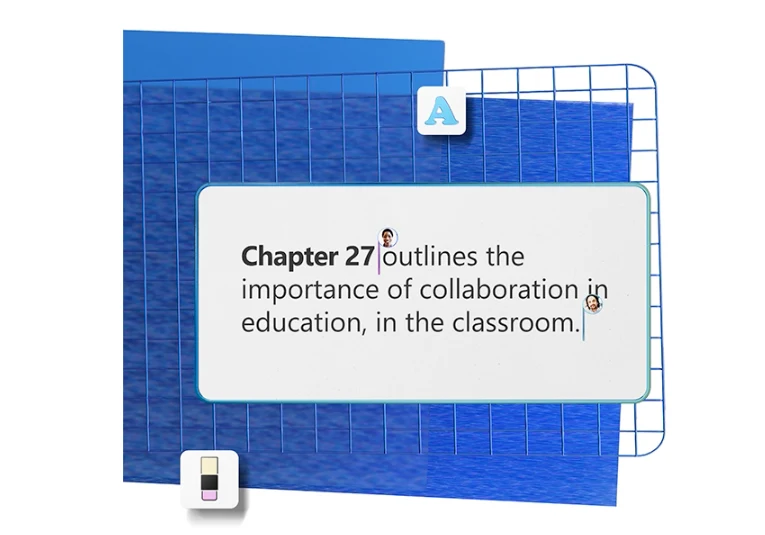
Microsoft Word has been the go-to word-processing software for decades. And now it’s online, with even more features to help with Word document collaboration and feedback. These include:
- Shareable links, so your collaborators can access, comment on, and edit your document
- Real-time sync, so you’ll never lose your documents
- Built-in translator, for collaboration with non-native speakers
Pros
- Familiar software
- Integrates with other Microsoft apps like Microsoft Teams
Cons
- Difficulty with reviewing, editing, and sharing docs outside of Microsoft365
- Doesn’t support PDF annotation
- Comments disappear and are hard to find once they’ve been marked as resolved
- No side-by-side version comparison
- No option for setting due dates for feedback
- Sharing permissions is difficult to manage for larger teams
Pricing
Microsoft 365 packages start at $6.99/month.
4. Evernote
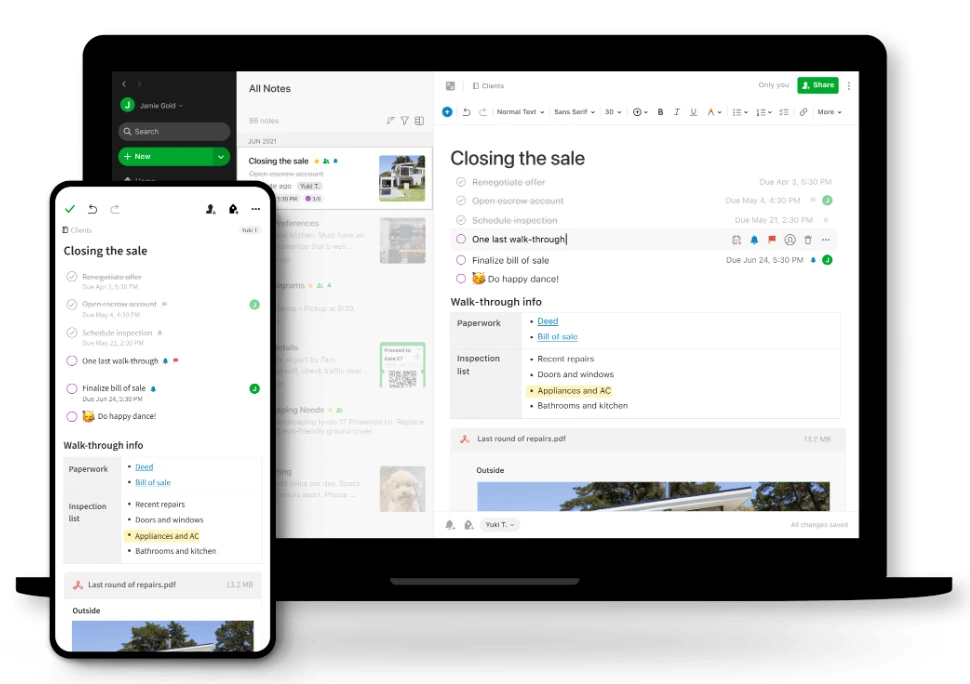
Evernote is a note-taking and task management app that helps teams to stay in sync and collaborate on documents wherever you are, and on any device. One team member can begin a note on their phone, edit it on their laptop, and collaborate on it with a teammate on the other side of the globe. It can be a nice addition to your team’s workflows if you work across different timezones.
Key features:
- Dedicated spaces and notebooks make it easy to stay organized
- To-do lists help you keep on top of what needs doing
- Ready-made templates save you time
- Annotation tools for providing feedback on images and PDFs
Pros
- Easy to use
- Seamless syncing, so your notes are always updated and accessible
Cons
- Notes can’t be accessed offline
- Real-time collaboration is only available in beta mode
- Limited file types supported
- Can’t assign or track tasks
Pricing
There’s a basic free version of Evernote, or upgrade from $7.99/month.
5. Notion
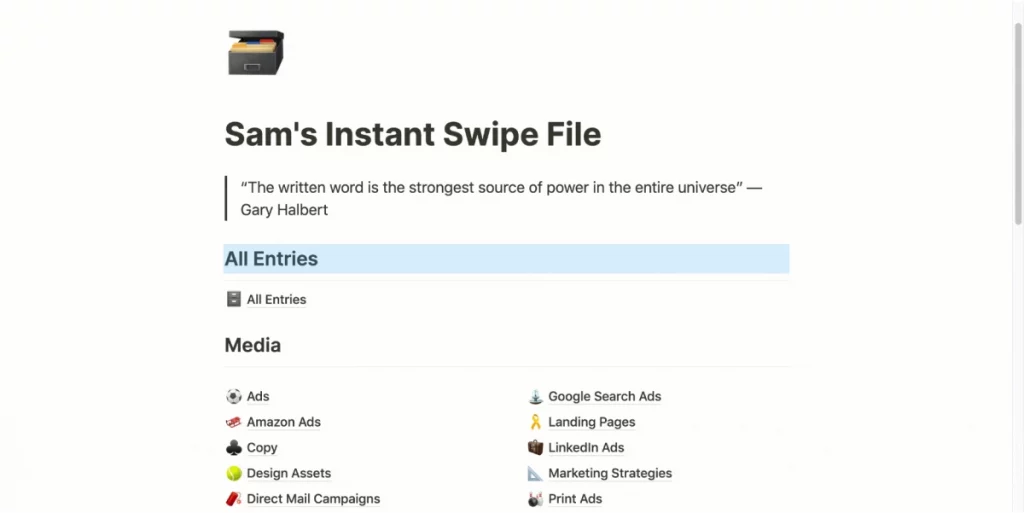
Notion is a brilliant wiki tool that helps you collaborate on documents as part of your company knowledge base. Organize documents – from process documents and product updates to HR policies and onboarding materials – in a way that works for you and your team, assign tasks, and invite as many collaborators as you like so that you can work together to keep knowledge up to date.
Key features include:
- Customizable wiki, to make it work in the way that suits your team best
- Thousands of community-created templates for quick and easy setup
- Version history to monitor changes and roll back to previous versions if necessary
- Page discussions help you and your team converse about a project, or give and receive feedback
Pros
- Supports multiple content types, including images, videos, and web bookmarks
- Multiple view options, including timeline, list, and gallery
- Notifications and reminders help with timely feedback
Cons
- Confusing navigation for new users
- Long set-up time
- Editing and formatting text isn’t super intuitive
Pricing
There’s a free version, or you can upgrade from $8/user per month.
6. Trello
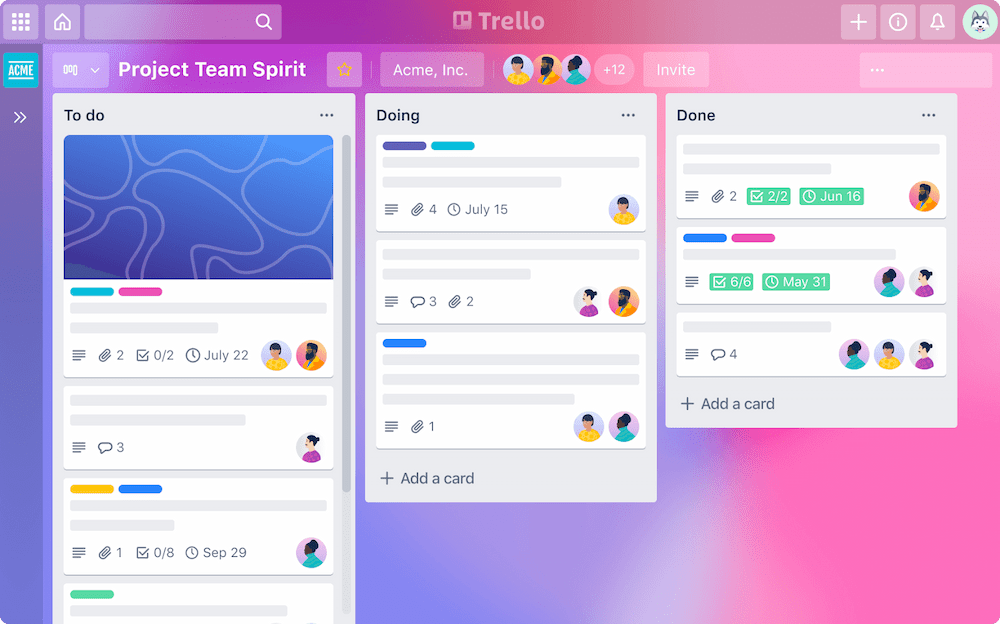
Trello is a super simple document collaboration tool that allows you and your team to organize daily tasks, projects, and to-do lists in a visual and intuitive way. This makes it easy for remote teams to visualize project timelines and progress.
You can create boards representing projects or goals and populate them with lists and cards that can be moved around as tasks are completed, or your priorities change. So if you’re looking for a free, simple solution that can instantly bring value to your team, Trello will be the right project management platform for you.
Key features
- Lists that represent sequential stages within a project
- Cards for dividing individual tasks
- Drag-and-drop interface for simplifying the user experience
- Collaboration tools like comments, attachments, and due dates
- Customizable boards for organizing documents based on the needs of your project
- Seamless integration possibilities with third-party apps
Pros
- Trello’s intuitive, user-friendly interface makes it easy for new users to quickly get the hang of things
- Users can customize their boards to match their specific project needs
- Trello integrates seamlessly with various third-party apps and services
- Trello offers a free version with essential features, making it accessible to individuals and small teams
Cons
- Trello lacks advanced features that you might need for complex project management
- Advanced project dependencies and timelines aren’t easily managed compared to some other tools
Pricing
Trello offers four different pricing plans:
- Free plan with unlimited personal boards, cards, and lists
- Standard plan for $5/user per month – designed for small teams that need to manage work and scale collaboration
- Premium plan for $10 user per month – designed for teams that need to track and visualize multiple projects in several ways, including boards, timelines, and calendars
- Enterprise plan for $17.50/user per month – designed for large organizations
7. Slack
Slack is a popular team collaboration tool for instant messaging, and it’s adored by small teams and large organizations alike. Mostly because it can do wonders for team productivity by removing the need for meetings and making communication asynchronous.
Being able to get in touch with your teammates quickly and easily about a certain document project is crucial, especially when working remotely. Slack helps you easily share documents with colleagues, lead discussions related to the project, and set up your document project management process.
Key features
- Channels allow you to organize your discussions by topic
- Direct messages allow you to have private one-on-one or group conversations
- With integrations you can connect your Slack profile with a wide array of apps and services
- You can have threaded conversations for organized discussions within channels
- Voice/video calls give you real-time communication options
- You can create customizable channels for specific teams or projects
- Powerful search for past conversations and files

Document collaboration tools FAQs
1. What is an online document collaboration platform?
An online document collaboration platform is the best way to work with your team on a document in real time. The document is hosted online, on platforms like Filestage, and you and your teammates can review, comment, and make edits together, all at once, from anywhere.
2. How does document collaboration work?
With document collaboration software, you and your teammates can work on the same document at the same time. Everyone’s suggestions show up in real time, and everyone’s changes are made in the same document. Easy!
3. What are the three types of collaboration software?
There are three main types of collaboration software to help your team collaborate seamlessly: communication tools (like Slack or Microsoft Teams) for chatting and meetings, project management tools (like Trello or Asana) to keep tasks organized, and document collaboration platforms (like Filestage or Google Workspace) for reviewing and editing files in real time.
4. What is the best way to collaborate on a document?
The best way to collaborate on a document is with a document collaboration tool that’s specifically designed to help you, your teammates, and other stakeholders work together on the same document.
Need to create highlights and draw annotations on top of your content? Take a look at our roundup of the best markup tools
5. What is an online shared document?
An online shared document is a live document that lets multiple team members make edits at the same time.
Google Docs and Microsoft Word are the two most popular document collaboration tools for this type of work. But you can also create a collaborative document in tools like Slides, Sheets, PowerPoint, and Excel.
How to choose the best online document collaboration tool for your situation
The best online document collaboration tool depends on what you’re working on, how many people you’re collaborating with, and how many stakeholders need to provide feedback.
If you’re a Google user collaborating with one or two others, and you don’t need to go through a review and approval process, use Google Docs. If you’re an Office user collaborating with one or two colleagues, and you don’t need to collect feedback on your work, use Microsoft Word.
If you’re working on a company wiki, Notion is a brilliant tool for the job. Or for quick and collaborative note-taking, Evernote is the best software for the job.
If you need to collaborate with lots of people and get feedback from an array of stakeholders, Filestage is the best document collaboration tool for collecting feedback and keeping your versions organized.
Document collaboration tools FAQs
What is a document collaboration tool?
A document collaboration tool is software that enables different people to collaborate on the same document at the same time, while simultaneously tracking comments, changes, and version history. These tools make the collaboration process smoother, reduce email back-and-forth, and ensure that people can always access previous iterations of a document.
Which tool is best for real-time collaboration on documents?
If you just need a tool to collaborate on documents with your teammates, Google Workspace is one of the best options. However, if you need to annotate images, track approvals, compare versions, and use AI to review content, then an online proofing platform like Filestage is the best solution.
What is the best tool for collaboration?
The best collaboration tool depends on your team’s needs. For instance, Slack is one of the best tools for instant messaging and real-time communication, but it’s not structured enough for document collaboration. Documents and feedback can easily get lost in threads, resulting in chaos. For document collaboration, it’s best to go for a dedicated tool like Google Workspace (for general collaboration) or Filestage (for detailed document reviews).
How to work collaboratively on a document?
Trying to collaborate in a document while six other stakeholders are in there making changes can get overwhelming. But, there are some best practices you can follow for a smoother process:
- Choose the right tool for your needs – make sure it has real-time editing, version tracking, and commenting for a truly collaborative experience
- Set clear permissions – only allow specific people to edit, comment, or view the document to keep things streamlined and avoid conflicting feedback
- Define a few collaboration ground rules – keep things organized with some set rules (for instance, using comments or suggestions rather than direct edits)
- Manage version history – make sure you have a clear way to manage document versions and track changes
- Keep comments contextual – encourage reviewers to annotate the document in the right section
- Set up a proper review and approval process – build a structured review workflow to make sure the right version goes out into the wild
Final thoughts
Document collaboration software makes the process of reviewing, amending, and editing so much easier. If you’d like to see for yourself how Filestage could help with document collaboration and feedback management, start a free trial →