
TL;DR
Document review processes break down when multiple reviewers leave feedback across email threads and evolving file versions, making it nearly impossible to track changes or verify which stakeholders approved what. A structured approach using review steps lets you route files to specific teams like marketing, legal, or compliance in sequence, keeping feedback focused and preventing bottlenecks. Reviewers can add comments directly to PDFs and other documents using in-context markers, annotations, and attachments, eliminating confusion about which sections need changes. Version control automatically archives every iteration with its complete feedback history, so you can compare versions side by side and audit the entire approval journey.
Why an effective document review process matters
From marketing to legal teams, document reviews are essential. They help to make sure your content is accurate and free from embarrassing mistakes. And in some cases, they can even prevent costly legal proceedings.
The trouble is, doc review in Google Docs or Office 365 is a nightmare for everyone involved. These documents evolve with each edit, spawning new versions every few minutes. This makes tracking the journey of your document review feel like a mission impossible – especially once a comment is marked as resolved.
But it’s not all doom and gloom! With an organized document review process in place and the help of document review software, everything becomes much more straightforward.
In this guide, I’ll deep dive into the document review process, explaining how it works, what to look for in document review, and how tools can simplify and help you consistently review files.
Supercharge your document reviews
Share content, get feedback, and manage approvals with Filestage.
What is a document review?

A document review is the process of checking a document to make sure it’s ready to be used or published. This usually involves reading the document, checking the sources, and making sure any data points are accurate.
Traditionally, people would leave their feedback on documents using pen and paper. But this can get messy when multiple people need to take part in a single document review. Not to mention impossible when you’re all working in different places, and you need to be able to review relevant data remotely. That’s where an online document review process comes in.
What is a document review process?
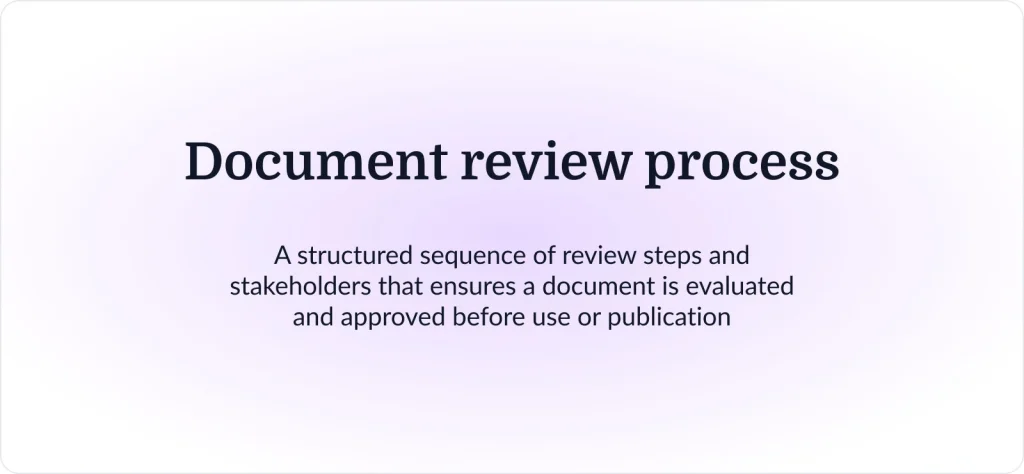
A document review process is a series of steps and stakeholders that your document needs to go through before it’s ready to be used or published. When it’s set up just right, a lot of this process can be automated, giving you peace of mind that your work will be reviewed and approved by all the right people.
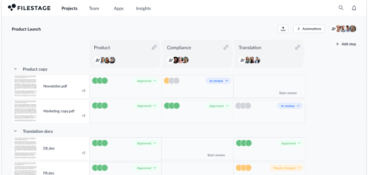
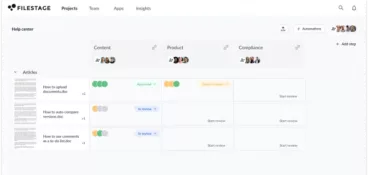
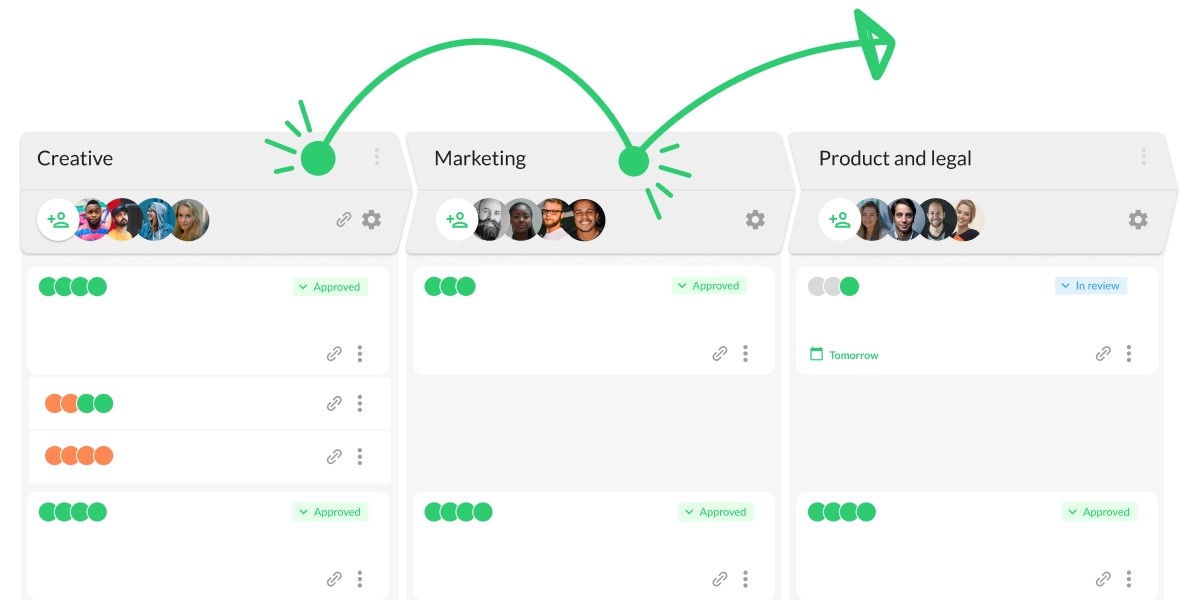
One way to set up your process is with Filestage’s document review software. You can invite people to different steps in your document review process – for example, marketing, product, or legal teams. Then you can upload relevant documents and collaborate on new versions until everyone’s happy.
How to review documents using a document review platform
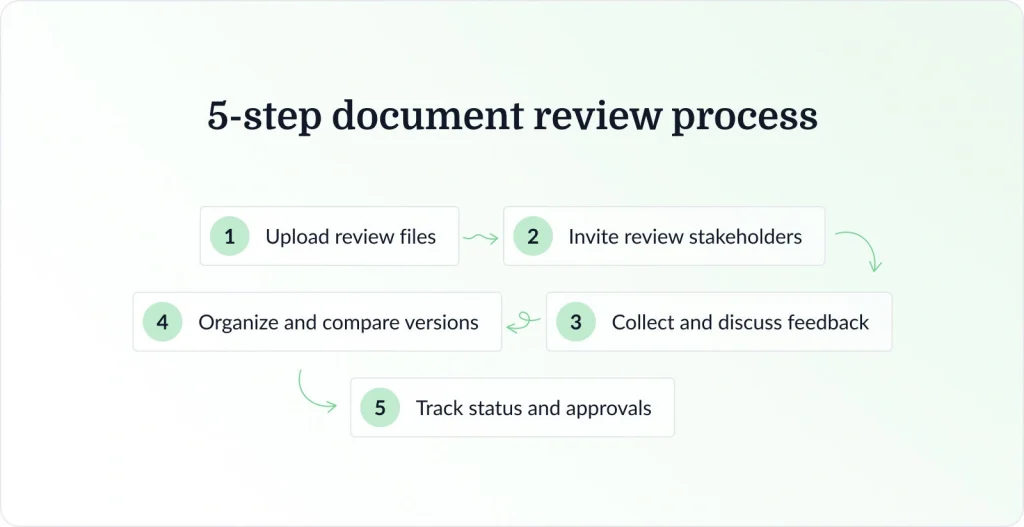
With Filestage, the document review process is broken down into five easy steps:
- Upload your files to a review platform
- Invite people to review your files
- Collect feedback and collaborate in the comments
- Keep versions organized and easy to find
- See the status of all your files at a glance
1. Upload your documents to a review platform
Before you start, you’ll need to sign up for a free trial of Filestage. Once you’re up and running, you’ll be able to create a project, give it a name, and start uploading your files.
When it comes to uploading files, Filestage works like WeTransfer and Dropbox – you just drag and drop them into your project.
But that’s where the similarities end.
Filestage is a complete review software for document feedback, collaboration, version management, and approval. As you’ll discover over the next four steps, it brings everything together and speeds up your review rounds so you can finally focus on creating your best work.
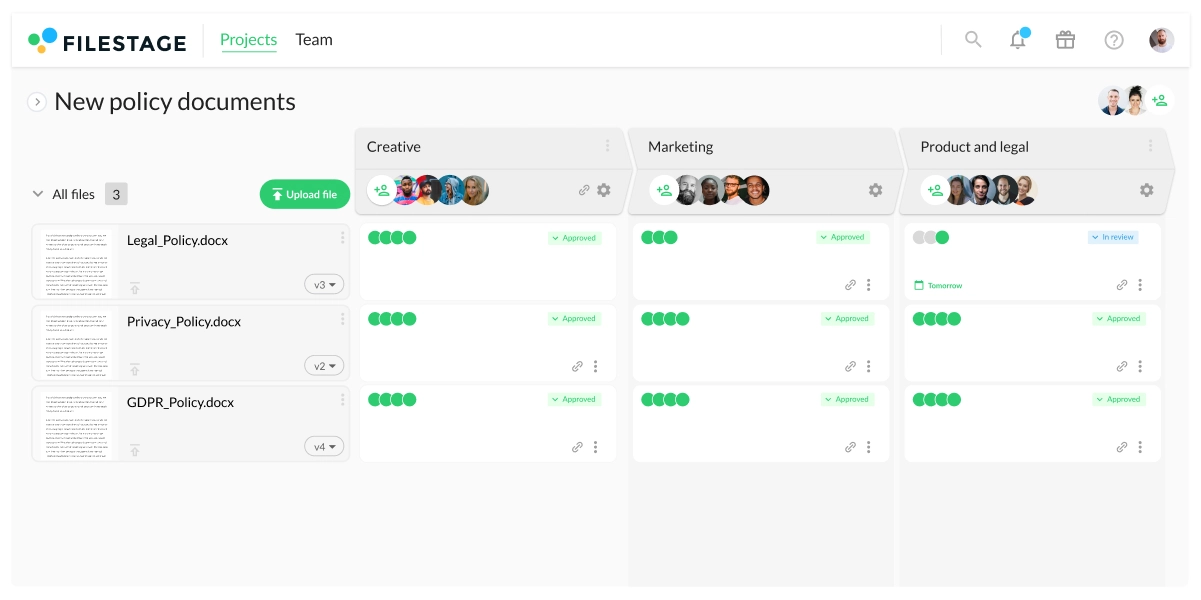
Filestage supports everything from PDFs to PowerPoint files (plus all your other file formats)
Here are all the document formats you can upload and review with Filestage:
- PDF/X
- DOC (Microsoft Word)
- DOCX (Microsoft Word Open XML)
- XLSX (Microsoft Excel Open XML)
- PPTX (Microsoft PowerPoint Open XML)
You can also import live Google Docs and Office 365 files as live website reviews. But that’s not all! Filestage also supports a wide range of other file types, including videos, images, audio, and interactive HTML. So whatever you’re creating, you can review it with Filestage.
Less time chasing feedback, more time on creative strategy
Online proofing software can cut review cycles by 30%, freeing up time for high-stakes work. Read our guide to see if it’s the right solution for your team.
2. Invite people to review your files
Once you’ve uploaded your content, it’s time to share files with the reviewers. That’s where review steps come in.
In Filestage, a review step is a group of people who need to review your document before it’s used or published. They’re a handy way of keeping feedback focused on specific topics, instead of getting bombarded by everyone all at once.
Here are some of the most common review steps review teams use in Filestage:
- Creative
- Account management
- Marketing
- Brand
- Product
- Legal document review
- Compliance
And once you’ve set up your review steps, you can use the same process for all relevant files in your review projects. All you have to do is drag and drop the next document into your project, then it’ll be shared with all the right people automatically.

“During the approval process we need on average 1-2 review rounds less per approval, and we send and receive about 20% fewer emails.”
Stephanie Isabelle Flaig, Head of Operations at Videoboost
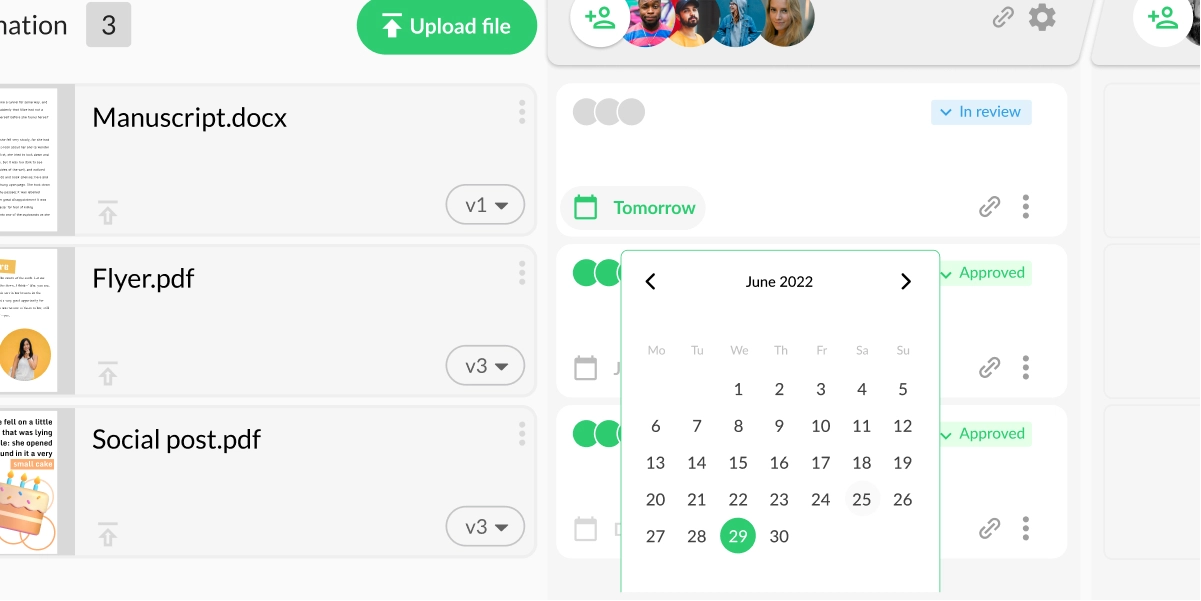
Set due dates to send automated feedback reminders
Tired of chasing stakeholders for feedback and approval? Then you’ll love Filestage’s due date feature!
You can set a date and time for feedback on every file and review step. This helps your review team prioritize their document reviews and work out what to focus on next. And if they forget to give feedback, Filestage will send them a gentle nudge to help keep your document review moving forward.
Ah, isn’t the future a wonderful place?
3. Collect feedback and collaborate in the comments
Now for the fun part!
Filestage is packed with features to help you collect and review comments and collaborate on documents with teammates and clients. This helps to make feedback more engaging for your reviewers while saving you a ton of time collecting everyone’s comments.
Here are all the great ways you can give feedback and collaborate in Filestage:
- Zoom, rotate, and drag to hone in on every detail of your file
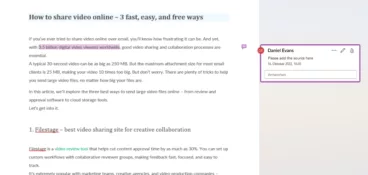
- Click anywhere to create a marker and add review comments
- Highlight text and add comments to give feedback on a specific word or sentence
- Strikeout text to show which parts should be deleted
- Draw annotations on visual content to make feedback clearer
- Add references and important assets as attachments, or edit comments for clear and straightforward feedback
- Tag and add people in a comment thread to bring them into the conversation
- Post team-only comments and replies to talk privately with your teammates
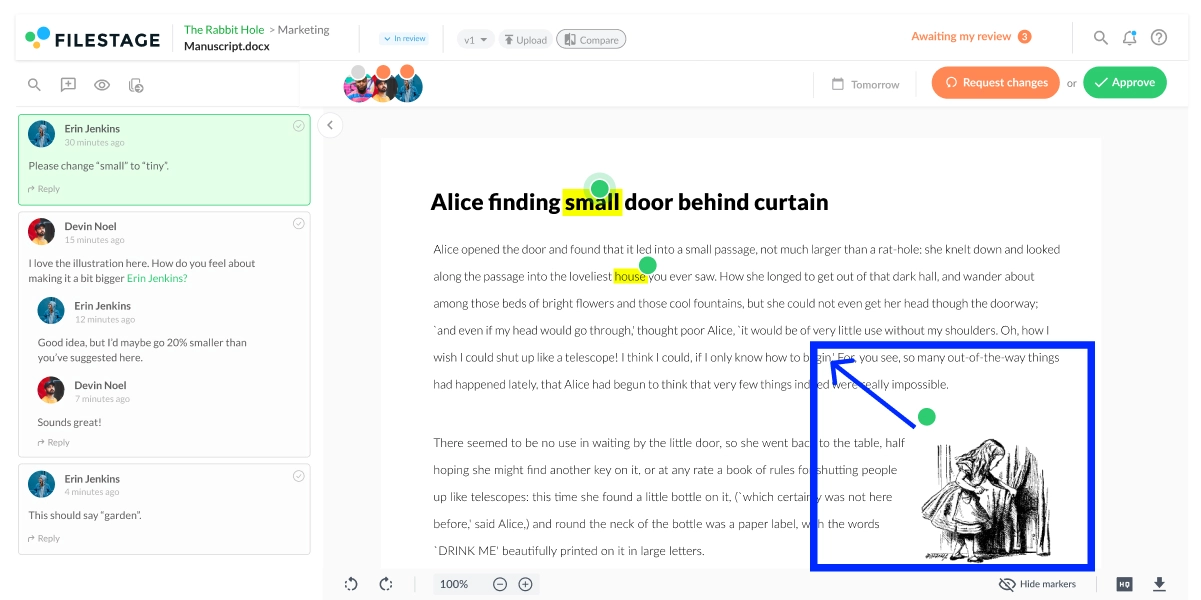
Click on a comment to jump to that part of your document
Ever had a piece of feedback over email on a complex file like a legal document, and wondered what on earth they were talking about? With Filestage, all you have to do is click on the comment to highlight the exact word or sentence.
No more getting the wrong end of the stick.
No more calling meetings to clarify comments.
Just clear, consolidated feedback – all in one place.
4. Keep versions organized and easy to find
When you use tools like Google Docs and Office 365 for document reviews, one big issue stands out above all the rest: version control.
Wondering which version is the latest.
Getting feedback on an old version.
Reviewers make copies, edit the content directly, and share them with the marketing, product, or legal teams as if your version never existed.
Filestage puts those problems in the past by keeping an automated version history of all your reviewing documents – complete with every comment and annotation.
You can access previous versions at any time from your project dashboard or file viewer. And you can even export review reports if you need to audit a document’s end-to-end approval journey.
Compare versions side by side to see what’s changed
For stakeholders, one of the most important parts of the document review process is making sure their feedback has been met.
Filestage makes this easy by letting them view any two versions side by side, along with all the comments. So instead of searching through email chains or trying to find old comments in Google Docs and Office 365, they can review the latest version faster.
Learn more about file comparison software.
5. See the status of all your documents at a glance
Last but not least, you need to get your documents approved.
In Filestage, your reviewers have a choice between four buttons every time they finish reviewing a file:
- Approve
- Approve with changes
- Request changes
- Reject
This instantly changes their status indicator to green or orange, depending on the choice they make after they’ve finished reviewing the document. So you can easily see which shared files need more work and which ones can move on to the next review step. This is particularly helpful if you’re reviewing a financial or legal document with a strict deadline.
Make stakeholders accountable to keep quality high
Gone are the days of wondering who’s approved what or losing track of which documents you still need to review.
In Filestage, every approval is timestamped and connected to a specific version. So if something gets published that shouldn’t have, you can go through your document’s review history to see where it all went wrong.
Et voila! The document review process in five simple steps.
What should you look for when reviewing a document?
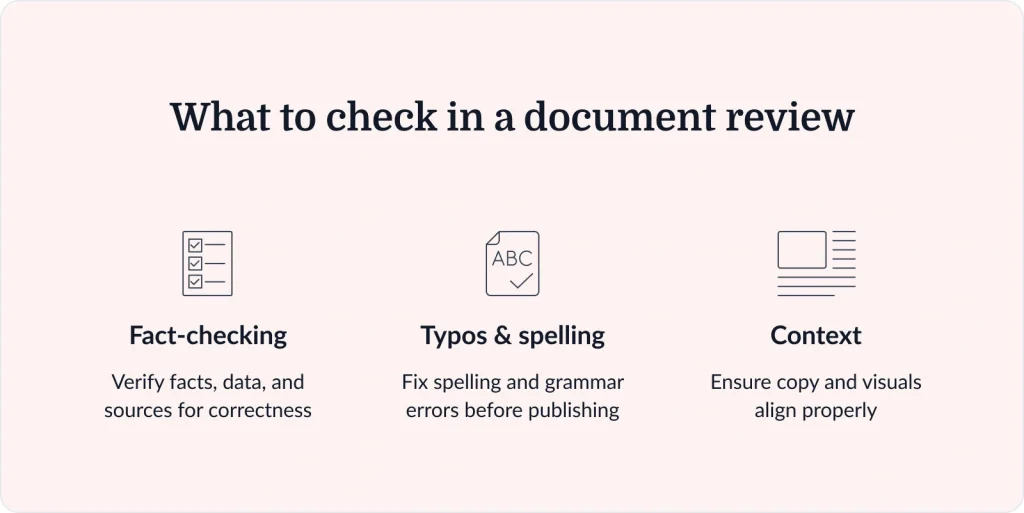
Whenever you review a document, you’re usually looking out for anything that could cause your brand or business harm.
Here are a few examples:
- Typos and spelling mistakes: These can cause a lot of embarrassment for brands and marketers, especially if your misspelled headline is plastered across the country.
- Fact-checking: If you’re reviewing a document that includes statistics or data points, you should double-check the sources and numbers to make sure they’re accurate. In the worst cases – especially when reviewing medical, financial, or legal files – publishing false information can lead to huge fines.
- Context: For individual files like product brochures, it’s important to make sure the copy and images work together. After all, you don’t want an image of a suit next to a line of text about a dress.
How to ask someone to review a document
To ask someone to review a document in Filestage, simply invite them to a review step in your project. They’ll immediately have access to all the files in that review step, including the full version history. You can also send them a link to the document review by email or chat, like Slack and Microsoft Teams.
The following steps will help you to get the most out of the document review:
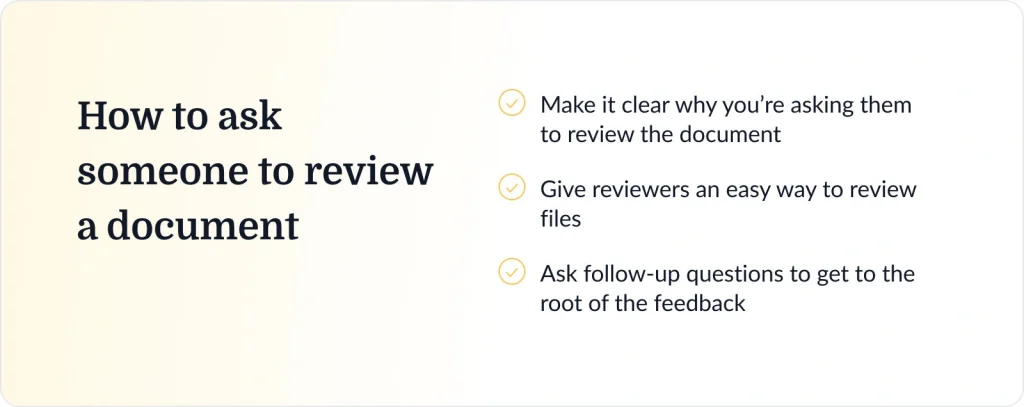
1. Make it clear why you’re asking them to review the document
Do you want reviewers to verify your sources? Are you trying to get feedback on the design aspect of the document? Or if you’re happy with the majority of the content and just want a specific paragraph checked, let your reviewers know.
When asking someone to review a document, make it clear exactly what you want them to review to prevent them from providing feedback on parts that you’re already set with.
2. Give reviewers an easy way to review files
By email, it can be hard for people to fully explain themselves. Screenshots, long-winded descriptions, hand-drawn illustrations – it can get confusing!
With online document review services like Filestage, reviewers can provide their feedback in a clear and visual way. Here’s how:
- In-context comments: tap anywhere on the file to leave a comment in real time
- Annotations: draw on videos, images, and files to bring comments to life
- Attachments: attach files to your comments to share references, company logos, and anything else your review team may need
3. Ask follow-up questions to get to the root of the feedback
If you aren’t quite sure what a comment means, or you need a little more guidance, Filestage makes it easy to collaborate and follow up. You can reply directly to comments, highlight specific aspects of the document, and ultimately find a stress-free solution.
Final thoughts
Thanks for reading! I hope you’ve learned a lot about how to review documents and why the document review process is so important.
From company policies to marketing copy, document review tools make the feedback and approval process better for everyone. If you’d like to give it a try with Filestage, sign up for a free trial and take it for a spin!
FAQ
What does a quality checklist look like when you are learning how to review a document?
When you standardize how to review a document, a checklist keeps the review process consistent and reduces rework. Start with objectives and scope, then add quality control gates like brand and compliance requirements, formatting rules, link checks, accessibility, and claim substantiation. Define what “done” means so that reviewed documents are comparable across teams. Track key metrics like turnaround time and defect rates to spot bottlenecks and improve document review efficiency over time.
How can you use AI to review documents?
You can use AI to review documents by letting it handle the repeatable checks while your experts keep control of the final decision. Start by defining what “good” looks like for your team, for example, approved terms, claims that need legal backing, required disclaimers, and tone of voice. Then use AI to scan each document against those rules, flagging issues like missing information, risky language, or inconsistent copy so reviewers can focus on clarity, logic, and whether the content is fit for purpose.
In Filestage, AI reviewers are built directly into the review and approval workflow. You can add different AI reviewers to a file, such as spelling and grammar, forbidden terms, tone of voice, and custom text checks based on your own brand guidelines. You can also use AI to check images, logos, and even QR or barcodes so packaging and marketing materials meet legal and brand requirements before they go to print. Filestage combines these AI checks with human review, version history, and audit-ready approvals, so teams can keep documents accurate and compliant without slowing campaigns down.
How do you resolve conflicting comments from multiple reviewers during a document review?
To resolve conflicting comments, start by structuring your review in rounds for different stakeholder groups. For example, let product review first, then brand, then legal, so each group focuses only on their own expertise instead of debating everything at once.
Within each review round, make sure reviewers can see each other’s comments in the same file. That way, many disagreements can be settled directly between the people involved, without extra meetings. If a conflict blocks progress, the project manager can step in, clarify the brief and priorities, and make or confirm the final call so the review can move forward.
How to review documents quickly?
To review documents quickly, start by clarifying what you’re looking for (errors, key decisions, risks, summaries, etc.). Skim the structure first by reading headings, subheadings, introductions, conclusions, and highlighted text to understand the overall flow before diving into details. Focus on high-impact sections and use techniques like chunking and keyword scanning to stay efficient. Finally, use dedicated document approval software like Filestage to keep all comments in one place and avoid direct, untracked changes that can create confusion later.