
Are you tired of chasing feedback on PDF files across endless email threads? For marketing teams and creative agencies, this chaotic document review process has a real, measurable cost. Studies reveal that 64% of employees waste at least three hours a week due to collaboration inefficiencies. If you ask me, that’s a significant drain on productivity that could be spent creating.
PDF annotation software transforms static documents into dynamic collaboration hubs. Rather than relying on additional software like email or messaging tools for feedback, your team and clients can write notes, leave text annotations, and draw attention to specific elements directly on the original file. The result is a cleaner, faster document review process with fewer dropped comments and no version chaos.
This article breaks down the 10 best PDF annotation software to help you streamline your workflow and get from draft to approved, faster.
TL;DR
- This article compares the 10 best PDF annotation software for marketing teams, from all-in-one review platforms to lightweight free tools
- Every tool was evaluated across annotation depth, collaborative features, ease of use, and value
- Seven of the 10 tools offer a free plan; PDFelement, Foxit, and Nitro PDF Pro require a paid subscription from the start
- Pricing ranges from free (Preview, macOS) to $199/month (Filestage), with most per-user plans starting under $15/month
- For deep PDF editing and document management, Adobe Acrobat and PDFelement are the strongest options
- For marketing teams managing client approvals, Filestage is the standout choice
How these 10 pdf annotation tools compare
Use this table to compare the full feature set at a glance before diving into the full reviews below.
| Tool | Best for | Free plan | Starting price | Capterra |
|---|---|---|---|---|
| Filestage | Marketing approvals | Yes | $199/month | 4.7/5 |
| Adobe Acrobat | Advanced PDF editing | No | $14.99/user per month | 4.6/5 |
| PDFelement | Affordable editing | No | $79.99/user per year | 4.4/5 |
| Foxit PDF Editor | Enterprise use | No | $129.99/user per year | 4.6/5 |
| Nitro PDF Pro | Windows users | No | $180/user per year | 4.5/5 |
| Kami | Education | Yes | $149/user per year | 4.6/5 |
| Lumin PDF | Google Workspace | Yes | $19/team per month | 4.7/5 |
| Xodo | Cross-platform annotation | Yes | $7.99/month | 4.4/5 |
| PDFescape | Basic online use | Yes | $2.99/user per month | 4.5/5 |
| Preview (macOS) | Apple users | Free | Free | N/A |
Pricing verified May 2026. Always check each tool’s live pricing page before committing.
How we selected these tools
Every tool in this list was evaluated against four core criteria:
- Annotation depth – does it go beyond basic highlighting to include handwritten annotations, shapes, stamps, and a full comment tool?
- Collaboration – does it support real-time co-annotation, permission structures, and external reviewer access?
- Ease of use – is the interface intuitive enough for clients and stakeholders who don’t use the tool daily?
- Value – does the feature set justify the price, whether free or paid?
We cross-referenced Capterra reviews, live feature pages, and current pricing to build this list.
10 best PDF annotation software for marketing teams
Ready to replace messy email chains with a streamlined review process? Here are the top PDF and document annotation tools to help your team collaborate faster and smarter.
Best for review and approval
1. Filestage – best for streamlined marketing approvals

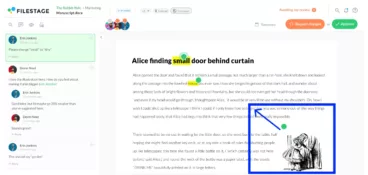
Filestage is an all-in-one review and approval platform that turns chaotic PDF feedback into a clear, actionable process. It’s designed for marketing teams and agencies that need a structured way to collect precise annotations from clients and stakeholders, across everything from campaign briefs to design projects.
Unlike standalone PDF editors, Filestage is built around the document review cycle. That means automated workflows, clear approval statuses, and a centralized dashboard that gives you full visibility across every file in your project.
Key features
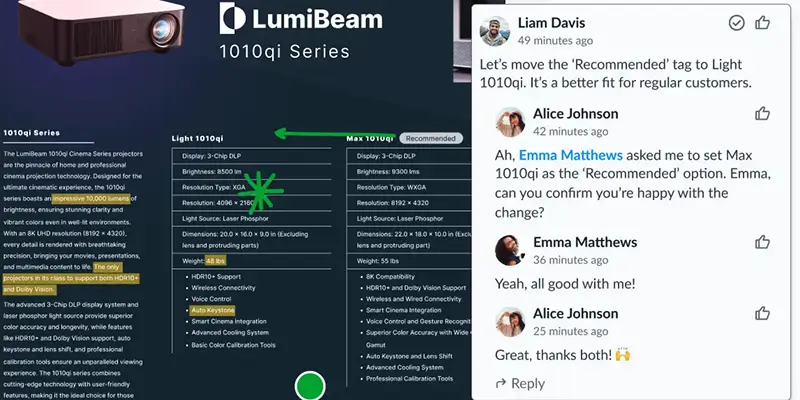
- In-context annotations – reviewers can highlight text, sketch directly on the PDF, and write notes in context, so feedback is always tied to the relevant element
- Side-by-side version control – compare any new version against previous ones to track exactly what changed and access older iterations when you need them
- Automated workflows – set review stages with due dates and automated reminders so approvals move without manual chasing
- Centralized dashboard – track feedback and approval status across all your design projects in one place
Pros
- Cuts review cycles and eliminates email chaos
- No login required for external reviewers, removing friction for clients
- Maintains a clear audit trail of all feedback and decisions
- Unlimited reviewers on both free and paid plans
Cons
- More feature-rich than a solo freelancer might need
Pricing
Get started with a free version. Paid plans begin at $199/month for unlimited projects and reviewers.
Capterra review

“Filestage enjoys a very high level of acceptance among reviewers. So high that when we accidentally send a PDF via Outlook for review, the reviewers don’t accept it.”
Thomas Nesensohn, Team Leader of Technical Communications at Zünd
See how Filestage can speed up your approvals
Enjoy a free, 30 minute consultation with our experts, tailored to your team and use cases.
Best for advanced PDF editing
2. Adobe Acrobat – best for industry-standard PDF features
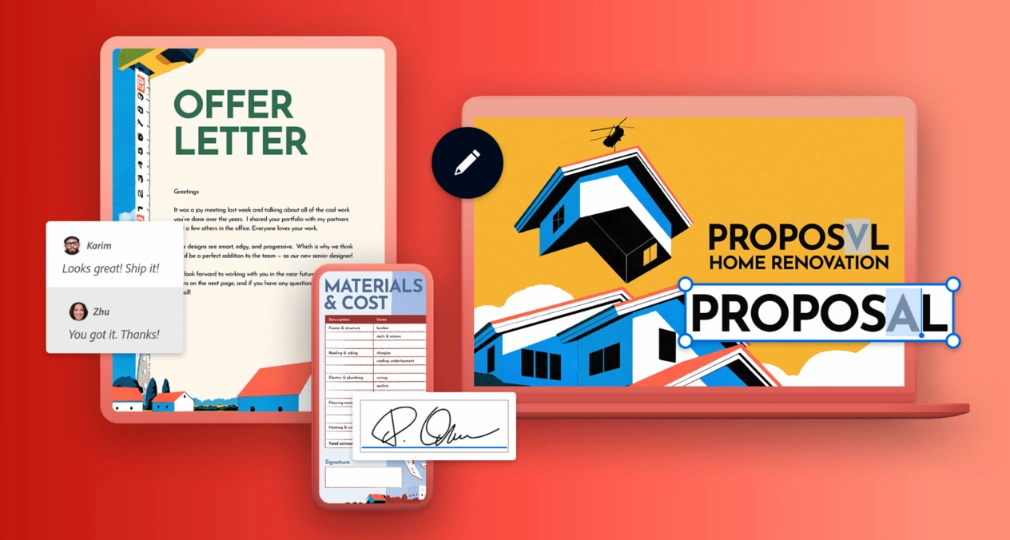
Adobe Acrobat is the original PDF tool powerhouse, offering a comprehensive suite of annotation options for everything from simple markups to complex document editing. If you need to edit PDF files at a deep level, convert between formats, or use OCR to convert scanned documents into searchable text, it remains the industry benchmark.
Real-time simultaneous annotation is available through Adobe Document Cloud, so multiple authors can add text annotations and comments on the same document without creating version conflicts.
Key features
- Extensive markup tools – highlight, strikethrough, underline, add custom stamps, and leave comments with full formatting control
- Drawing and shape tools – sketch directly on documents using freehand pens or pre-set shapes to draw attention to specific elements
- Cloud collaboration – share documents and collect feedback via Adobe’s cloud services, with cloud storage synced across devices
- Create and convert – make PDFs from any file, combine documents, and convert to other formats
Pros
- The most comprehensive feature set for PDF editing available
- Excellent OCR (optical character recognition) for converting scanned documents into searchable text
- Deep integration with other Adobe Creative Cloud apps
- Supports real-time simultaneous annotation through Document Cloud
Cons
- Can feel overwhelming for users who only need basic annotation features
- Collaboration workflow is more complex than dedicated review platforms
Pricing
Starts at $14.99/user per month for the Standard plan.
Capterra review
3. PDFelement – best for a powerful and affordable alternative
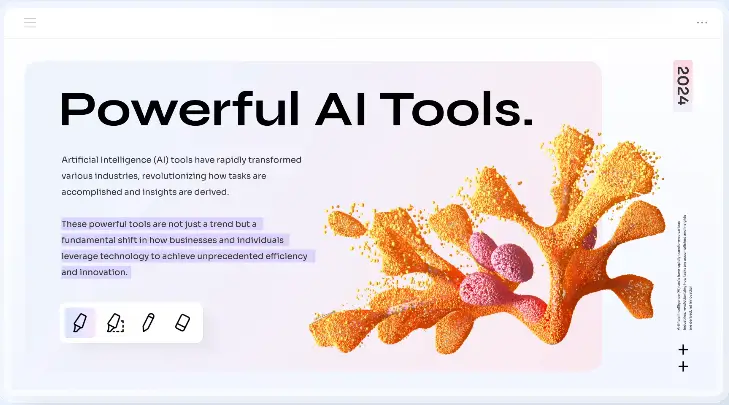
PDFelement by Wondershare delivers many of Adobe Acrobat’s capabilities at a more accessible price. It balances a strong annotation options set with an intuitive interface, making it a practical choice for budget-conscious teams that need to edit PDF files and manage document workflows without paying premium rates.
Key features
- Rich annotation set – sticky notes, text boxes, stamps, drawing tools, and handwritten annotations via stylus support
- PDF forms creation and editing – build and fill out interactive forms with ease
- Batch processing – apply annotations or conversions to multiple PDFs at once for more efficient document management
Pros
- Intuitive interface that’s easier to learn than more complex tools
- Excellent value for the feature set
- Perpetual plan gives full access for a one-off fee
- Supports handwritten annotations via stylus for more flexible feedback
Cons
- AI tools not included in paid plans
- Reports of upgrade prompts appearing even on the Perpetual plan
Pricing
Starts at $79.99/user per year for the standard yearly plan.
Capterra review
4. Foxit PDF Editor – best for business and enterprise use
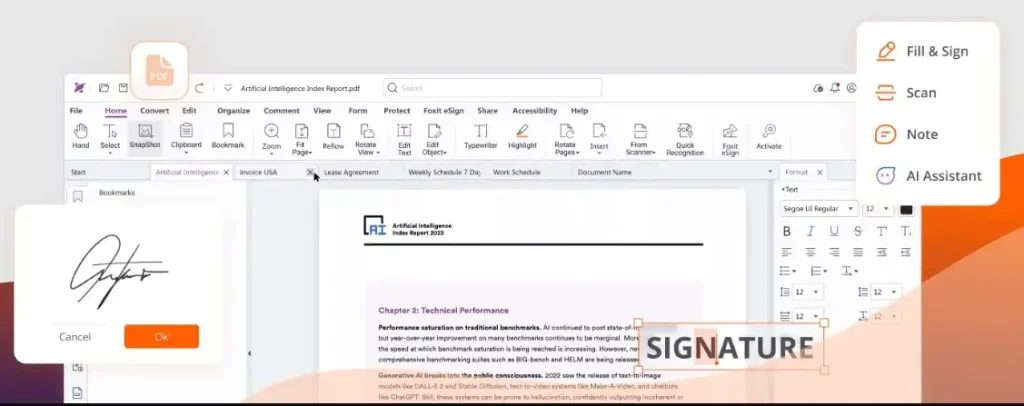
Foxit PDF Editor is a strong contender for business environments, with robust security and collaborative features built for organizations that need to manage document workflows at scale. Worth noting: this is the paid editor, not the free Foxit Reader.
Key features
- Advanced collaboration – real-time co-annotation and shared reviews let multiple authors provide feedback simultaneously on the same document
- Strong security controls – redaction, digital signature support, and permission structures to protect sensitive information
- Cross-platform compatibility – available on Windows, macOS, Linux, web, and mobile devices for access anywhere
Pros
- Enterprise-grade security and compliance features
- Powerful collaborative features for internal teams
- Generally faster and less resource-intensive than some competitors
- Subscription models include annual and multi-year options for flexible purchasing
Cons
- Advanced features require expensive plan upgrades
- Can be slow when working with complex PDFs
Pricing
Starts at $129.99/user per year for the standard Foxit PDF Editor.
Capterra review
5. Nitro PDF Pro – best for Windows users

Nitro PDF Pro is a strong Adobe Acrobat alternative designed with Windows in mind. Its ribbon-based interface will feel familiar to Microsoft Office users, making adoption easy without a steep learning curve.
Key features
- Create and convert – edit PDF files, make PDFs from any file type, and convert between formats including Word, Excel, and PowerPoint
- Collaboration tools – add text annotations, compare document versions, and track key points across iterations
- Batch processing – combine documents, add watermarks, or apply signatures to multiple files at once
Pros
- Intuitive, ribbon-based interface familiar to Windows and Office users
- Strong creation, conversion, and document management capabilities
Cons
- Primarily optimized for Windows, with weaker Mac support
- Can be resource-intensive on older machines
Pricing
Starts at $180/user per year for Nitro PDF Standard.
Capterra review
Best for lightweight and cross-platform annotation
6. Kami – best for education and light collaborative annotation

Kami is a cloud-based PDF annotator built for classrooms, with a simplicity that also translates well into basic business use. It’s particularly suited to teams already working in Google Drive, offering seamless integration with Google’s ecosystem for accessing and annotating educational materials and shared documents.
Research suggests that taking notes longhand with a stylus leads to better cognitive retention than typing. Kami’s support for handwritten notes and stylus-based handwritten annotations makes it a natural fit for learning-focused workflows, and its clean interface means anyone can pick it up in minutes.
Key features
- Browser-based access – annotate PDFs online directly in your browser with no additional software required
- Simple toolbar – easy-to-use highlight, comment tool, and shape tools for quick markups on lecture notes or educational materials
- Seamless integration with Google Drive – open, annotate, and save files without leaving your Google workspace
Pros
- Very easy for anyone to get started with immediately
- Excellent free version for individual users
- Discounts available for educators and students
- Works directly in-browser with no additional software needed
Cons
- Not designed for complex, multi-step review workflows
- Less suited to agency and marketing scale by default
Pricing
A free version is available. Paid Teacher plans start at $149/user per year.
Capterra review
7. Lumin PDF – best for Google Workspace integration

Lumin PDF is a cloud-based PDF solution built for seamless integration with Google Drive. It lets teams annotate, edit PDF files, and sign documents directly in-browser, with cloud storage syncing changes automatically across devices.
Key features
- Deep Google Drive integration – open, edit, and save PDFs directly from Drive with no additional software needed
- E-signature capability – request and add signatures to documents as part of a single workflow
- Team workspaces – create shared folders with collaborative features for organized document management
Pros
- The most seamless integration experience for Google Drive users
- Combines annotation with e-signature functionality in one tool
Cons
- Can be slow with very large or image-heavy PDF files
- Advanced editing features are limited compared to desktop editors
Pricing
A free version is available. Starter plans begin at $19/team per month.
Capterra review
8. Xodo – best for affordable cross-platform PDF annotation

Xodo is a cross-platform PDF tool covering web, desktop (Windows, macOS, Linux), and mobile. It’s built for individuals and teams that need a capable annotation and editing toolkit across devices, without the price tag of enterprise software. Note that the free tier is limited to one action per day, so a paid plan is needed for regular use.
Key features
- 40+ online annotation tools – highlight, underline, strikethrough, and freehand draw directly on any PDF in-browser
- Full cross-platform coverage – the Document Suite plan gives access to web, Windows, macOS, Linux, Android, and iOS with a single subscription
- OCR and PDF editing – convert scanned documents into searchable text and edit PDF content directly
Pros
- Strong cross-platform coverage for teams working across web, desktop, and mobile
- Affordable monthly pricing with a perpetual desktop license option for those who prefer a one-off purchase
Cons
- Free tier limited to one action per day – a paid plan is required for meaningful use
- No dedicated review workflow or approval tracking, unlike platforms built for creative teams
Pricing
A limited free version is available. Paid plans start at $7.99/month (yearly).
Capterra review
Best free PDF annotation tools
9. PDFescape – best for basic online annotations
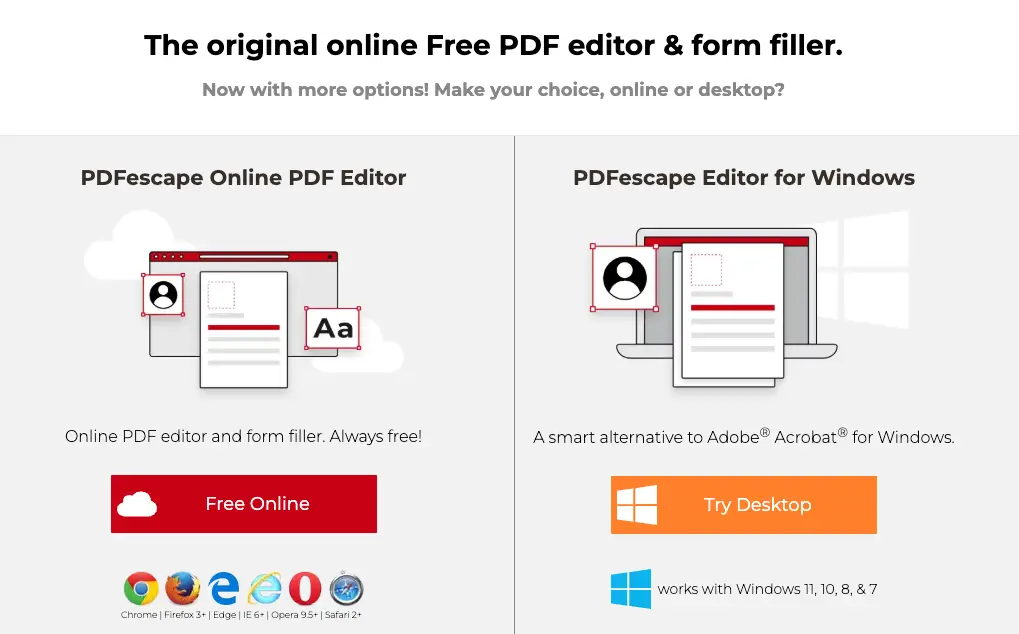
PDFescape is a free, web-based tool ideal for quick, simple annotation tasks. You can annotate, fill forms, and make minor edits without downloading or installing any additional software. It’s a practical option when you need to add notes directly to a document with no setup at all.
Key features
- Online PDF editor – works entirely in your web browser with no installation required
- Form filling and creation – design and fill out PDF forms (in paid versions)
- Basic editing tools – add notes, images, and simple markups
Pros
- No download or registration required for the free version
- Simple and effective for quick form filling and basic annotation tasks
Cons
- Limited functionality compared to desktop applications
- File size and page limits on the free plan
- Not suitable for complex documents or team collaboration
Pricing
Free version available. Premium plans start at $2.99/user per month.
Capterra review
10. Preview (macOS) – best free tool for Apple users
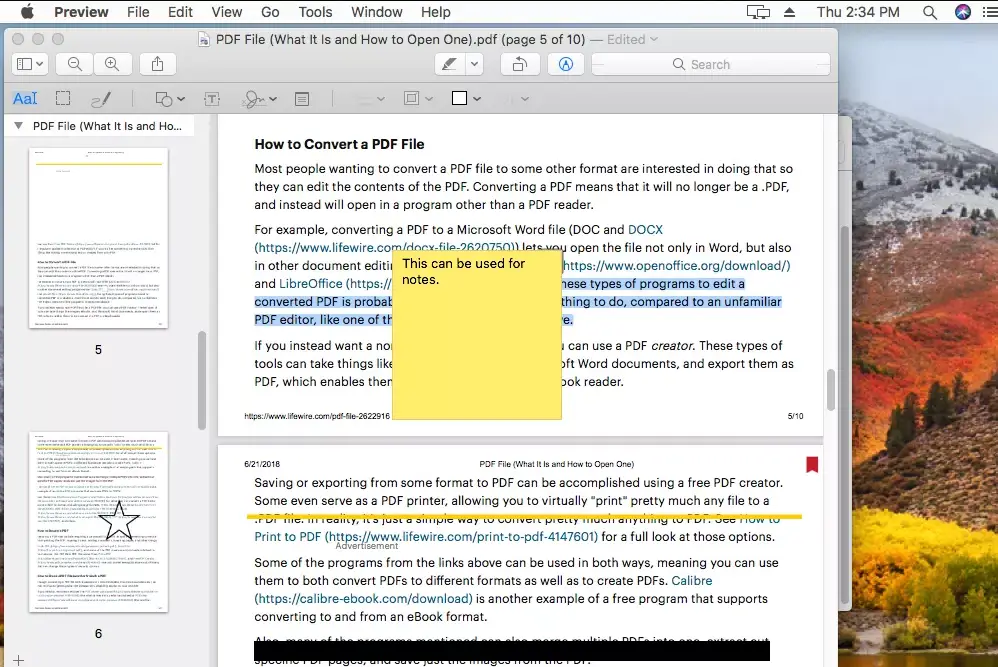
Preview is the built-in image and PDF reader on every Mac. It includes a capable set of annotation tools perfect for Apple users who need quick markups without installing extra software or signing up for cloud storage.
Key features
- Built-in markup toolbar – shapes, text, signatures, and drawing tools included by default
- Instant access – opens by default for PDFs on macOS with no setup required
- Quick signatures – use your trackpad or camera to create and save a signature
Pros
- Completely free and pre-installed on every Mac
- Fast, lightweight, and requires no learning curve for macOS users
Cons
- No collaborative features whatsoever
- Limited annotation options compared to dedicated applications
- Only available on Apple devices
Pricing
Free with every Mac.
Capterra review
N/A (built-in system tool)
See how Filestage can speed up your approvals
Enjoy a free, 30 minute consultation with our experts, tailored to your team and use cases.
Free vs paid: who needs what
Not sure whether your team needs a free plan or a paid subscription? Here’s a quick guide.
Choose a free plan if:
- You’re annotating PDFs occasionally, not as part of a structured review workflow
- You work solo or with a small internal team with no external stakeholders
- You only need basic markup tools like highlighting, note taking, and simple shapes
- You already have cloud storage and just need a lightweight comment tool on top of it
Choose a paid plan if:
- You’re managing client approvals across multiple design projects or campaigns
- You need version control so everyone is always working on the new version, not an outdated one
- You need a full audit trail for compliance, regulated content, or legal review
- Your team needs consistent collaborative features across different platforms and time zones
Most tools on this list offer a free trial period so you can test the annotation options, feature set, and interface before committing. Subscription models vary across monthly, annual, and multi-year plans, so it’s worth comparing the total cost before you sign up.
5 must-have features of your PDF annotation software
With so many annotation options available, I suggest focusing on these five features to find a platform that genuinely streamlines your workflow.
1. Real-time collaboration
The best PDF annotation software supports real-time co-annotation, letting multiple authors add comments simultaneously on the same document. For remote teams, this speeds up the document review process and eliminates the confusion of conflicting feedback across separate files.
Filestage has put together this handy video on how to comment on PDF files and add annotations:
2. Precise annotation tools
Go beyond basic text highlighting. You need a full toolkit that lets reviewers sketch directly on the document, draw attention to specific elements using shapes and arrows, and leave sticky notes with more context than a vague comment allows. Handwritten annotations via stylus support give reviewers the kind of flexibility you get with handwritten notes on paper, but with all the organizational benefits of a digital platform.

3. Version control
Strong version control means everyone is always working on the latest document, not an old version buried in an email chain. When you upload a new version, the previous one should remain accessible so you can reference earlier decisions.
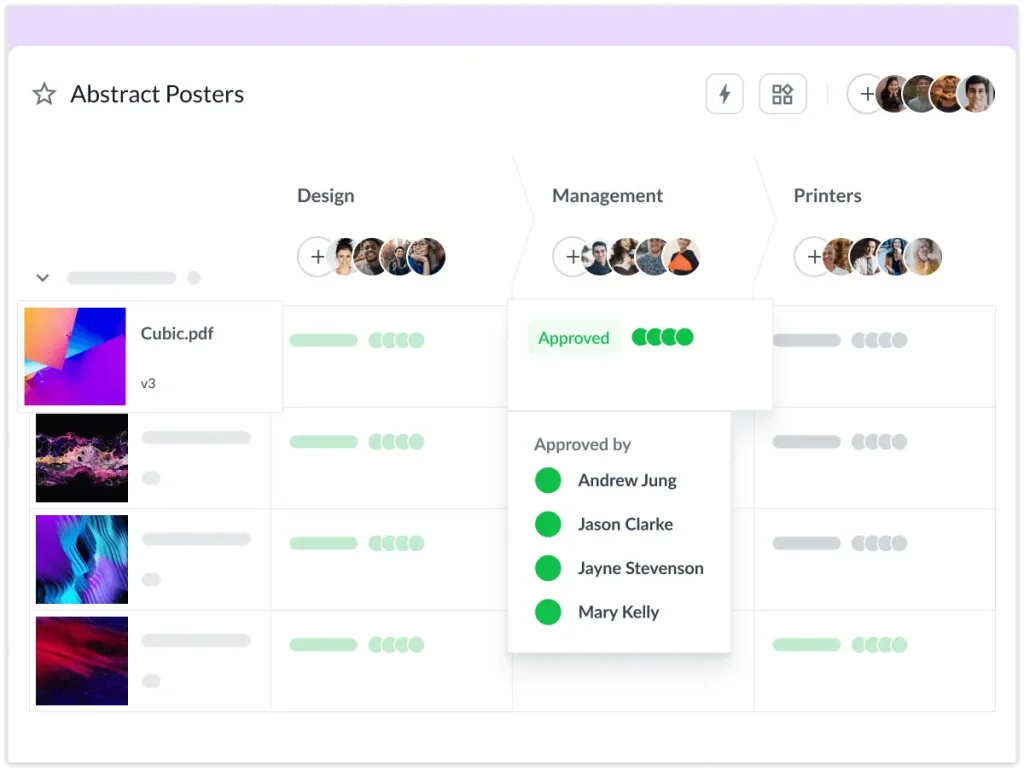
See how Filestage handles document version control to get a sense of what good version management looks like in practice. You have every asset version stacked neatly in your project dashboard, so you can easily access older iterations of your PDFs when you need to.

4. Simple external access
The best tools let clients and external stakeholders annotate files without creating an account. This removes friction and speeds up feedback cycles. For PDFs containing sensitive information, look for tools with permission structures and password protection to keep access controlled at every review stage.

5. Centralized dashboard
A clear dashboard is essential for organized document management. It should show approval status and pending feedback across all your project files so nothing slips through the cracks. For more on building this kind of structure into your process, see our guide to PDF collaboration.
See how Filestage can speed up your approvals
Enjoy a free, 30 minute consultation with our experts, tailored to your team and use cases.
3 tips for making better PDF annotations
Unsure how it all works in practice? Here are some practical tips to help you hit the ground running.
1. Be specific and contextual
Use your annotation tools to be precise. Highlighting text or drawing an arrow directly to an element gives reviewers the context they need to act on feedback immediately. Writing notes directly on the relevant area of the file prevents the kind of back-and-forth that adds unnecessary rounds to your review cycle. Learn more in our guide to annotating documents.
2. Use a consistent color system
Create a simple color-coding system for your team. Red for errors, yellow for questions. This visual cue helps reviewers quickly identify key points and prioritize their responses without reading every comment in full.
3. Consolidate and resolve feedback
Use a platform like Filestage to keep all discussions in one place. Team members can reply to comments directly on the PDF, creating a single source of truth for every decision. This is essential for a smooth document review process, especially when multiple stakeholders are involved.

FAQ – PDF annotation software
What is the best software to annotate a PDF?
For marketing teams needing streamlined client approvals, Filestage is the strongest choice. See our guide on how to annotate on Google Docs for a free alternative.
Can I annotate a PDF for free?
Yes! Tools like Filestage and PDFescape offer free versions for PDF annotation. Explore more in our roundup of free PDF markup software.
How do I annotate PDFs?
Upload your PDF to an annotation tool, select a comment or drawing tool, and click to leave feedback. Standard markup tools include highlighting text, adding text boxes, and leaving sticky notes. Most platforms also support handwritten annotations via stylus for more flexible note taking. For a full walkthrough, see how to markup a PDF.
Does Google have a PDF annotation tool?
Google Drive has basic annotation features, but they’re limited for collaborative annotation at scale. For robust PDF collaboration, dedicated PDF annotation software is the better fit.
What’s the difference between free and paid PDF annotation tools?
Free plans typically cover basic annotation options like highlighting and note taking. Paid plans add features like OCR, batch processing, advanced permission structures, version control, and formal approval workflows. If your team runs regular document review cycles, a paid plan will pay for itself in time saved.
Final thoughts
Choosing the right PDF annotation software transforms how your team handles the document review process. The best tools create a clear, structured environment for feedback, cut down on email back-and-forth, and give everyone, from internal reviewers to external clients, the annotation options they need to provide precise, actionable comments.
What’s more, by bringing all stakeholders together on the same page, you eliminate chaotic email threads, reduce revision rounds, and free up more time for creative work.
Ready to streamline your PDF reviews? Start a Filestage free trial today.