Great news – if your team works remotely sometimes, you’re in good company! A Pew Research Center survey confirms that 75% of remote-capable workers are now doing exactly that. But to make it work seamlessly, you need the right remote collaboration tools.
A well-planned toolkit of remote collaboration software has become the essential glue that holds distributed teams together. It’s what turns a group of individuals in different locations into a single, productive unit. Let’s find the right tools for your team’s unique workflow.
In this guide, I’ll break down the best remote collaboration tools by use case to help you build a tech stack that empowers your team to do its best work, from anywhere.
TL;DR
Remote teams need more than video calls to stay productive. A deliberate stack of tools built around how they actually work makes the difference. This guide covers 15 remote collaboration tools across six categories: project management, communication, video conferencing, brainstorming, content review, and file storage. All 15 tools offer a free plan or free tier. Pricing ranges from free to $199/month (Filestage), with most per-user plans starting under $15/month. For teams managing creative reviews and approvals across distributed stakeholders, Filestage is the standout choice.
What is a remote collaboration tool?
Remote team collaboration is the process of individuals working together toward a common goal while being physically separated, often across different cities, countries, or even continents. A remote collaboration tool is a software platform that helps team members work together effectively, even when they’re not sharing a physical space. Think of it as a digital office where your remote teams can communicate, manage projects, share files, and collaborate efficiently in real-time.
These collaboration tools are essential for remote and hybrid teams to stay on the same page. They replace in-person meetings and desk drop-bys with organized digital spaces for video calls, task management, and document collaboration. This results in remote employees who can maintain productivity and engagement from anywhere in the world.
Check out our tips and tools to improve remote collaboration and learn about its many benefits.
Why do you need a remote collaboration tool?
Without the right collaborative tools, working remotely can quickly become a mess of scattered emails, missed messages, and unclear project progress. Gallup research shows that 48% of hybrid workers say their team has never discussed a formal plan for how to collaborate effectively. The right tools bring structure to that chaos, creating a single source of truth for your business.
The benefits are clear. Collaboration software helps teams:
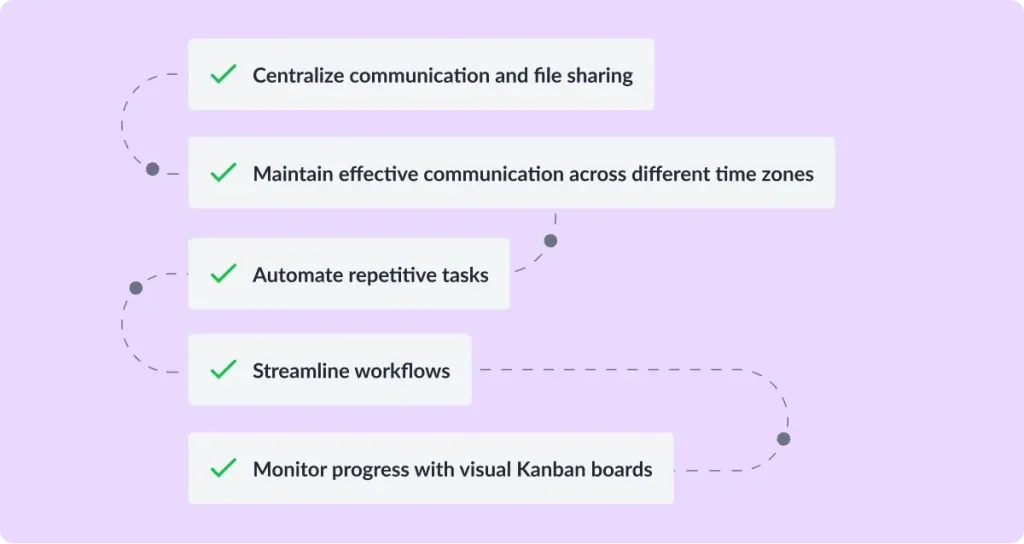
- Centralize communication and file sharing to keep everyone aligned
- Automate repetitive tasks to boost productivity
- Maintain effective communication across different time zones
- Monitor progress on projects through visual Kanban boards and to-do lists with due dates
- Streamline workflows for a more efficient process
The difference is measurable. Gallup found that teams with a formal plan for hybrid collaboration are 66% more likely to be engaged at work and 29% less likely to be burned out.
Beyond keeping the team organized, remote collaboration tools deliver numerous benefits that compound over time.
- Cost savings – remote collaboration can lead to significant cost savings for businesses by reducing overhead expenses such as rent and utilities, freeing up funds to reinvest in other areas.
- Talent pool – it also allows organizations to access a global talent pool, enabling them to hire skilled professionals from anywhere in the world, which can enhance team diversity and innovation.
That said, building trust and team cohesion can be challenging in remote settings, as the absence of in-person interactions makes it harder to develop strong interpersonal relationships among team members. This is another reason why the right tools and intentional habits matter as much as the technology itself.
For a deeper dive into building this foundation, explore our guide on the best online collaboration tools.
See how Filestage can speed up your approvals
Enjoy a free, 30 minute consultation with our experts, tailored to your team and use cases.
The best 15 remote collaboration tools by use case
The best remote or online collaboration tools specialize in solving specific problems. Instead of one tool trying to do everything, here are the top platforms, categorized by what they do best.
Project and task management
These project management tools are the command center for your team’s work, perfect for organizing tasks, assigning owners, and tracking project progress.
Trello

Trello’s card-based system gives remote employees a straightforward way to manage tasks visually and keep the team organized without a steep learning curve. Each card moves across columns as work progresses, giving everyone a shared, real-time view of what’s moving and what’s stuck. It turns your projects into visual workflows with intuitive Kanban boards, making it easy to see what’s moving forward.
- Best for – Visual project tracking for smaller teams
- Key limitation – Can become cumbersome for complex projects with hundreds of tasks
- Pricing – Free plan available or Standard plan starts at $5/user per month
Asana
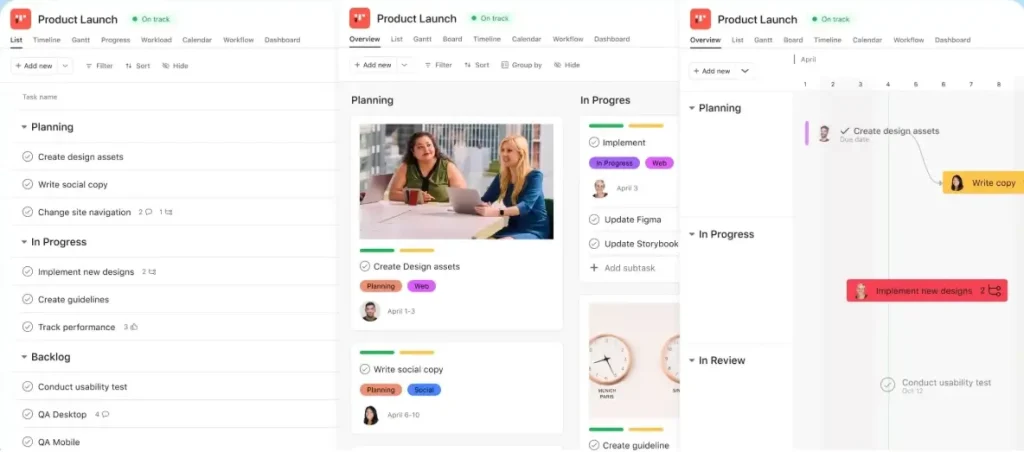
Asana helps remote teams build structured workflows around complex projects, with rule-based automation that handles routine updates so the team can focus on the work itself. Its support for assigning tasks, custom fields, and multiple views including list, board, and timeline makes it a flexible fit for cross-functional teams. It’s a powerful project management tool that helps teams coordinate tasks and projects from start to finish.
- Best for – Teams needing structure for complex projects and cross-functional workflow automation
- Key limitation – Unlike its competitors, Asana uses subtasks instead of providing a simple checklist feature for tasks
- Pricing – Free plan available or Starter plan starts at $10.99/user per month
ClickUp
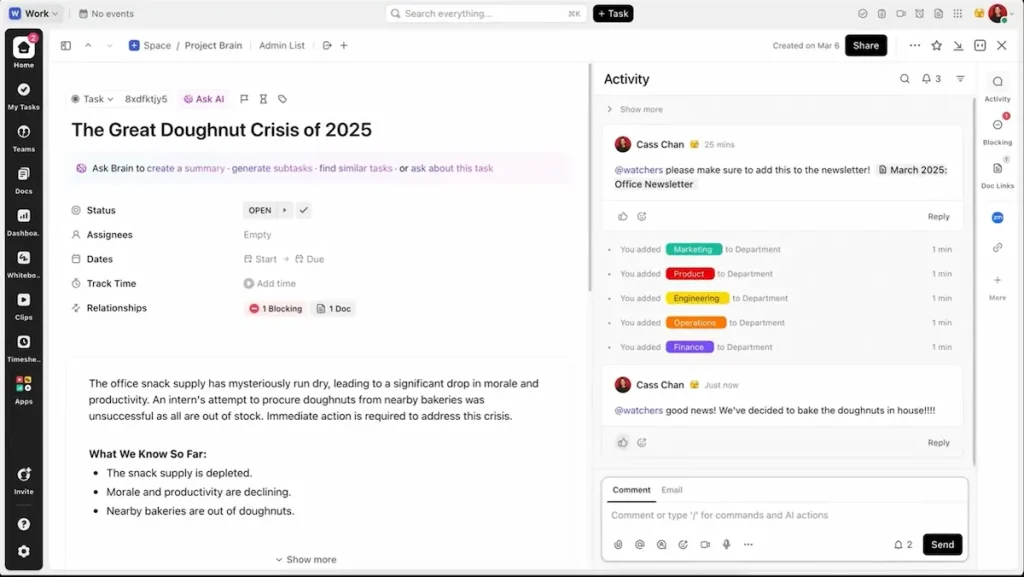
ClickUp is designed for teams that want to consolidate their productivity apps into a single, highly customizable workspace. It handles everything from assigning tasks and tracking team performance to real-time collaboration on docs and goals, making it a strong option for teams looking to reduce how many productivity tools they’re managing across their remote stack.
- Best for – Teams seeking a highly customizable platform to consolidate their collaborative tools
- Key limitation – Its extensive feature set can be overwhelming and lead to over-complication if not managed carefully
- Pricing – Free plan available or Unlimited plan starts at $7/user per month
Communication and messaging
These communication tools are the lifeblood of day-to-day interaction for remote teams, enabling both real-time and asynchronous communication. Modern platforms typically combine instant messaging with video conferencing for effective collaboration, all within a single workspace.
Slack

Slack is a leader in channel-based messaging that organizes conversations by topic or project and integrates with over 2,600 third-party apps, from Asana and Google Drive to Salesforce and Zoom. It’s the closest thing to a digital office hallway, keeping real-time messaging and real-time communication flowing without the formality of email.
A team messaging app that organizes conversations into dedicated channels for projects, topics, or teams, reducing email clutter.
- Best for – Fast-paced, channel-based communication
- Key limitation – Important information can get lost in busy channels without disciplined use and archiving
- Pricing – Free plan available or Pro plan starts at $7.25/user per month
Microsoft Teams
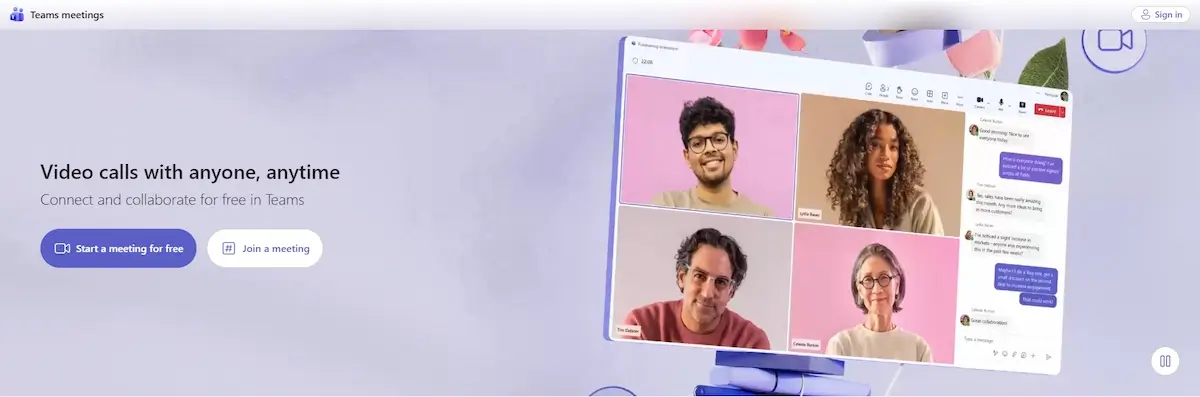
Microsoft Teams best serves enterprise organizations within the Microsoft 365 ecosystem by combining chat, video meetings, and deep integration with productivity applications. For large teams already running on Microsoft infrastructure, it removes the need for additional remote technology by consolidating communication, file sharing, and meetings in one place.
Security and compliance are critical features for collaboration tools, especially for businesses handling sensitive data, and Teams includes enterprise-grade security and compliance controls as standard.
- Best for – Larger organizations already invested in the Microsoft ecosystem
- Key limitation – Can feel bulky and less intuitive for teams that only need lightweight, fast-paced messaging
- Pricing – Free plan available or Microsoft 365 Business Basic starts at $6/user per month
Video conferencing
For face-to-face interaction, these video conferencing tools are essential for video meetings, team check-ins, and client calls.
Zoom

Zoom is the standard for reliable video conferencing, offering breakout rooms, screen sharing, recording features, and an AI companion for meeting summaries. Its consistent performance makes it the go-to for productive meetings ranging from small team check-ins to large all-hands calls, and it handles everything from one-on-ones to large webinars without the technical issues that can disrupt less mature platforms.
- Best for – Reliable, high-quality video calls and video meetings of all sizes
- Key limitation – The free plan has a 40-minute time limit on group meetings, which can disrupt longer sessions
- Pricing – Free plan available or Pro plan starts at $13.33/month per license
Google Meet

Google Meet is a browser-based video conferencing tool that plugs directly into Google Workspace, so your team can join video calls straight from a Google Calendar event without any downloads required. It’s a practical, low-friction option for teams that already collaborate in Google Docs and Drive.
A secure video conferencing tool integrated with Google Drive, making it easy to join video calls directly from a Google Calendar event.
- Best for – Teams deeply embedded in the Google Workspace
- Key limitation – Offers fewer advanced host controls and webinar features compared to dedicated platforms like Zoom
- Pricing – Free plan available or part of Google Workspace starting at $7/user per month
Loom
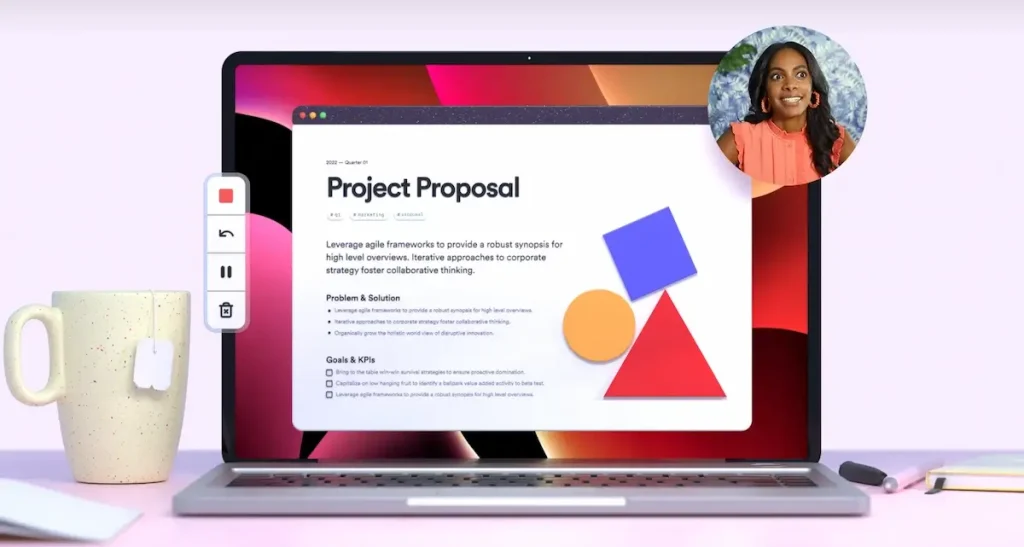
Loom lets remote employees record short, shareable videos of their screen, voice, and camera to communicate without scheduling a meeting. Built for asynchronous communication, it’s particularly useful for walkthroughs, design feedback, and cross-time-zone updates where waiting for a live screen sharing session isn’t practical.
An asynchronous video tool that lets you quickly record your screen, voice, and camera to create and share updates without scheduling a meeting.
- Best for – Asynchronous updates and communication
- Key limitation – Lacks the real-time, two-way interaction of a live video call, which is sometimes necessary for complex discussions
- Pricing – Free plan available or Business plan starts at $15/user per month
Brainstorming and whiteboarding
These virtual collaboration tools replicate the experience of an office whiteboard, enabling remote teams to brainstorm and map ideas visually.
Miro

Miro’s infinite canvas gives distributed teams a shared space for real-time collaboration on visual work, whether that’s mapping a product roadmap, running a design sprint, or facilitating a workshop. Its 5,000-plus templates mean teams can jump into structured collaboration quickly without starting from a blank page.
An infinite, cloud-based online whiteboard where distributed teams can brainstorm, diagram, and workshop ideas together in real time.
- Best for – Visual collaborative working and workshops
- Key limitation – The endless canvas can become disorganized and overwhelming without active facilitation and clean-up
- Pricing – Free plan available or Starter plan starts at $8/user per month
Mural
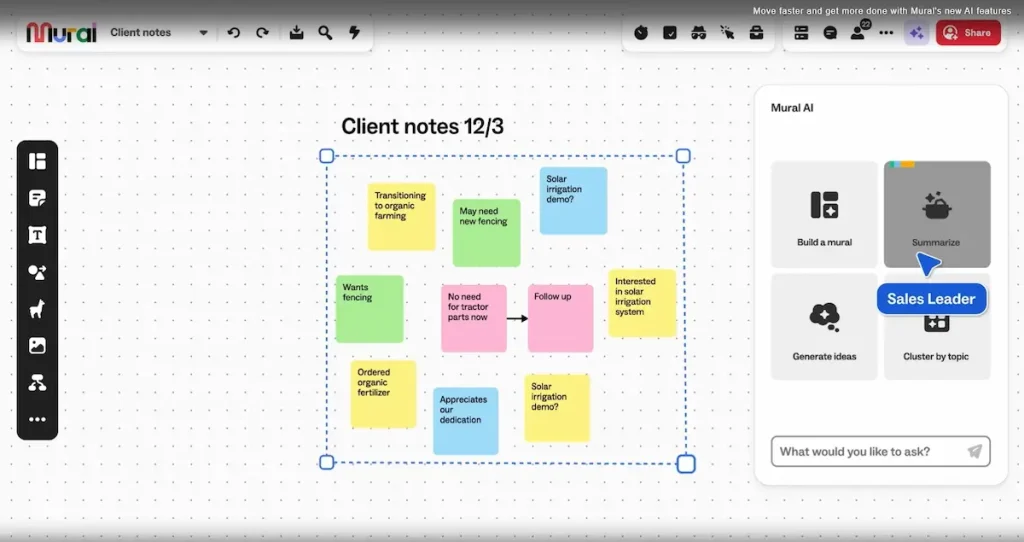
Mural is designed around structured facilitation, with guided methods and pre-built frameworks to help teams work through complex problems in a methodical way. It suits teams that want more scaffolding around their collaborative sessions, particularly those running design thinking or agile workshops.
A digital collaborative tool for visual collaboration, offering templates and guided methods for team brainstorming and strategy sessions.
- Best for – Structured visual thinking and facilitation
- Key limitation – The focus on methodology and structure can feel less free-form and spontaneous than a tool like Miro
- Pricing – Free plan available or Team+ plan starts at $9.99/user per month
Content review and approval
This category is for getting final sign-off on creative work, a process that often bogs down marketing teams and creative agencies.
Filestage

A dedicated review and approval platform that streamlines feedback on videos, PDFs, images, and audio files. It helps marketing teams and agencies get clear, actionable feedback from clients and stakeholders, all in one place.
- Best for – Streamlining the creative review and approval process for marketing teams
- Key limitation – More robust than a solo freelancer or team with very occasional review needs might require
- Pricing – Free plan available or Starter plan starts at $199/month for unlimited projects
Pro tip: You can use a dedicated tool like Filestage to replace email for feedback. This keeps all comments version-specific and in context, stopping feedback on ‘v2_final_REALLYFINAL.pdf’ from getting lost in your inbox.

“Before Filestage, our review process was pretty chaotic. Feedback came flying in from all directions – emails, Slack, PowerPoint decks, even WhatsApp (yes, really). It felt like one’s entire role was just to track down comments, consolidate input, and try to maintain a smooth workflow.”
See how Filestage can speed up your approvals
Enjoy a free, 30 minute consultation with our experts, tailored to your team and use cases.
File sharing and storage
These collaboration tools act as the central repository for a team’s documents, ensuring everyone has access to the latest versions.
Google Drive
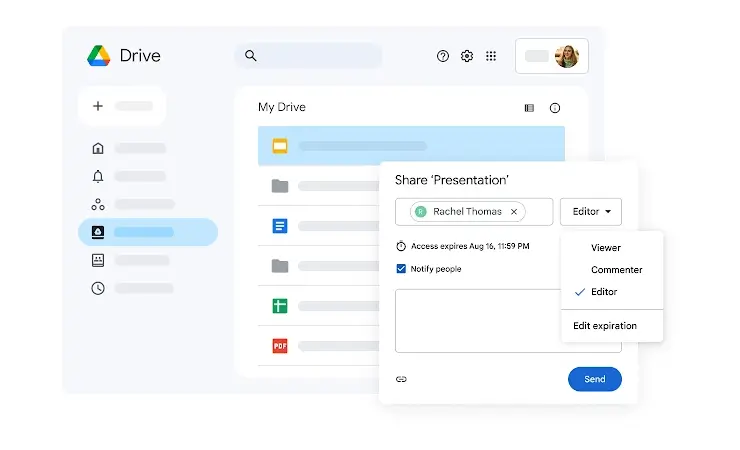
Google Drive gives remote teams a cloud-based central home for shared documents, making real-time co-authoring on Google Docs, Sheets, and Slides straightforward. Live document co-authoring allows teams to edit reports, spreadsheets, and presentations simultaneously with automatic version control, which removes the confusion of emailed attachments and duplicate file versions.
A cloud file sharing and storage service that integrates seamlessly with Google Docs, Sheets, and Slides for real-time collaborative editing.
- Best for – Teams that live in Google Workspace and need real-time co-editing
- Key limitation – File organization can become messy without strict naming conventions and folder discipline
- Pricing – 15 GB of free storage space or Google Workspace starts at $7/user per month
Dropbox
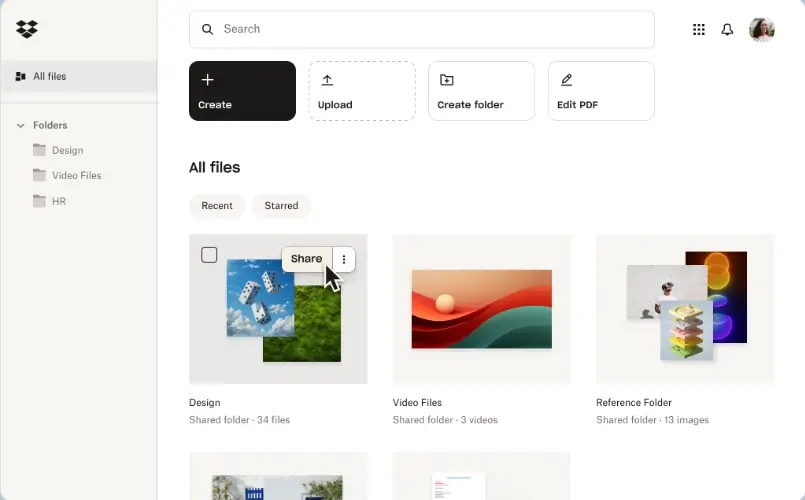
Dropbox is a reliable, platform-agnostic cloud storage service that syncs files across devices and operating systems. It’s a practical choice for teams that need to share large files or work across different hardware environments, and it works well alongside other collaboration apps rather than replacing them.
A cloud storage service designed to share files and send requests easily. It’s a simple way to store, sync, and share files of any size.
- Best for – Simple, reliable cloud file sharing and storage
- Key limitation – Its collaboration features for documents are less robust than Google Drive’s native editing suite
- Pricing – Free plan available with 2 GB or Professional plan starts at $16.58/month
Wikis and knowledge bases
These collaboration tools act as your team’s collective brain, centralizing essential information, processes, and documentation so everyone can find answers and stay aligned without interrupting each other’s workflow.
Slab
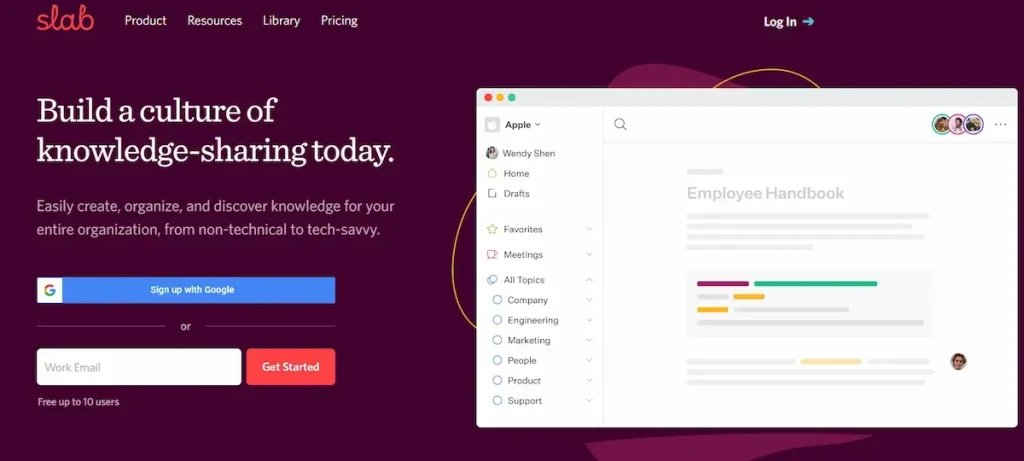
Slab gives remote teams a clean, searchable place to build and maintain their internal knowledge base. Its unified search across integrated tools means team members can find information without creating communication gaps or interrupting colleagues, which helps everyone collaborate efficiently and work from a single source of truth.
A modern knowledge base that helps teams centralize important information, from onboarding docs to process guides, with a beautiful, searchable interface.
- Best for – Teams seeking a clean, user-friendly platform to create a single source of truth
- Key limitation – May be overkill for teams that only need basic document sharing without structured knowledge management
- Pricing – Free plan available or Startup plan starts at $6.67/user per month
Slite
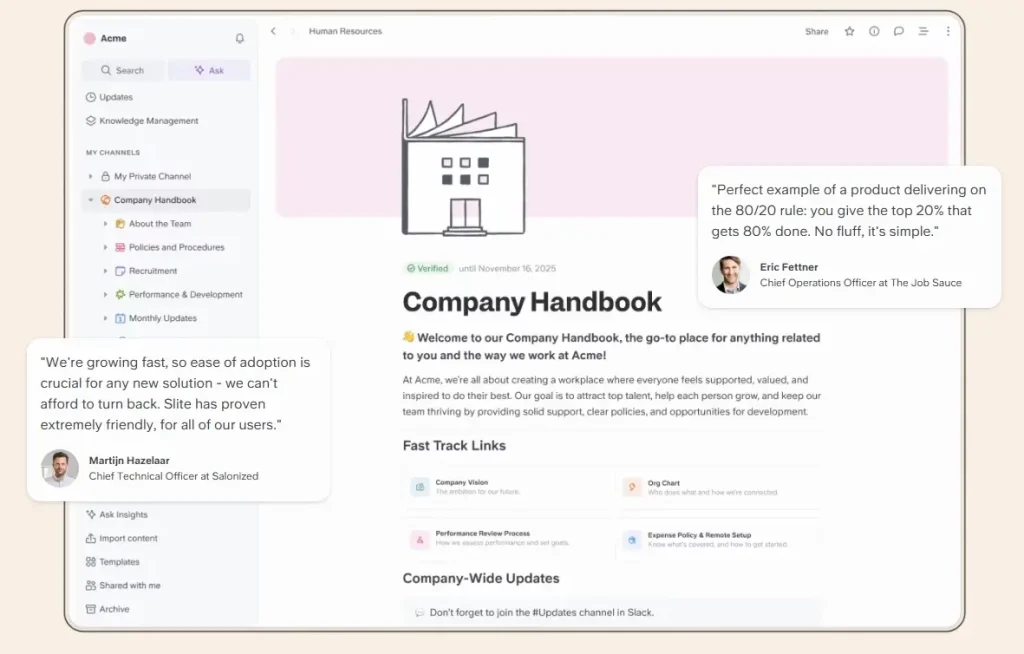
Slite combines a collaborative knowledge base with discussion features, so your team can write documentation and have conversations around it in the same workspace. It’s a good fit for teams that want their internal knowledge management to feel less like a static reference and more like a living, shared resource.
A collaborative workspace for teams to write and organize notes, docs, and processes in channels, combining discussions with knowledge.
- Best for – Teams that want a hybrid of a knowledge base and a discussion platform
- Key limitation – The channel-based structure might not suit teams accustomed to a traditional folder hierarchy
- Pricing – Free plan available or Standard plan starts at $8/user per month
Remote collaboration tools at a glance
Use this table to compare all 15 tools across key dimensions before you decide which to trial first.
| Tool | Category | Best for | Free plan | Starting price |
|---|---|---|---|---|
| Trello | Project management | Visual tracking for smaller teams | Yes | $5/user per month |
| Asana | Project management | Complex projects and automation | Yes | $10.99/user per month |
| ClickUp | Project management | All-in-one team workspace | Yes | $7/user per month |
| Slack | Communication | Channel-based team messaging | Yes | $7.25/user per month |
| Microsoft Teams | Communication | Microsoft 365 organizations | Yes | $6/user per month |
| Zoom | Video conferencing | Reliable video calls of all sizes | Yes | $13.33/month per license |
| Google Meet | Video conferencing | Google Workspace teams | Yes | $7/user per month |
| Loom | Video conferencing | Asynchronous video updates | Yes | $15/user per month |
| Miro | Brainstorming | Visual workshops and collaboration | Yes | $8/user per month |
| Mural | Brainstorming | Structured facilitation | Yes | $9.99/user per month |
| Filestage | Content review | Creative review and approval | Yes | $199/month |
| Google Drive | File storage | Real-time co-editing | Yes (15 GB) | $7/user per month |
| Dropbox | File storage | Reliable file sync and storage | Yes (2 GB) | $16.58/month |
| Slab | Knowledge base | Searchable internal wiki | Yes | $6.67/user per month |
| Slite | Knowledge base | Knowledge base and discussion | Yes | $8/user per month |
Best practices for collaborating remotely
Simply having the tools isn’t enough. If you really want to work effectively, your team needs to adopt smart habits for remote collaboration.
- Establish clear communication guidelines – Define which collaboration tool to use for what purpose (e.g., Slack for quick questions, email for formal updates). Clear communication norms minimize distractions and prevent communication gaps from developing over time.
- Over-communicate context – In a remote team, you can’t rely on overheard conversations. Be proactive in sharing status updates and project context to ensure seamless teamwork across locations.
- Default to asynchronous work – Use tools like Loom and shared documents to create updates that people can consume on their own time, reducing the need for meetings across time zones.
- Centralize everything – Use your project management and file sharing platforms as the single source of truth to avoid information silos.
- Build team culture deliberately – Use virtual team building activities, a dedicated Slack channel for non-work conversation, and regular all-hands video calls to develop the interpersonal relationships that build company culture remotely.
- Be flexible – Flexibility in the workplace significantly improves employee retention by enhancing job satisfaction, so strong remote culture also means respecting boundaries around working hours.
For more actionable advice, check out our list of remote work tips.
What’s changing in remote collaboration in 2026
Three shifts are worth building into your tool decisions now.
AI copilots are becoming standard
AI features are moving from premium add-ons to standard inclusions across the remote collaboration stack. Zoom’s AI Companion generates meeting summaries and action items automatically. Microsoft Teams Copilot handles the same for enterprise organizations in the Microsoft 365 ecosystem. These tools reduce the administrative weight of productive meetings and give remote employees more time to focus on actual work rather than note-taking and follow-up emails.
Async-first is becoming the default
Teams are deliberately choosing which type of communication fits which context, rather than defaulting to a live call for everything. Loom-style async video, shared documents, and structured knowledge bases have made it normal for remote employees to communicate and review work on their own schedule. This shift particularly benefits teams working across different time zones, where trying to overlap schedules for every discussion creates unnecessary friction and reduces team performance.
Security expectations are rising
Advanced security protocols in modern collaboration tools now commonly include multi-factor authentication (MFA), end-to-end encryption, and role-based access control. For enterprise organizations handling sensitive data, these features have moved from optional extras to baseline requirements. When evaluating remote technology for regulated industries, look for explicit confirmation of which security certifications apply alongside the feature list, and ensure your stack supports secure remote access for all team members.
How to choose the best remote collaboration tools for your team
Selecting the right remote collaboration tool is like hiring a new team member. It needs to fit your culture and get the job done. Follow this step-by-step framework to make a confident decision.
Step one – Diagnose your core collaboration headache
Before looking at any software, identify the single biggest bottleneck in your workflow. For instance, is it:
- Endless email chains for collecting feedback on designs?
- Constantly chasing status updates because project progress is invisible?
- Scheduling nightmares for video calls across different time zones?
Start by solving the most painful problem first. This focused approach prevents you from being overwhelmed by features you don’t need.
Step two – Map the tool to your team’s size and style
A tool’s “best for” label is crucial. A five-person startup will have different needs than a 500-person enterprise.
- Small, agile teams – Prioritize user-friendly tools with a generous free plan like Trello or Slack. You need speed and low friction.
- Growing departments – Look for tools that scale, offering advanced workflow automation and permission levels, like Asana or Filestage.
- Larger organizations – You’ll need robust security, enterprise plan options, and deep integrations with existing software like Microsoft Office or Google Drive.
Step three – Put the user experience to the test (yours and your clients’)
The most powerful collaboration tool is useless if people won’t use it.
- Internal buy-in – Is the interface intuitive for your team members? Is there a short learning curve?
- Client experience – For tools involving external stakeholders, the process must be frictionless. The best platforms, like Filestage, allow clients to review work and add comments without a complicated login process. This provides a seamless experience that’s often non-negotiable for smooth collaboration.
Step four – Vet the integration ecosystem
Your virtual collaboration tools shouldn’t create new silos. They need to talk to your existing software and each other.
- Check if the tool integrates with your core platforms (e.g., Google Drive, Slack, Microsoft Teams).
- Strong integrations with other technology create seamless teamwork and eliminate the need to constantly switch tabs and copy-paste information.
Step five – Take a test drive with free plans
Never buy a collaboration tool blind. The best platforms offer a free version or trial.
- Use this time to see if the tool actually solves your problem from step one.
- Involve a few team members in the trial to get their feedback on the daily usability.
Frequently asked questions
What is effective remote collaboration?
Effective remote collaboration is the process of distributed team members working together toward a shared goal using a combination of appropriate tools, clear communication norms, and structured workflows. It depends on choosing the right tools for each type of task, whether that’s real-time messaging for quick questions or async video for complex walkthroughs, alongside clear expectations about response times and shared access to documents and project context.
What security features should remote collaboration tools include?
Security and compliance are critical features for collaboration tools, especially for businesses handling sensitive data. Look for role-based access control, end-to-end encryption, and multi-factor authentication as a baseline. Enterprise organizations should also check for SAML-based single sign-on (SSO), SOC 2 certification, and compliance with any relevant industry standards such as HIPAA or GDPR. These protocols help ensure secure remote access for all team members without compromising data protection.
Which remote collaboration tools are best for asynchronous communication?
Loom is the strongest dedicated async video tool for remote employees who need to share updates or walkthroughs without scheduling a meeting. Slab and Slite both excel at async documentation. Slack supports async communication through threaded messages and channel posts, even though it’s primarily a real-time messaging platform. Google Drive and shared document platforms are also core components of any async-first workflow, giving your team a way to review and contribute to work outside of live sessions.
How does Zapier fit into a remote collaboration stack?
Zapier is an automation tool that connects thousands of apps, facilitating orchestrated workflows across your collaboration tools without manual effort. For example, you can automatically create a project task when a form submission comes in, or trigger a Slack notification when a Filestage review is approved. It’s not a collaboration tool itself, but it removes the repetitive manual steps that create friction between the tools you use every day.
How can remote teams build company culture?
Building company culture remotely requires deliberate effort. Virtual team building activities, dedicated Slack channels for informal conversation, and regular video check-ins all help develop the interpersonal relationships that form more naturally in a shared office. Flexibility in the workplace significantly improves employee retention by enhancing job satisfaction, so a strong remote culture also means respecting boundaries around working hours, particularly across different time zones.
What should enterprise organizations look for in remote collaboration tools?
Enterprise organizations should prioritize tools with enterprise-grade security, including SSO, role-based access control, and end-to-end encryption for sensitive data. Equally important are scalability, reliable uptime guarantees, deep integration with existing software, and dedicated support. Before committing, verify that each tool in your stack integrates with the others to ensure seamless teamwork without unnecessary switching between platforms.
Next steps
If clunky tools and messy processes are holding your team back, it’s time for a solution. Whether you’re drowning in feedback emails or losing track of project updates, there’s a perfect tool in this list to solve it.
The secret is to start with your single biggest headache. Pick one solution, master it, and let that quick win build momentum for everything else.
Ready to transform those chaotic creative reviews? Start your Filestage free trial today and discover how much time (and sanity) you can save.