
Are you tired of chasing feedback on PDF files across endless email threads? For marketing teams and creative agencies, this chaotic review process has a real, measurable cost. Studies reveal that 64% of employees waste at least three hours a week due to collaboration inefficiencies. If you ask me, that’s a significant drain on productivity that could easily be spent creating. It’s just as well PDF annotation software exists to solve this issue.
PDF annotation software, also known as PDF annotation tools, transform static documents into dynamic collaboration hubs, letting your team and clients leave clear, actionable feedback directly on the original file.
This article breaks down the 10 best PDF annotation software to help you streamline your workflow and get from draft to approved, faster.
10 best PDF annotation software for marketing teams
Ready to replace messy email chains with a streamlined review process? Here are the top PDF and document annotation tools to help your team collaborate faster and smarter.
1. Filestage – best for streamlined marketing approvals

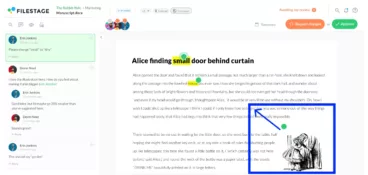
Filestage is an all-in-one review and approval platform that turns chaotic PDF feedback into a clear, actionable process. It’s perfect for marketing teams and agencies that need a simple, powerful way to get precise annotations from clients and stakeholders on everything from campaign briefs to design mockups.
Key features
- In-context annotations – Reviewers can highlight text, draw shapes, and add comments directly on the PDF document
- Side-by-side version control – Compare PDF versions instantly to see every change
- Automated workflows – Set review stages with due dates and watch the approvals roll in
- Centralized dashboard – Track feedback and approval status for all your project documents in one place
Pros
- Drastically reduces review cycles and eliminates email chaos
- Extremely simple for clients and no login required for external reviewers
- Maintains a clear audit trail of all feedback and decisions
- Unlimited reviewers on both free and paid plans
Cons
- More robust than a solo freelancer might need
Pricing
Get started with a free version. Paid plans begin at $199/month for unlimited projects and reviewers.
Capterra review

“Filestage enjoys a very high level of acceptance among reviewers. So high that when we accidentally send a PDF via Outlook for review, the reviewers don’t accept it.”
Thomas Nesensohn, Team Leader of Technical Communications at Zünd
See how Filestage can speed up your approvals
Enjoy a free, 30 minutes consultation with our experts, tailored to your team and use cases.
2. Adobe Acrobat – best for industry-standard PDF features
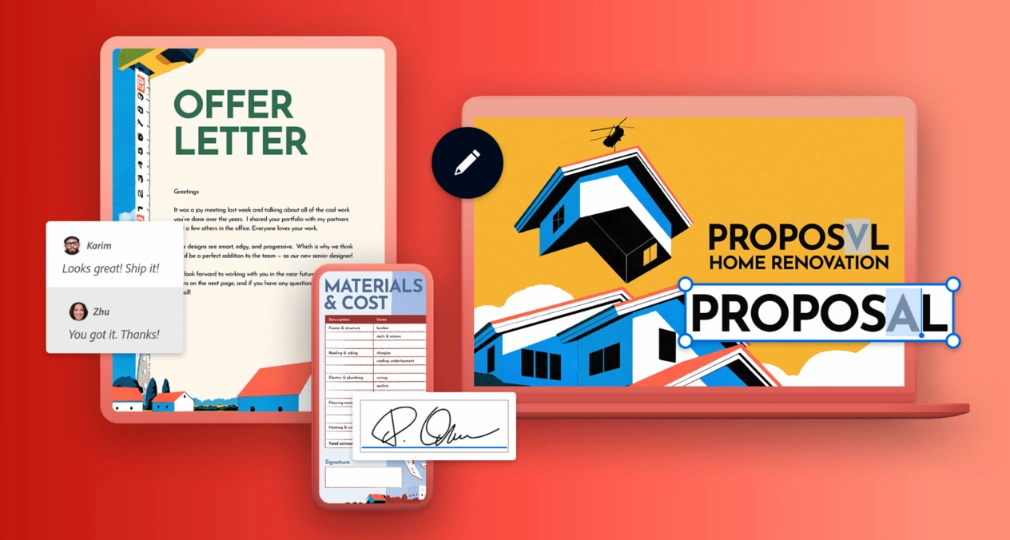
Adobe Acrobat is the original PDF tool powerhouse, offering a comprehensive suite of annotation tools for everything from simple markups to complex document editing. It’s the go-to solution for professionals who need to annotate PDFs and manipulate the PDF format with advanced features.
Key features
- Extensive markup tools – Highlight, strikethrough, underline, and add custom stamps
- Drawing and shape tools – Create custom shapes and freehand drawings
- Cloud collaboration – Share documents and collect feedback via Adobe’s cloud services
- Create and convert – Make PDFs from any file and convert them to other formats
Pros
- The most feature-rich PDF solution on the market
- Excellent OCR (optical character recognition) for scanned documents
- Strong integration with other Adobe Creative Cloud apps
Cons
- Can be overwhelming for users who only need basic annotation features
- The interface and collaboration workflow can feel complex compared to other tools
Pricing
Starts at $12.99/month/user for the Standard plan.
Capterra review
3. PDFelement – best for a powerful and affordable alternative
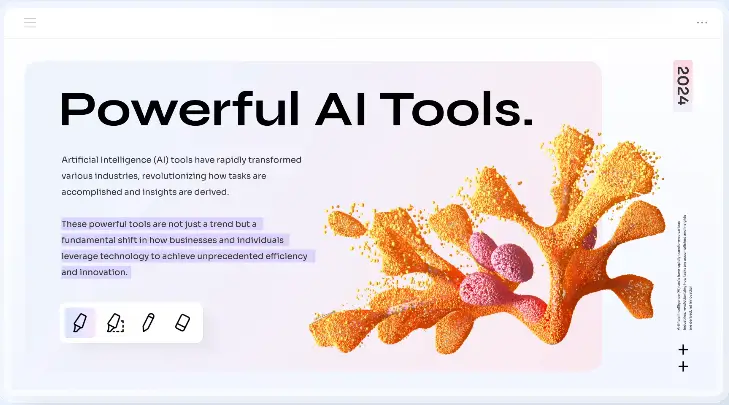
PDFelement by Wondershare delivers many of Adobe Acrobat’s advanced features at a more accessible price point. It strikes a great balance between powerful editing tools and an intuitive, user friendly interface, making it a popular choice for budget-conscious teams.
Key features
- Rich annotation set – Sticky notes, text boxes, stamps, and drawing tools
- PDF forms creation and editing – Build and fill out interactive forms with ease
- Batch processing – Apply annotations or conversions to multiple PDFs at once
Pros
- User friendly interface that’s easier to learn than some advanced tools
- Excellent value for the features offered
- Their “Perpetual Plan” gives full access forever for a one-off fee
Cons
- AI tools not included in paid plans
- Reports of pops-ups to upgrade your plan even in the Perpetual Plan
Pricing
Starts at $79.99/year/user for the Standard, yearly plan.
Capterra review
4. Foxit PDF Editor – best for business and enterprise use
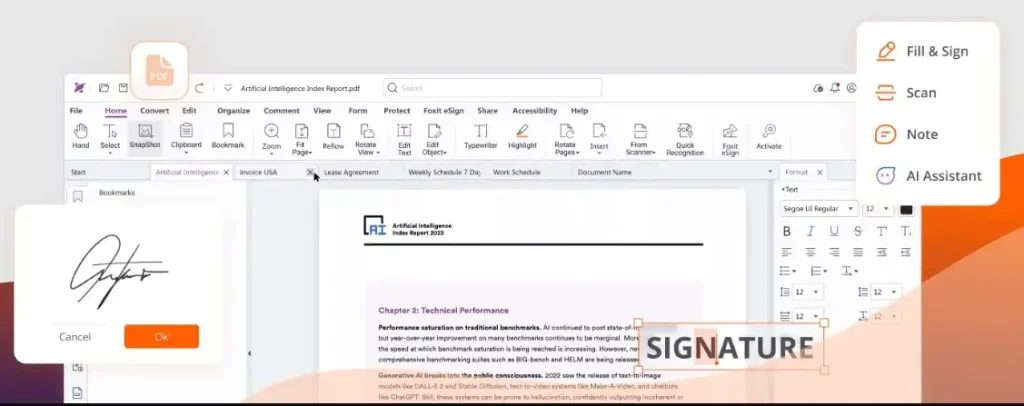
Foxit PDF Editor (not to be confused with the free Foxit Reader) is a serious contender in the PDF space, offering robust security and collaboration features tailored for business environments. It’s a strong choice for organizations that need to manage document workflows at scale.
Key features
- Advanced collaboration – Real time collaboration through co-editing and shared reviews
- Strong security controls – Redaction, digital signatures, and permission management
- Cross-platform compatibility – Available on Windows, macOS, Linux, web, and mobile devices for easy access anywhere
Pros
- Enterprise-grade security and compliance features
- Powerful collaboration tools for internal teams
- Generally faster and less bloated than some competitors
Cons
- Advanced features require upgrading to expensive plans
- Slow performance when working with complex PDFs
Pricing
Starts at $129.99/year/user for the standard Foxit PDF Editor.
Capterra review
5. Kami – best for education and light collaborative annotation

Kami is a cloud-based PDF annotator tool built for the classroom, but its simplicity makes it a contender for basic business use. It’s ideal for teams that need a no-fuss, user-friendly tool for quick internal markups and light collaboration, especially if they already live in Google Drive.
Key features
- Browser-based access – An online version that works directly in your web browser
- Simple toolbar – Easy-to-use highlight, comment, and shape tools
- Google Drive integration – Seamlessly works with Google’s ecosystem
Pros
- Incredibly easy for anyone to start using immediately
- Excellent free version for individual users
- Perfect for teams already embedded in the Google Drive ecosystem
Cons
- Not built for complex, multi-step review workflows
- Primarily education focused so is less suited to agency/marketing scale by default.
Pricing
A free version is available. Paid Teacher plans start at $149/year/user.
Capterra review
6. Lumin PDF – best for Google Workspace integration

Lumin PDF is a dedicated PDF solution built for the cloud, offering deep integration with Google Drive. It allows teams to annotate, edit, and sign PDFs directly within their browser, promoting a seamless workflow.
Key features
- Deep Google Drive integration – Open, edit, and save PDFs directly from Drive
- E-signature capability – Request and add signatures to documents
- Team workspaces – Create shared folders for team collaboration
Pros
- The most seamless workflow for Google Drive users
- Combines annotation with e-signature functionality
- Clean, modern, and intuitive user-friendly interface
Cons
- Can be slow with very large or image-heavy PDF files
- Advanced editing features are limited compared to desktop editors
Pricing
A free version is available. Starter plans begin at $19/month/team.
Capterra review
7. Xodo – best free PDF annotation tool

Xodo is a robust PDF annotator that offers an impressive set of free features, with affordable paid plans for power users. It works in-browser and as a mobile app, providing strong collaboration tools across all its plans.
Key features
- Comprehensive free toolkit – Highlight, underline, strikethrough, and freehand draw
- Multi-platform support – Works on web, Windows, Android, and iOS
- Fill and sign forms – Complete interactive PDF forms and add signatures
Pros
- Powerful free plan with real-time collaboration included
- Affordable pricing for premium features
- Excellent performance and reliability across devices
Cons
- Limited workflow management compared to dedicated review platforms
- Advanced features like OCR and batch processing require a paid plan
Pricing
Free plan with core features and collaboration. Xodo Pro plan starts at $79.99/year/user or $9.99/month/user.
Capterra review
8. PDFescape – best for basic online annotations
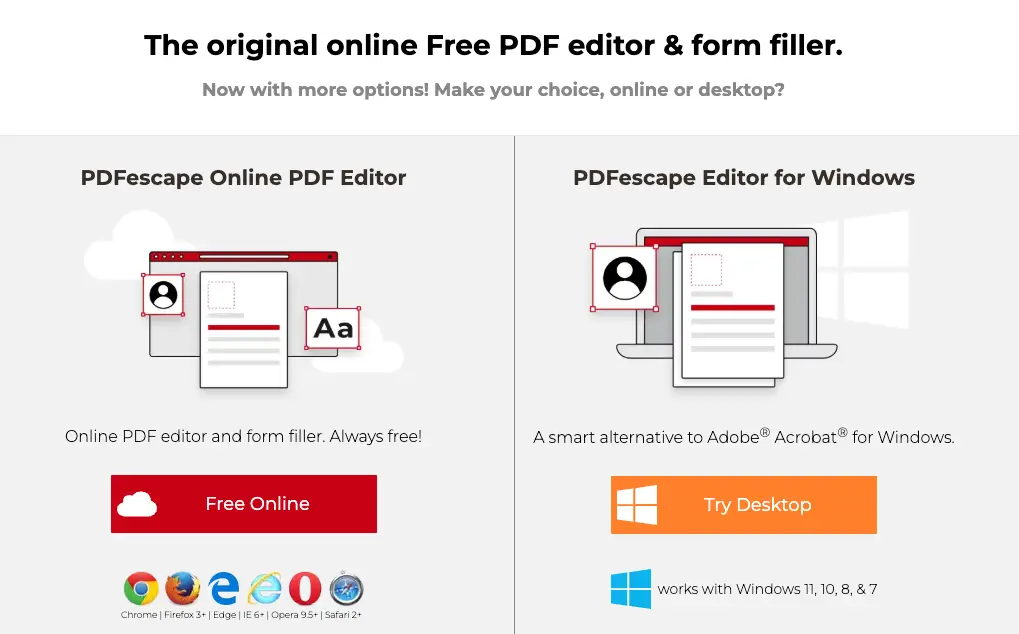
PDFescape is a free, web-based PDF annotator that’s perfect for quick, simple tasks. It allows you to annotate, fill forms, and make minor edits to PDFs without needing to download any software.
Key features
- Online PDF editor – Works entirely in your web browser
- Form filling and creation – Design and fill out PDF forms (in paid versions)
- Basic editing tools – Add notes and images
Pros
- No download or registration required for the free version
- Very simple and straightforward for quick markups
- Handy for filling out forms and basic annotations
Cons
- Limited functionality compared to desktop applications
- File size and page limits on the free plan
- Not suitable for complex documents or team collaboration
Pricing
Free version available. Premium plans start at $2.99/month/user.
Capterra review
9. Nitro PDF Pro – best for Windows users

Nitro PDF Pro is a strong Adobe Acrobat alternative designed with the Windows environment in mind. It combines powerful PDF creation and editing tools with solid collaboration features.
Key features
- Create and convert – Make PDFs from any file and convert them to other formats
- Collaboration tools – Add comments and compare documents
- Batch processing – Sign, convert, or watermark multiple files at once
Pros
- Intuitive, ribbon-based interface familiar to Microsoft Office users
- Strong creation, conversion, and collaboration capabilities
Cons
- Primarily optimized for Windows (weaker Mac support)
- Can be resource-intensive on older machines
Pricing
Starts at $180/year/user for Nitro PDF Standard.
Capterra review
10. Preview (macOS) – best free tool for Apple users
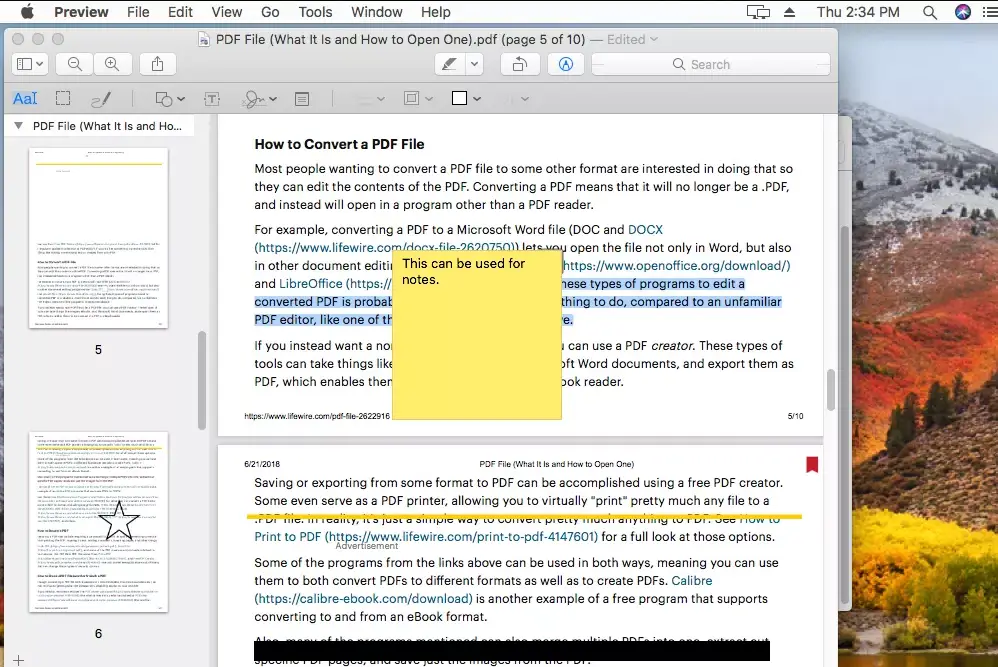
Preview is the built-in image and PDF reader on every Mac. While often overlooked, it contains a surprisingly capable set of annotation tools that are perfect for Mac users who need to do quick markups without installing extra software.
Key features
- Built-in markup toolbar – Shapes, text, signatures, and drawing tools
- Instant access – Opens by default for PDFs on macOS
- Quick signatures – Use your trackpad or camera to create and save a signature
Pros
- Completely free and already on your computer
- Super fast and lightweight for simple annotation tasks
- No learning curve for macOS users
Cons
- No collaboration features whatsoever
- Limited toolset compared to dedicated applications
- Only available on Apple devices
Pricing
Free with every Mac.
Capterra review
N/A (Built-in system tool)
5 must-have features of your PDF annotation software
With so many options out there, how do you choose? I suggest focusing on these five essential features to find a platform that truly streamlines your workflow.
1. Real-time collaboration
The best PDF annotation software lets teams add comments simultaneously on the same page, speeding up the review process for remote teams.
Filestage has put together this handy video on how to comment on PDF files and add annotations:
2. Precise annotation tools
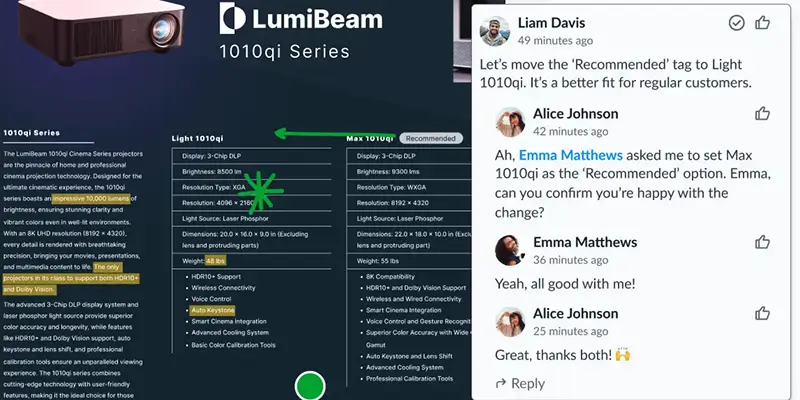
Look beyond basic highlighting text. You need markup tools like shapes, arrows, and sticky notes to give precise feedback in specific areas.
Here’s an example of how precise annotations can be in Filestage:

3. Version control
Strong version control ensures everyone works on the latest original document, preventing lost feedback between versions.
Let’s use Filestage as an example. You have every asset version stacked neatly in your project dashboard, so you can easily access older iterations of your PDFs when you need to.

4. Simple external access
The best tools let clients and external stakeholders annotate files without creating an account, removing friction and technical hurdles.
And if you need to share PDFs with sensitive information, opt for a tool like Filestage that offers security controls like password-protection.

5. Centralized dashboard
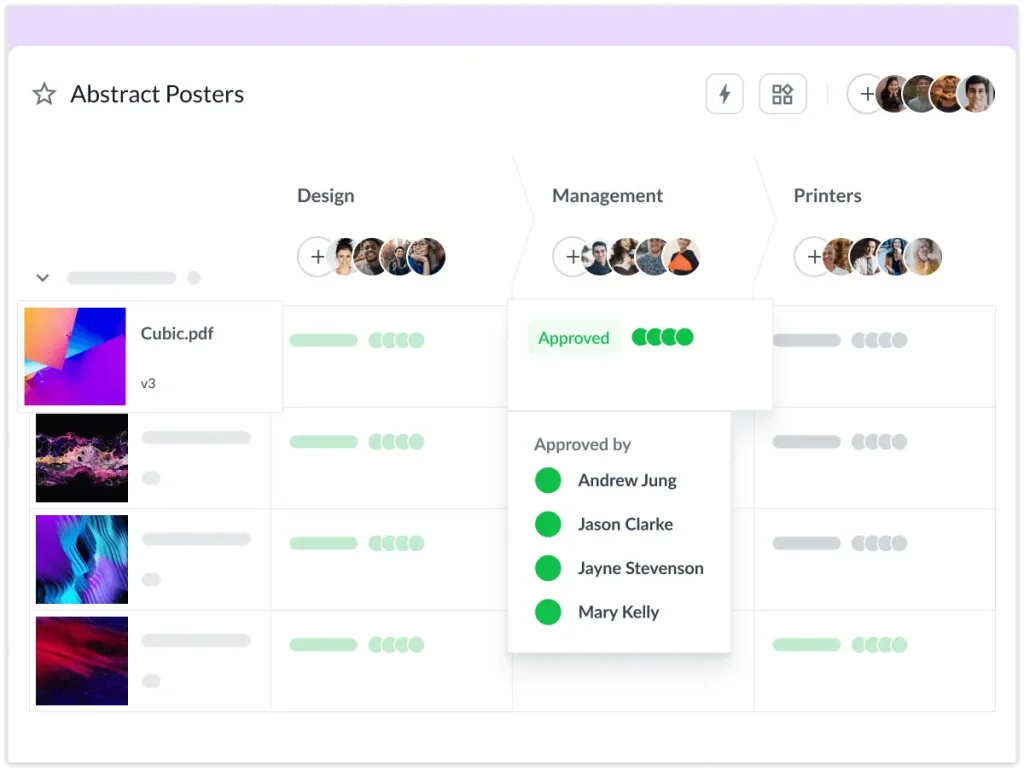
A clear dashboard is essential for organizing documents, showing approval status and pending feedback across all project documents.
For reference, here’s how your project dashboard could look in Filestage. All of your assets are organized in one place and you have a clear overview of who has approved what.
See how Filestage can speed up your approvals
Enjoy a free, 30 minutes consultation with our experts, tailored to your team and use cases.
3 tips for making better PDF annotations
Unsure how it all works in practice? Here are some tips to help you on your way.
1. Be specific and contextual
Use annotation tools to be precise. Highlighting text or drawing an arrow directly to an element provides crucial context. Learn more in our guide to annotating documents.
2. Use a consistent color system
Create a simple color-coding system for your team (e.g., red for errors, yellow for suggestions). This visual cue helps prioritize feedback.
3. Consolidate and resolve feedback
Use a platform like Filestage to keep discussions in one place. Team members can reply to comments directly on the PDF, creating a single source of truth. This is key for a smooth document review.

FAQ – PDF annotation software
What is the best software to annotate a PDF?
For marketing teams needing streamlined client approvals and advanced editing, Filestage is ideal. See our guide on how to annotate on Google Docs for a free alternative.
Can I annotate a PDF for free?
Yes! Tools like Filestage, Xodo, and PDFescape offer free versions for PDF annotation. Explore more in our roundup of free PDF markup software.
How do I annotate PDFs?
Upload your PDF to an annotation tool, select a comment or drawing tool, and click to leave feedback. Most tools offer highlighting text, text boxes, and sticky notes. For a walkthrough, see how to markup a PDF.
Does Google have a PDF annotation tool?
Google Drive has basic annotation features, but they’re limited. For robust PDF collaboration, dedicated PDF annotation software is best.
Final thoughts
Choosing the right PDF annotation software transforms your document review process. The best tools create a structured environment for clear feedback and seamless collaboration, paving the way to significantly faster approvals.
What’s more, by bringing all stakeholders together on the same page, you eliminate chaotic emails. This means fewer revisions and more time for creative work.
Ready to streamline your PDF reviews? Start a Filestage free trial today.