
TL;DR
Team collaboration tools help teams to communicate, share files, and manage projects more efficiently. This guide compares 25 top collaboration platforms – from communication tools to task management and review software – to help you choose the right collaboration software for your teams, workflows, and budget.
Why modern teams rely on collaboration tools to get work done
Whether you work in-house or at an agency, collaboration is a fundamental part of the job. It’s what leads to greater innovation, increased efficiency, and better communication. And ultimately, success.
Collaboration tools make it easier for you and your team to work together, whether you’re in the same office or on entirely different continents. They help you to communicate, to manage workflows, to stay aligned, and to meet deadlines.
And it really pays off: recent research shows that 72% of teams see a productivity boost when they use digital tools to support collaboration.
For this guide, we’ve rounded up the 25 best team collaboration tools, each with its own unique features and use cases. Some platforms are designed for project management, others for communication, some for content creation, and others for managing feedback and approval.
But what links them is their ability to help you and your team collaborate effectively and achieve great things!
So without further ado…
The top three collaboration software for all company sizes in 2026
1. Filestage – best for streamlining content review and approvals

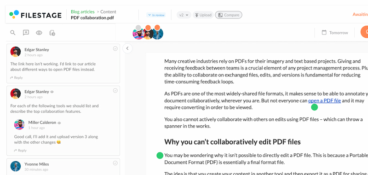
Filestage is a collaborative feedback management platform that helps you collect feedback on content – whether that’s a design, a video, a document, or a live website – all in one place.
From sharing to sign-off, it takes the stress out of managing the feedback process.
You can invite as many people as you like to review your content, and reviewers can see what others have already suggested before leaving their own feedback in a way that suits them.
Filestage is an ideal online collaboration tool for companies that produce large volumes of multimedia content, like marketing, advertising, media, and entertainment. It’s also great for remote or distributed teams that need a central platform for managing the review and approval process.
Pros
- Due dates keep your projects on track and help you meet deadlines
- In-context comments make for clear feedback that shows up in real time
- Visual annotations bring comments to life and make it clear what needs changing
- To-do lists give your team a clear picture of what needs amending
- Version history helps you keep tabs on previous comments and see what’s changed
- Review steps mean your files get approved by the right people at the right stage of the process
- Project dashboards help you keep track of who you’re still waiting to hear from
- Integrations with Dropbox, Google Drive, Slack, Microsoft Teams, and more
- Automations to reduce manual tasks and speed up content reviews
Cons
- No mobile or desktop app

“Filestage saves our company a huge amount of time. Instead of writing detailed instructions over email, reviewers can just click on a file to add comments in context. This makes everything faster – from giving feedback, to managing the process, to making edits before sharing the next version.”
Karina Berner, Creative Production Specialist at Sartorius
See Filestage in action
We’ll give you a personalized tour to help you choose the best online proofing tool for your brand or agency.
2. Asana – best for teams of all sizes looking to reduce complexity
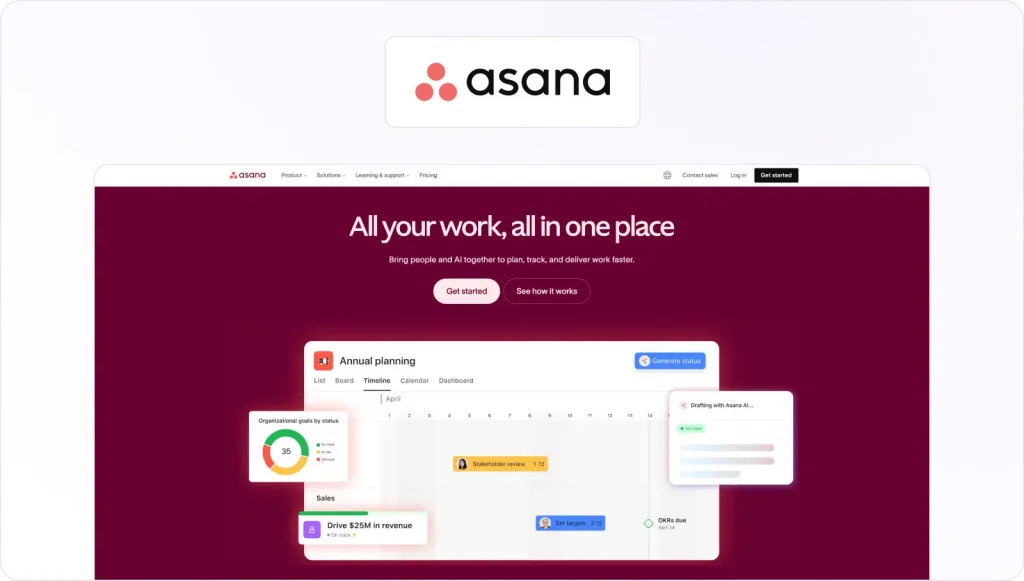
Asana gives project managers a simple way to manage team projects, processes, and tasks. It fosters collaboration by helping your team stay productive and deliver work more effectively.
This team collaboration software can help you reduce the time you spend switching between meetings, emails, chats, and spreadsheets.
Pros
- It’s easy to share tasks, deadlines, notes, and projects
- The notes are visible, and they can expedite tasks
- The UI and UX are fantastic
Cons
- The pricing structure can be very complex
- The notifications can be intrusive and distracting
- Certain functionalities are complex, so users will need training to employ them
3. Google Docs – best for SMBs and startups with limited budgets

Google Docs is a web-based word processing and document collaboration software developed by Google. It allows users to create, edit, and collaborate on documents in real-time with others from anywhere in the world.
Its collaborative features allow users to share documents among team members while setting permissions for editing or commenting. Plus, the commenting feature allows users to leave feedback or ask questions and to use the version history to track changes and revisions.
Pros
- It allows multiple users to edit and collaborate on a document in real time.
- It’s available for free with a Google account.
- The tool automatically saves changes as you type, eliminating the need to manually save.
- It keeps track of all changes and revisions, making it easy to revert to a previous version if needed.
Cons
- It offers fewer formatting options than some desktop word processors.
- Some features and formatting can’t be translated seamlessly when exporting to other file types.
- As a cloud-based service, there may be concerns around the security and privacy of sensitive documents.
- There are limited functionalities and features available in offline editing
Top five project management tools
Project management tools are equally important for both larger teams with significant budgets and smaller ones with less money to spend. Great project management tools help companies streamline their efforts and manage their projects more efficiently.
So let’s take a look at the five best project collaboration tools!
4. Trello – best for marketing teams looking for a simple task management solution
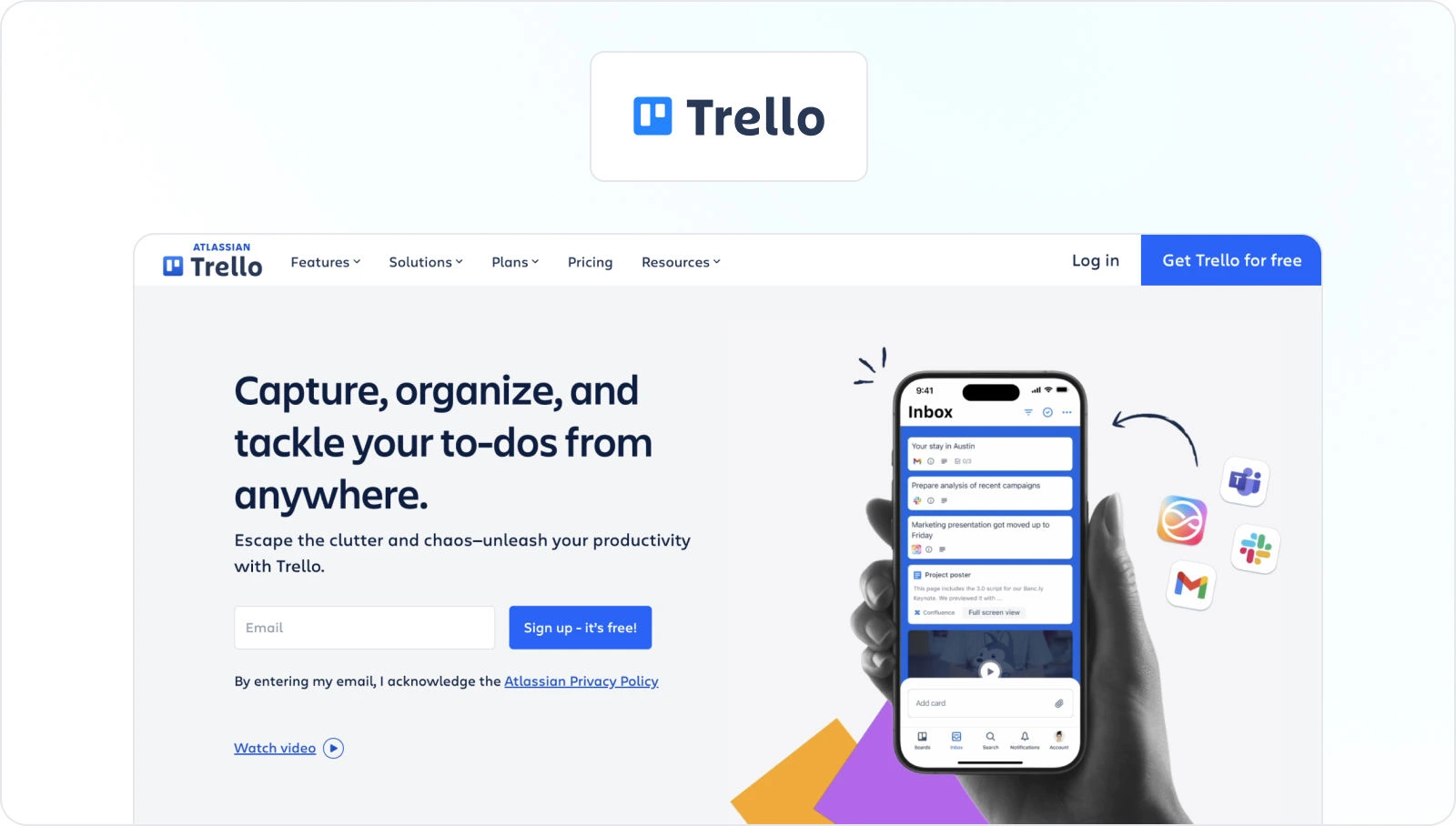
Trello is a highly customizable project management and collaboration tool for task management that can help project managers to foster deeper collaboration in a team. This collaboration tool’s intuitive system of cards, lists, and boards is very simple to use, but there’s also a lot of complexity beneath the surface.
This tool offers a wide range of integrations. And due to its simplicity, it can become a project hub that fosters collaboration.
Pros
- It’s very easy to get started.
- You can view the progress of key tasks at a glance.
- It offers a way to manage tasks that’s visually satisfying.
Cons
- If you use a lot of boards, it can get overwhelming.
- It doesn’t regularly add new features.
- Some of its basic functionalities can only be achieved through integrations.
5. Bit – best for SMBs looking for cost-effective solutions

Bit is a collaborative project management software that helps teams work together in real time and store all project assets in one place for easy and fast access. Teams can add content from over 70+ various applications that will live inside Bit documents.
Project managers can use Bit for:
- Interactive project spec documentation
- Product strategy
- Internal guides
- Customer-facing guides
- Product requirement documents
- Roadmaps
- User journeys
- Prototypes
- KPIs
- Competitive analysis
Pros
- Robust smart search to find anything quickly
- Content and knowledge management
- Simple and modern UI
- Document Tracking
Cons
- No mobile app
- Absence of Gantt charts
- Untimely notifications can be a bit distracting
6. Basecamp – best for SMBs looking for an affordable platform
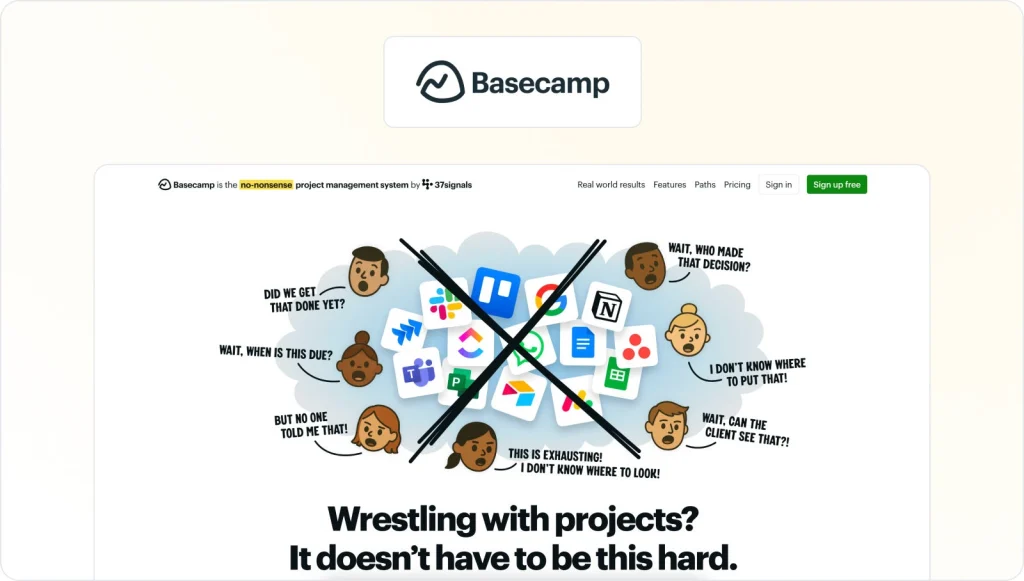
Basecamp consolidates all the tools teams need to finish their work, including message boards, scheduling, to-do lists, group chat, file storage, and more.
This collaboration software fosters teamwork and efficiency by putting all of these disparate features under one roof.
This goal prevents tasks from slipping through the cracks, and it keeps team members from getting confused.
Pros
- It has competitive pricing, given its functionality.
- It’s user-friendly for admins and project managers.
- It’s easy to see which files are associated with which projects.
Cons
- The export feature suffers from several problems.
- The UX can be confusing for non-administrators.
- Basecamp requires a big commitment from every project member.
7. monday.com – best for businesses of all sizes that need a comprehensive project management platform
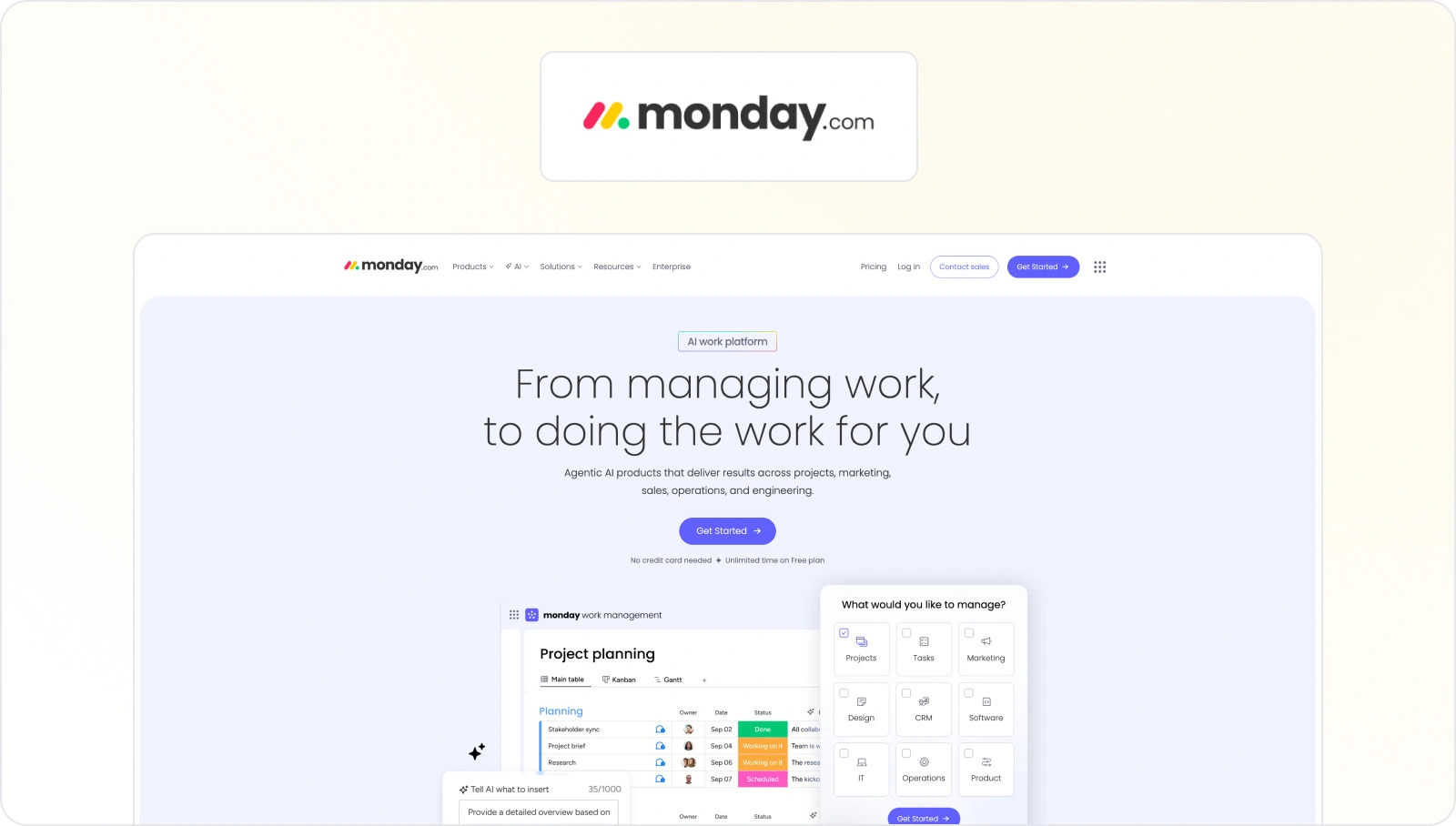
monday.com is a simple collaboration software that helps managers and team members sync, plan, organize, and track tasks over the course of a project.
These features have a very pleasant UI, which means that teams find it easier to collaborate. So they’ll be able to easily understand the assignees and responsibilities for each task.
Pros
- Thanks to its clean UI, it offers clear visibility into projects.
- Its simple drag-and-drop functionality gets everyone involved.
- It offers various calendar views that suit the needs of all users.
Cons
- Some of its features are superfluous and distracting.
- It can be difficult to predictably calculate the pricing.
8. ProofHub – best for freelancers and SMBs looking for an affordable online proofing solution

Proofhub gives users a range of features that help them bolster collaboration among their team. These features include group chats, discussions, workflows, project reports, and more.
These features help teams collaborate and communicate in easy, flexible ways across a wide range of devices.
Pros
- It’s very easy to use.
- The cost is reasonable compared to its competition.
- It offers a suite of practical features.
Cons
- It could be too simple for larger projects.
- Its Gantt charts can be difficult to create and use.
- Its documentation isn’t very helpful to new users.
Top four collaboration tools for customer support
Having an adequate customer support tool can be a true lifesaver. With the right tool, you don’t have to worry about any complaints or comments getting overlooked, and all your customers can stay satisfied with your communication.
Here are some tools that will help you build great customer relationships!
9. Slack – best for remote teams working in the tech sector
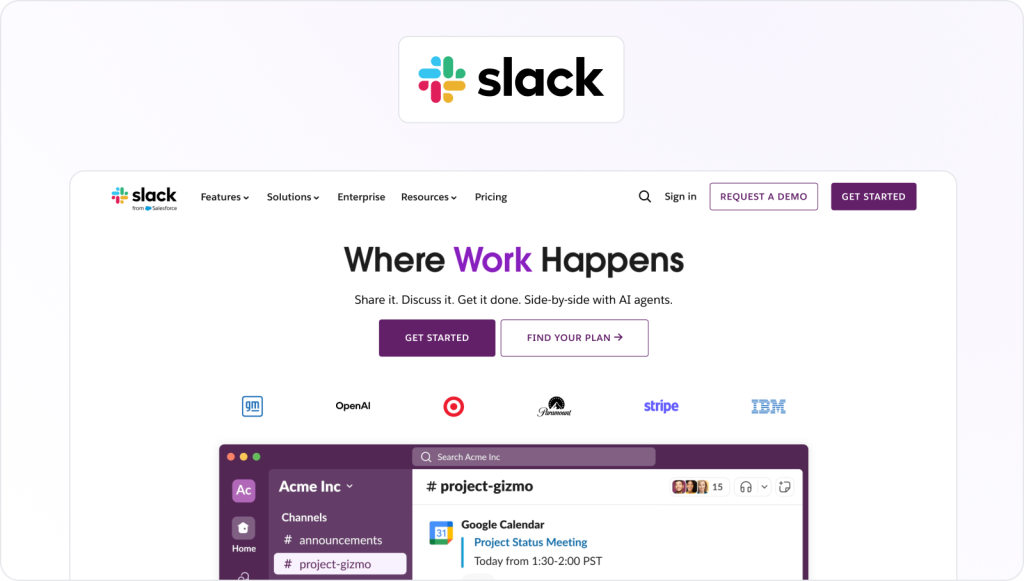
Slack is a popular communication and collaboration platform that enables teams to work together more effectively. It’s a centralized platform where team members can send messages, share files, collaborate on documents, and manage projects.
One of the key features, making Slack such an amazing tool for customer support, is its ability to organize communication into channels. Thanks to this feature, customer support teams can organize their work more efficiently and make sure all customer inquiries are addressed quickly.
Pros
- Real-time communication helps you get quick responses to customer queries and issues.
- Its centralized platform streamlines customer interactions and helps ensure no conversations are missed.
- Seamless collaboration with other departments improves efficiency.
- It’s customizable and offers a range of integrations with other applications for more personalized and relevant support.
- It helps you improve transparency and accountability by keeping records and easily referencing previous conversations.
Cons
- Slack can be distracting with messages coming from various channels.
- You have limited control over customer data privacy and security, especially when using third-party integrations.
- It’s difficult to prioritize and manage a high volume of customer inquiries and requests.
10. Jira – best for large companies with complex support needs

Jira is a widely used project management and issue-tracking software developed by Atlassian. It offers a range of features that help teams organize, track, and manage tasks and projects efficiently.
The tool can be used for customer support by creating a dedicated project to track and manage customer inquiries, issues, and requests. Teams can use Jira’s customizable issue types and fields to create workflows and processes tailored to their support needs.
Pros
- The tool provides a centralized platform for tracking and managing customer inquiries and requests, enabling teams to respond promptly and efficiently.
- Its customizable workflows enable teams to create processes tailored to their specific support needs, ensuring customer inquiries are handled appropriately.
- Thanks to the collaboration features, teams can work together to resolve customer issues, improving the speed and quality of support.
- You’ll have insights into customer support performance through reporting and analytics, enabling teams to identify trends and areas for improvement.
- You can integrate it with other tools and applications, such as CRM systems, social media, and email, providing a seamless customer support experience.
Cons
- The tool can be complex and require significant training for new users.
- Jira can be expensive, especially for small businesses with limited budgets.
- Customizing the platform requires technical expertise and additional time.
- The range of features can be overwhelming for small teams with simple support needs.
- Their customer support may not be sufficient for businesses with complex support needs.
11. Slab – best for mid-sized and large companies with complex customer support needs

Slab is a knowledge management collaboration tool that allows teams to create, organize, and share internal documentation. It provides a centralized platform for storing information, making knowledge easily accessible to all team members.
For customer support, teams can use this tool to build a knowledge base of articles and resources that help customers resolve common issues. Teams can organize information by topics and categories, making it easy for customers to find relevant content.
Plus, its search functionality makes it simple for support agents to quickly find articles and share them with customers.
Pros
- The tool provides a centralized platform for organizing and sharing information, making it easy for customers to find solutions to their issues.
- Teams can create and customize articles to meet their customers’ needs, ensuring the information is relevant and helpful.
- Its collaboration features enable teams to work together to create and update articles, improving the accuracy and quality of information.
- Teams receive insights into how customers use the knowledge base, enabling them to identify trends and areas for improvement.
- You can integrate your account with other tools and applications, such as CRM systems and support ticket systems, to provide a seamless customer support experience.
Cons
- The tool primarily focuses on knowledge management and may not offer as many support channels as other customer support software.
- Its customization options are limited compared to other knowledge management software.
- Slab may require some time to learn how to use effectively, especially for teams new to knowledge management software.
- It offers limited automation capabilities, which may make some support processes less efficient.
- The pricing may be a bit expensive for smaller businesses, especially those with limited budgets.
12. Help Scout – best for smaller companies with less complex customer support needs

Help Scout is a customer support software with a variety of features to help teams manage and respond to customer inquiries. The software includes a shared inbox for managing customer conversations, a knowledge base for storing information and articles, and reporting tools for monitoring team performance.
To best use this tool for customer support, teams can use the shared inbox to manage customer inquiries while ensuring timely, consistent responses.
Pros
- Help Scout provides a shared inbox that lets teams manage customer inquiries and collaborate on responses.
- The tool offers automation tools to streamline support processes and reduce response times.
- It consists of reporting tools that help teams track key metrics and identify areas for improvement.
- You can integrate it with a variety of other tools, such as CRM systems and chatbots, to provide a seamless customer support experience.
- The tool’s knowledge base enables teams to provide customers with helpful information and reduce repetitive responses.
Cons
- It offers fewer customization options than other customer support software.
- The pricing may be higher than some smaller businesses can afford, especially those with limited budgets.
- It doesn’t offer as many features as other customer support software, making it less suitable for more complex support needs.
Top three collaboration tools for graphic design
Today’s companies are forced to create more visual content to keep up with competitors. In many cases, this means that marketing teams are joining graphic designers to create the best possible visual presence for their brand.
Online collaboration tools you should consider implementing in your team to create a more effective graphic design process.
13. Miro – best for remote teams of all sizes

Miro is an online collaboration tool that helps remote teams to work together on a variety of projects, including graphic design. Miro’s platform provides a range of tools for graphic designers, including vector editing, drawing tools, and sticky notes to help ideate and iterate on designs.
Additionally, Miro’s platform makes it easy to collaborate with other team members and establish a smooth client collaboration through real-time feedback and iterations. Design teams can also use Miro to create and share mood boards and wireframes to help bring their designs to life.
Pros
- The platform enables design teams to collaborate in real time and receive feedback, enabling more efficient collaboration.
- It’s a flexible platform that can be adapted to a range of design workflows, making it suitable for teams of all sizes.
- It provides a range of tools for graphic designers, including vector editing, drawing tools, and sticky notes, enabling teams to effectively ideate and iterate on designs.
- It can integrate with other design tools such as Sketch and Figma, allowing teams to streamline their workflows.
Cons
- While it offers a range of graphic design tools, it is not as feature-rich as some dedicated graphic design software.
- It can be complex, and new users may need time to learn how to use it effectively.
- It has limited export options, and users may need to use other tools to convert their designs into different file formats.
- While it offers a free plan, some of its more advanced features require a paid subscription, which can be expensive for all design teams.
- It doesn’t offer extensive version control features, leaving teams to implement their own processes for both.
14. LucidChart – best for businesses that require simple and effective design solutions
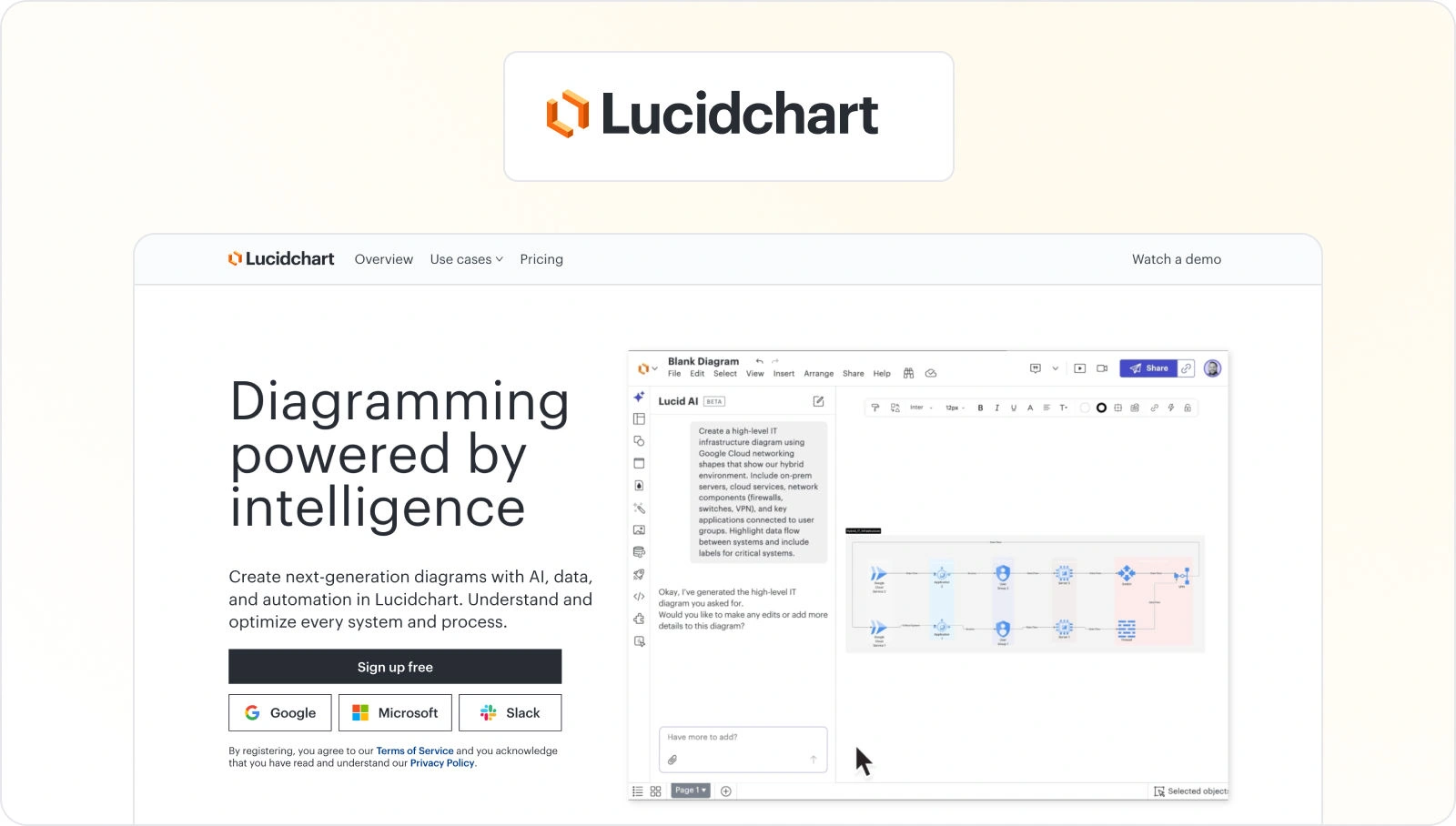
Lucidchart is a cloud-based diagramming tool that lets users create professional-grade visualizations, including graphic designs. It provides a range of design tools and features, including a drag-and-drop interface, templates, and custom shapes.
Users can start by choosing a template or creating a custom canvas, then add design elements such as icons, images, and text. The tool also enables real-time collaboration, so designers can work together to create and iterate on designs and share their designs with stakeholders for feedback and approval.
Pros
- Wide range of design tools and features
- Intuitive drag-and-drop interface
- Cloud-based software accessible from anywhere
- Real-time collaboration with team members and stakeholders
- Ability to create and share professional-grade visualizations and designs
Cons
- Limited customization options for shapes and objects
- No built-in image editing tools
- Not as robust as traditional graphic design software
- Can be slow to load and process large designs
- Limited export options for high-resolution graphics.
15. FigJam – best for smaller remote teams

FigJam is a collaborative digital whiteboarding platform developed by Figma. It’s designed to help teams brainstorm, plan, and organize their ideas visually in real-time.
The tool offers a range of features to help teams work together seamlessly, including sticky notes, drawing tools, shape libraries, and the ability to import images and files.
Teams can use this tool for various purposes, such as wireframing, mind mapping, or user journey mapping.
Pros
- It facilitates real-time collaboration and remote work
- Offers a range of tools and features to support the design process
- Provides a flexible and adaptable platform for various types of design projects
- Allows for easy sharing and feedback among team members
- It has an intuitive and user-friendly interface
Cons
- Limited design capabilities compared to specialized design software
- May not be suitable for complex or advanced design projects
- It can be difficult to manage and organize large projects
- Limited integration with other design tools and software
Best three software for video calls
In the past few years, we’ve seen an incredible rise in remote and hybrid companies. And such companies need strong support in video conferencing tools to keep their teammates connected.
Here are some of the best online collaboration tools for video calls.
16. Zoom – best for remote teams of all sizes

Zoom is a video conferencing and communication software that allows users to connect remotely for meetings, webinars, and virtual events. Users can use it by downloading the software to their computer or mobile device and then starting to host or join video conferences.
The tool offers a range of features, including screen sharing, recording, virtual backgrounds, and chat, to enhance communication and collaboration between participants.
Pros
- Easy to use and set up, with a user-friendly interface and intuitive controls.
- Supports high-quality video and audio, with options for HD video and clear audio even in low-bandwidth environments.
- Offers a range of collaboration and communication features, including screen sharing, virtual backgrounds, and chat.
- Allows large groups to participate in a video call, with up to 1,000 participants per meeting and up to 49 video feeds on a single screen.
- Provides users with the flexibility to connect from anywhere, with options to join meetings from a computer, mobile device, or phone line.
Cons
- Security concerns, including the potential for unauthorized access to meetings (so-called “Zoom-bombing”).
- Limited control over participant behavior, including the ability to mute or remove disruptive participants.
- Bandwidth limitations can degrade video and audio quality, especially in low-bandwidth environments.
- The free version has time limits on group meetings: a maximum of 40 minutes per session, which may not be sufficient for longer or more complex meetings.
17. Whereby – best for small remote teams with tighter budgets

Whereby is a video conferencing tool that allows users to host online meetings, video conferences, and webinars. It’s a browser-based application and doesn’t require downloads or installations.
Whereby offers screen sharing, chat, and recording capabilities, which can be useful for collaboration and documentation. The tool is known for its user-friendly interface and reliable video quality, making it a popular choice for remote teams, freelancers, and small businesses.
Pros
- Easy to use and no software downloads required.
- Custom branding and meeting rooms are available for paid plans.
- Up to 50 participants can join a call on the paid plans.
- Screen sharing and recording options are available.
- Secure and encrypted communication for better privacy.
Cons
- Limited features compared to other video conferencing tools.
- The free version allows up to 4 participants per call.
- No virtual backgrounds or other advanced video settings.
- No screen sharing for mobile users.
- Some users have reported occasional connectivity and stability issues.
18. Google Meet – best for existing Google Suite users from all company sizes

Google Meet is a video conferencing platform developed by Google. It allows users to conduct virtual meetings with colleagues, clients, or customers from anywhere in the world using their computers or mobile devices.
The tool offers a range of features, including screen sharing, virtual backgrounds, and live captions, to enhance the video conferencing experience.
Pros
- It can accommodate up to 250 participants per call.
- It uses encryption to protect user data and prevent unauthorized access.
- It’s user-friendly and can be easily integrated with other Google services.
- The tool can be integrated with Google Calendar, allowing users to schedule and join meetings seamlessly.
Cons
- Some of the more advanced features are only available with a paid subscription.
- The tool can be incompatible with all devices and web browsers.
- There are limited options for customizing the interface or settings to suit individual preferences.
Top two documentation solutions
Documentation is one of the most important aspects of any business. But without efficient document tools and processes, it can turn into a real nightmare.
Here are some of the best online collaboration tools that will help you create seamless documentation processes.
19. Coda – best for large teams looking for a customizable solution

Coda is a cloud-based document editor and productivity platform that allows users to create, organize, and automate a wide range of tasks in one place.
This versatile platform can be used by businesses of all sizes to streamline their documentation workflows and improve collaboration.
With its customizable tables, formatting options, and automation features, this is an excellent option for businesses looking to create professional-looking documents and increase productivity.
Pros
- This is a versatile platform that can be used for a wide range of tasks, from project management to documentation.
- It offers robust collaboration features, enabling multiple users to edit and comment on documents in real time.
- The tool allows users to customize their documents with tables, formulas, and automation features to streamline workflows.
- It offers advanced security features to protect documents and data, including granular permission settings and two-factor authentication.
Cons
- It’s more complex compared to simpler document editing tools.
- The tool is more expensive compared to some other document editing tools, particularly for businesses with larger teams.
- Even though it offers many formatting options, some users may find it limiting compared to more traditional document editing tools.
20. Notion – best for startups that rely heavily on customization

Notion is a cloud-based collaboration tool that lets users create, organize, and share content such as notes, to-do lists, project management workflows, and databases. It provides users with a flexible, customizable workspace where they can create and manage information in a single centralized location.
It’s a versatile platform that businesses of all sizes can use to streamline documentation workflows and improve collaboration.
Pros
- It allows users to customize their workspace with pages, sub-pages, and databases, making it highly adaptable to their documentation needs.
- The tool can be used for a variety of documentation types, from meeting notes to project timelines, and offers a range of formatting options.
- It has robust collaboration features, allowing multiple users to edit and comment on documents in real time.
- It offers a range of automation features to streamline workflows and save time, including custom templates, formulas, and workflows.
Cons
- Compared to other documentation tools, it’s expensive.
- It has limited integration options with other software tools.
- Its mobile app has limited functionality compared to the desktop version, making it challenging to work on the go.
The top four file-sharing software
Whether you’re working in a remote team or on-site, today’s businesses rely heavily on file sharing. And without an adequate file-sharing platform, your team can waste a lot of time and resources to get the files they need.
Here are the best online collaboration tools suitable for various time sizes and budgets.
21. Google Drive – best for remote teams looking for cost-effective file sharing options

Google Drive is a cloud-based storage platform that allows users to store, share, and collaborate on files and documents online. It allows you to easily share files with colleagues or clients, collaborate on projects in real time, and access them from any device with an internet connection.
Pros
- It offers robust collaboration features that allow multiple users to edit and comment on documents in real time.
- It provides strong security measures to protect files from unauthorized access, including two-factor authentication and encryption.
- The tool offers generous storage, with 15 GB of free space and the option to purchase additional storage as needed.
- It integrates seamlessly with other Google tools, making it easy to share and collaborate on documents across different platforms.
Cons
- It has limitations on file sizes, which can make it difficult to share large files, including media such as videos.
- Its version control system is not as advanced as those of other file-sharing tools, making it more challenging to track changes and collaborate on specific document versions.
- It offers limited customization options for sharing, which can be frustrating for users who need more control.
22. Mega – best for freelancers and smaller teams that need to share sensitive information

Mega is a cloud-based file hosting and sharing platform that provides end-to-end encryption to protect users’ files. The tool also allows users to set permissions and access levels for shared files, giving them greater control over who can access and edit them.
In addition to file sharing, it offers additional features such as file storage, file syncing, and a chat platform, making it a versatile tool for individuals and businesses.
Pros
- It provides end-to-end encryption for all files uploaded to its platform, ensuring the security and privacy of users’ data.
- The tool offers generous storage options for free and paid accounts, allowing users to store and share large amounts of data.
- It allows users to set permissions and access levels for shared files, giving them greater control over who can access and edit their files.
- In addition to file sharing, the tool offers additional features such as file storage, file syncing, and a chat platform, making it a versatile tool for individuals and businesses.
- It has a user-friendly interface that makes it easy for users to upload, share, and manage their files, even for those who are not tech-savvy.
Cons
- It has limited integrations with other tools and platforms, which can make it less convenient to use for some users.
- Its encryption and security measures can sometimes result in slower download speeds compared to other file-sharing platforms.
- The tool doesn’t offer the option to password-protect shared links, which can pose a security risk if the link falls into the wrong hands.
- It doesn’t offer version control, which can make it difficult to track changes to shared files over time.
23. Dropbox – best for teams that need to work on projects together in real time

Dropbox is a cloud-based file-sharing and storage service that allows users to upload and share files with others and sync them across multiple devices. Users can access their files from anywhere with an internet connection, and can collaborate with others in real time.
Dropbox also offers various integrations with other tools and platforms, making it a versatile tool for individuals and businesses.
Pros
- The tool has a user-friendly interface that makes it easy to set up and use
- It allows real-time collaboration on shared files
- Users can share files via links, email invitations, and shared folders
- It automatically syncs files across multiple devices
- It offers integrations with various other tools and platforms, such as Microsoft Office and Slack
Cons
- Its free plan offers limited storage space, which can be a constraint for users who need to store large files
- Its paid plans can be expensive, especially for larger teams or organizations with many users
- The tools have faced security concerns in the past, which can make some users wary of storing sensitive data on the platform
- Managing permissions for shared files and folders can be confusing, especially for new users, leading to accidental sharing of sensitive information.
24. Box – best for file-sharing in highly regulated industries
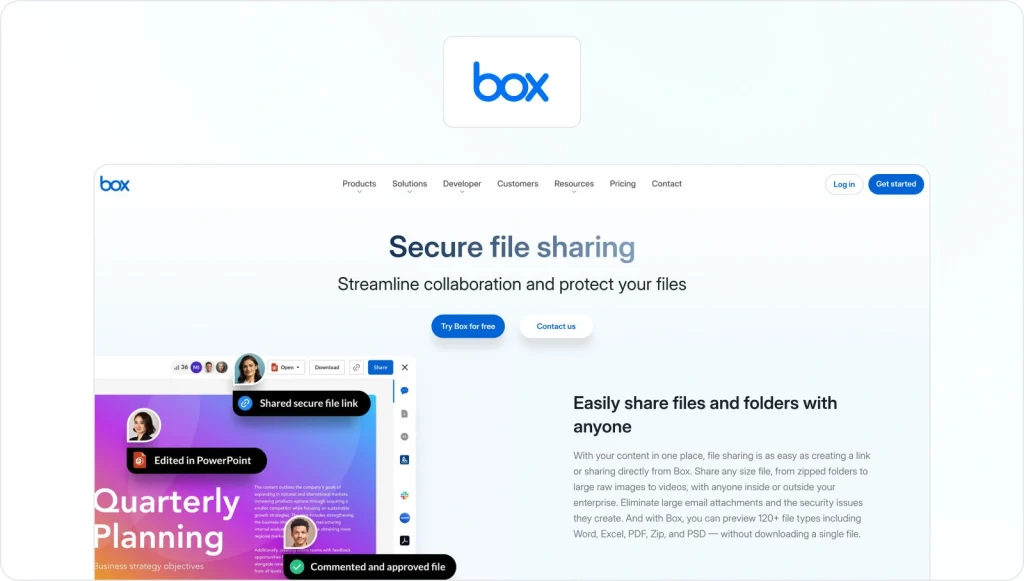
Box is a cloud-based file storage and sharing platform that allows users to securely store and share files with others. Users can create folders, upload files, set access permissions, and collaborate with others in real time.
Box also offers features such as version history, file comments, and task assignments to help streamline collaboration.
Pros
- Secure file sharing with customizable access permissions.
- Real-time collaboration and version control for streamlined workflows.
- Integration with popular apps such as Microsoft Office and Google Docs.
- Robust admin controls and reporting for managing users and content.
Cons
- Limited storage capacity, which is forcing users to upgrade frequently.
- Difficulties in collaboration due to versioning conflicts and a lack of real-time co-authoring.
- Files are stored on external servers, which causes security risks from unauthorized access or data breaches.
- Lack of customization options for branding or user interface limits personalization for businesses.
Best note-taking tool
Though essential in most companies, note-taking is one of the things that most of us would like to automate as much as possible. With the right tool, you can both automate and optimize note-taking so it takes as little time as possible.
Check out the best online collaboration tools for various note-taking needs.
25. Evernote – best for remote companies and knowledge workers
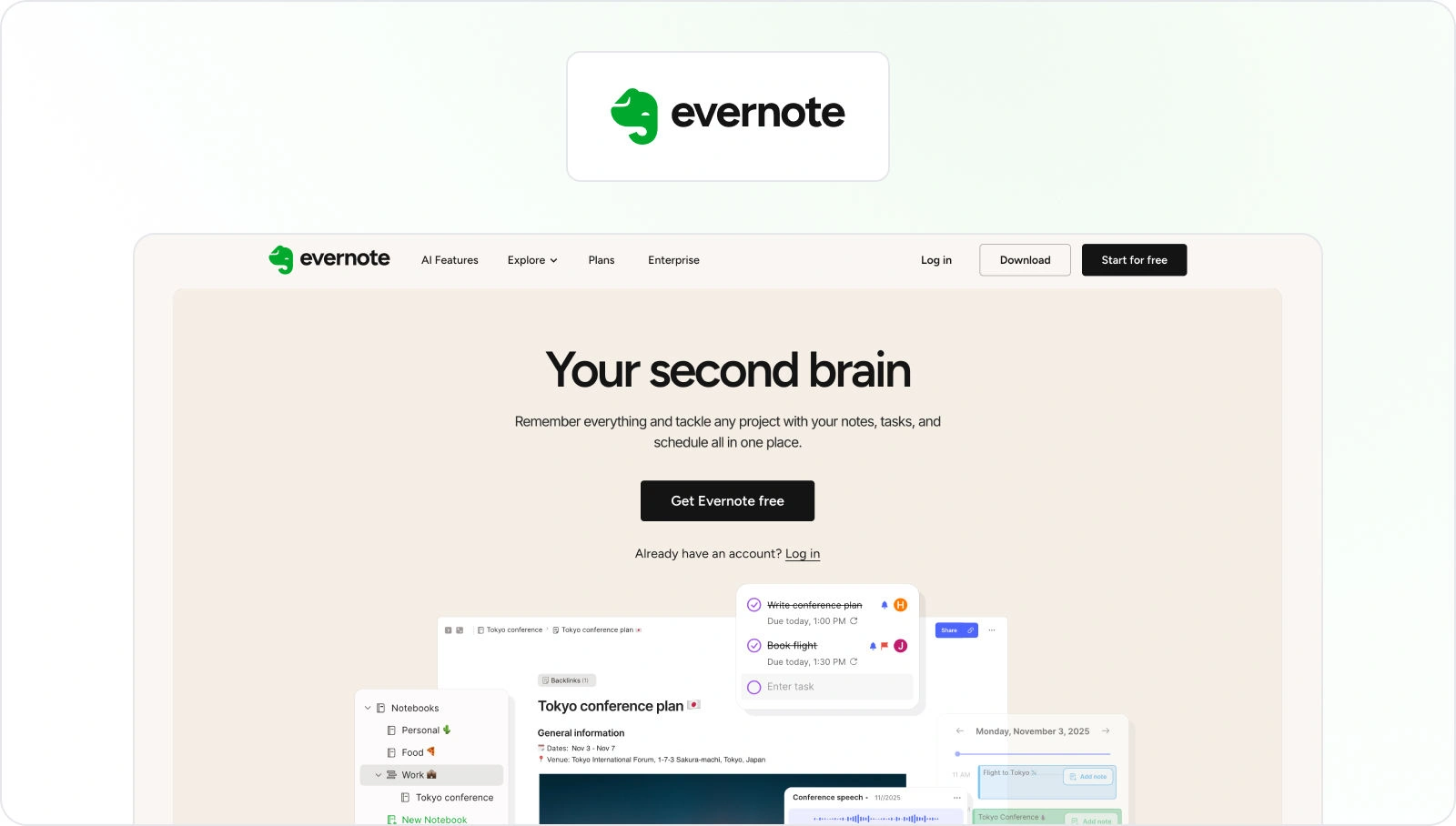
Evernote is a popular note-taking application that allows users to create and organize notes, ideas, and lists in one central location. Its note-sharing capabilities enable users to collaborate by sharing individual notes, notebooks, or entire stacks. Shared notes can be edited in real time, enabling seamless collaboration and feedback.
Additionally, its shared notebooks feature enables teams to work together on larger projects, such as brainstorming sessions or research documents.
Pros
- Versatile and customizable note-taking options, such as text, images, audio, and handwriting recognition.
- Easy to organize and search notes with tags, notebooks, and stacks.
- Cross-platform accessibility with sync capabilities across devices and operating systems.
- Advanced features such as web clipping, document scanning, and task management for increased productivity.
- Collaboration features like shared notes and notebooks, and real-time editing for team collaboration.
Cons
- Limited storage capacity for free accounts; premium accounts require a subscription fee.
- Limited integration with other applications and services compared to other note-taking apps.
- Privacy concerns due to Evernote’s privacy policy, which allows the company to access and analyze users’ content for business purposes.
Streamline your creative review process with Filestage
Collaboration tools can help your team work faster and more efficiently. The key is to choose the right software for your use case. In most cases, that will involve integrating several tools to support you at different stages of projects.
For example, a project management tool to handle general task assignments, integrated with an online proofing tool to handle the review and approval process.
If you’d like to see how Filestage can help your marketing team collaborate more efficiently, start a free trial today.
FAQ
1. What are team collaboration tools?
Team collaboration tools help teams communicate, share files, and manage tasks and approvals in one place. They combine instant messaging, file sharing, and sometimes project management so team members can stay aligned across multiple projects. The best collaboration tools offer real-time collaboration, message history, and clear project timelines, rather than scattered email threads and complex workflows. When paired with design collaboration and review and approval management tools, teams can also provide precise feedback on content, track versions, and secure clear, documented sign-offs.
2. How do I choose the best collaboration tool for my team in 2026?
Follow these steps to choose the best collaboration software for your team’s needs:
1. Identify your main use case – do you need a tool to handle project management (e.g., Asana, monday.com), creative review and approval (e.g., Filestage), or knowledge management (e.g., Notion)
2. Define essential features for your use case – make a list of the non-negotiables, e.g., integrations with existing tools, an intuitive dashboard, and custom permissions to control security
3. Take it for a test-drive – start a free trial or request a demo to test each vendor on your shortlist
4. Gather feedback – ask team members to share their feedback and use this to help you make a decision
3. Where does Filestage fit among team collaboration tools?
Filestage is a team collaboration tool for managing feedback and approvals on creative content. While tools like Asana or monday.com help you manage tasks, Filestage focuses on precise feedback: reviewers can comment directly on videos, designs, and documents, so your creative teams don’t have to consolidate notes from multiple tools. It integrates with collaboration platforms such as Slack, Microsoft Teams, Dropbox, and Google Drive, so you can share files, collect feedback, and track progress in a single connected workflow.
4. How can collaboration tools improve communication in distributed teams?
For distributed teams, collaboration tools replace hallway chats and in-person meetings with organized digital spaces. Collaboration tools let you create channels for projects, clients, and topics, use direct messages for quick questions, and jump on video calls when you need more detail. Features like push notifications, unified workspaces, and integrated apps (such as Google Chat, Zoom, and task management tools) help improve team communication and keep everyone in sync, regardless of time zone.
5. Are there free team collaboration tools that work for small companies?
Yes. Many team collaboration tools offer a free plan or version with essential features like group chats, file sharing, basic task management, and limited message history. Free team collaboration tools are ideal for startups or small teams that want to test a collaboration platform before upgrading. As you grow, you can move to higher-tier plans to unlock advanced features such as custom fields, increased file storage, external communication with guest users, and deeper integrations with third-party apps and productivity tools.
6. How do team collaboration tools improve productivity?
Here are five ways in which collaboration tools improve productivity:
1. Improved communication – they provide real-time communication between team members regardless of their location.
2. Streamlining workflows – they allow teams to work on the same project simultaneously, eliminating the need for back-and-forth emails or phone calls.
3. Easy access to information – they provide a centralized location for project-related information, such as files, documents, and feedback.
4. Task management – it often includes features such as assigning tasks, setting deadlines, and tracking progress.
5. Remote work – they are especially useful for remote teams, allowing them to work together seamlessly and stay connected.
7. How do you measure the success of using collaboration tools?
Depending on your company’s needs, there are numerous ways to measure the success of your online collaboration tools.
Here are just a few factors to take into account when measuring the success of your collaboration tools:
1. User adoption
2. Increased productivity
3. Improved communication
4. Cost savings
5. User feedback