TL;DR
PDF annotation lets reviewers leave precise, contextual feedback directly on documents instead of scattering it across emails, screenshots, or printouts. Tools like Filestage centralize all comments and highlights in one place, reducing version confusion and follow-up questions. Reviewers can use markup tools, sticky notes, and drawings, and track feedback status in real time across multiple stakeholders. With features like side-by-side version comparison, automated reminders, and reviewer groups, document approval software saves hours of consolidation work and helps marketing teams move from first draft to final approval faster and more accurately.
Why annotating a PDF with markup tools beats printing for feedback
As humans, we’re guilty of being creatures of habit. All too often, this shows itself in a tendency to stick to old-fashioned methods.
At work, some great examples of this are our habits of printing things off and writing by hand. In fact, even as we move into 2026, the average office worker still gets through 10,000 sheets of paper per year, with as much as 68% of that being classified as wasted through unnecessary printing and inefficient review practices.
These habits are massive blocks to efficiency, especially in a company-wide content review process. So, ditch the printer! In this article, we’ll be taking you through all the benefits of PDF annotation.
How to annotate a PDF in four easy steps
Let’s say you have a new piece of marketing collateral that needs to be reviewed by six key stakeholders.
Three stakeholders manually print the PDF and start scribbling notes on their hard copy. Then, two people send you an email with screenshots of their suggested changes. Another stakeholder sends you a message on Slack with their feedback (which totally contradicts the others’). You’re going to lose control of the review process pretty quickly and spend hours consolidating the comments.
That’s why PDF annotation is such a game-changer.
But if you really want to take control of content reviews, document review software will outperform a simple online PDF editor. Let’s use Filestage as an example. Here’s how you can annotate a PDF file in just four simple steps:
1. Create a project and upload your PDF to your Filestage dashboard
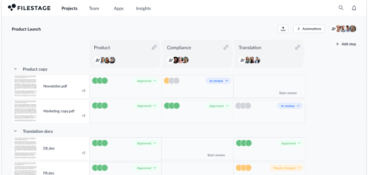
Filestage has a simple dashboard with project-level visibility of your projects. That makes it quick and easy to see the review status of your documents or where you need to leave feedback as a reviewer.

2. Invite reviewers
With Filestage, you can create custom reviewer groups that align with your workflows. This makes it easy to loop team members in at the right time and reduce the risk of missing key stakeholder feedback.
You can add team members by entering their email addresses or by sharing a review link. If your document review process includes external stakeholders, you can use security features to make sure only approved people can access the content.

3. Open the PDF and start annotating
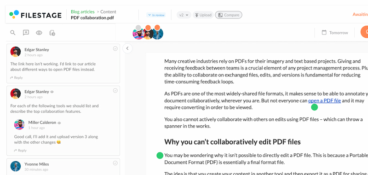
The next step is to start annotating the document. Just click on the part of the PDF you want to annotate and leave a comment, annotation, or highlight to make your feedback crystal clear.
Once you’ve finished, you can hit approve and move on to your next project. Other reviewers will be able to see your comments, and the project owner can easily turn them into an actionable to-do list. For extra privacy, there’s also an option to make certain comments “team only”.
Check out the video below to see how easy it is to review and annotate PDFs in Filestage.
4. Compare documents side-by-side
After your team has reviewed the document and left their changes, you may need to make some tweaks. Once version two is ready, you can simply upload it to the same project and ask your key decision-makers to approve the changes.
To make this as easy as possible, you can use the “Compare versions” feature. In just one click, you can see both versions side-by-side to visualize what’s different. Our AI tool will highlight changes to speed this process up and give you an extra pair of eyes.

Once your key decision-makers have approved the new version, you can publish your content with the peace of mind that it has been thoroughly checked by the right people.
Be sure to check out our guide on how to annotate a Word document.
Five surprising benefits of using a PDF annotation tool
Using a dedicated tool to annotate PDF files can be a game-changer for your document review process. Here are five of the main benefits for your marketing team:
- Centralized feedback – all comments, highlights, and suggestions are stored directly on the PDF
- Better version control – everyone reviews the same version and can see each other’s feedback to reduce duplicated or contradictory comments
- More precision – annotation tools let reviewers leave clear, contextual feedback on assets to reduce follow-up questions
- Faster reviews – eliminates long email chains, unnecessary meetings, and version confusion
- Enhanced accuracy – document approval tools offer features like to-do lists and due dates to help teams stay on top of PDF revisions and make sure nothing gets missed
Take control of your PDF reviews
Get PDFs from v1 to approval without drowning in email chains.
Top 3 PDF annotation software solutions to simplify your workflows
The only way that you can achieve a slick, efficient, and organized system of PDF annotation is with a professional tool. Below, you’ll find our recommendations for three of the best pieces of PDF annotation software on the market.
1. Filestage – best for streamlining the review and approval process

Filestage is an innovative document review and approval tool that offers multiple features, including PDF proofing and annotation tools. With Filestage, reviewers can leave precise comments directly on the PDF file.
Users can annotate with highlighting tools, shapes, and a free drawing tool. The best part is that feedback can be discussed in real time with other reviewers, eliminating misunderstandings and saving a lot of time in the process.
While the PDF document goes through the established review and approval process, the project manager can easily track the status of the file and can see whose feedback or approval is still pending. And on top of that, they can also manage all the file versions in one clear and organized dashboard.
Best of all, when the manager sets deadlines for files, each reviewer gets an automatic reminder to leave feedback or give approval in time. Easy!
If you’re looking for a platform that also supports video annotations, designs, and other formats, check out our full roundup of the best tools for annotating files.

Since we have managed our review processes with Filestage, our review turnaround time has significantly improved. As Filestage offers many file formats, we can easily review all kinds of content formats without any issues.
Zsolt Arnodi, Digital Communication Specialist
Take control of your PDF reviews
Get PDFs from v1 to approval without drowning in email chains.
2. PDF Annotator – best for creating PDFs for custom presentations
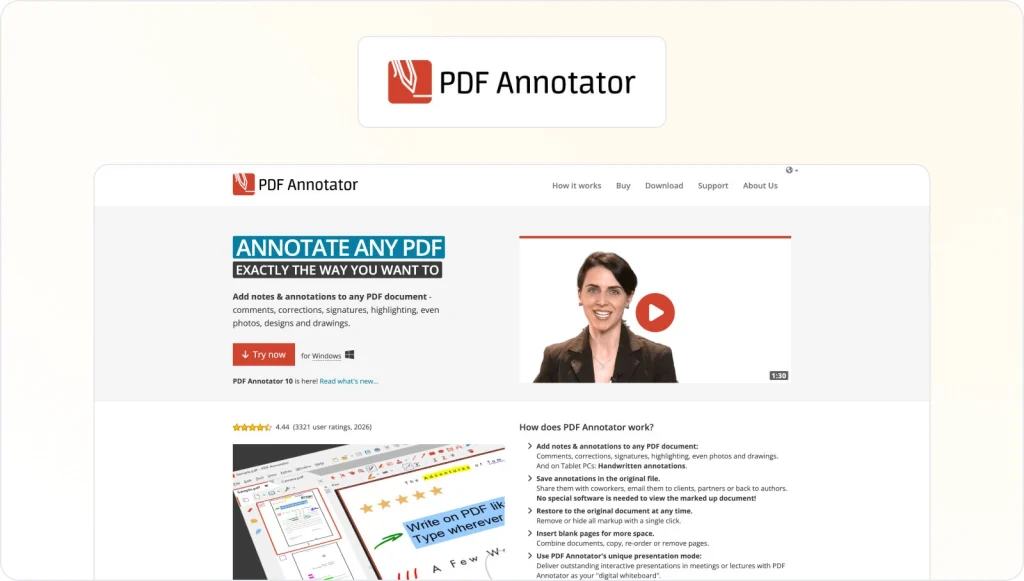
PDF Annotator is a tool that does exactly what it says in its name. With this piece of software, users can access PDFs on any device and then edit them in various ways.
This PDF editor offers an impressive toolbar with various options to highlight, draw, add stamps or icons, insert additional blank pages, upload a photo, or sign off a document.
The document can then be displayed as part of an interactive presentation, thanks to PDF Annotator’s customized presentation mode. What’s more, edits can be viewed by anyone accessing the edited PDF document, regardless of whether or not they download the PDF Annotator program.
3. Xodo – best for annotating PDF contracts
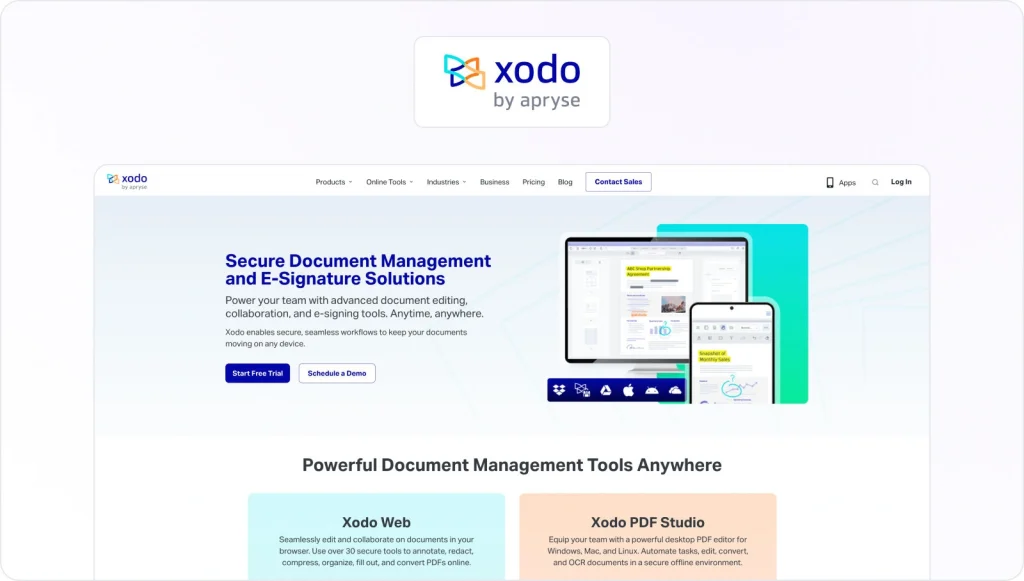
Xodo is an intuitive piece of PDF annotation software that makes it easy to edit PDF documents. Amongst Xodo’s specialized features, users can quickly fill out PDF forms by typing directly into fill-in fields on the document.
Using the same function, managers can directly sign a document in its PDF form without having to go through the hassle of printing and scanning the form. Simply click the free draw tool and add your signature to the file. Or, you can select your signature from a pre-saved image.
Xodo also makes document version management easy. PDF files can be uploaded to either Dropbox or Google Drive directly from Xodo, ensuring that the latest version is automatically synced to the cloud after your edits.
These tools all offer great options to fulfill your PDF annotation needs. For instance, if you just need a tool to annotate a PDF file once in a while, a free solution will do the job. But if you need software to manage the full review and approval process, your best bet is to choose a document approval tool.
Annotate PDFs faster with Filestage
Now that you know how to use PDF annotation tools to improve your document review process, it’s time to get started.
If you’d like to see for yourself how Filestage can make PDF annotations faster and more effective, start a free trial today.
FAQ
What is PDF annotation?
PDF annotation allows users to make additions to a PDF. This is commonly used for leaving suggested changes on a PDF during a document review and approval process.
Feedback can be added by inserting a text box onto the PDF, adding a sticky note to detail a comment about the asset, or enabling a number of reviewers to use a PDF annotation app to annotate a file. In this way, users can highlight an error, suggest revisions, or add comments on a PDF file.
What’s the easiest way to annotate a PDF file?
One of the quickest and easiest ways to annotate PDF documents is to use a document approval tool like Filestage. You simply upload your PDF file to the dashboard, and reviewers can use the built-in markup tools to leave comments directly on the file.
Having a unified hub to host annotated PDF documents reduces the risk of stakeholders adding comments on different versions. Plus, you can compare PDF files side-by-side to make sure all annotations and feedback suggestions have been executed.
Why and when are annotations in a PDF file useful?
Here are the three main reasons why they remain popular:
1. Portability: No matter if you use Windows 10, a Mac, an Android, or an iOS device, PDFs work across all systems.
2. Security: PDFs contain many security features, such as deactivating printing abilities or disabling the copy/paste function. Furthermore, you can protect your PDF with a password.
3. Usability: PDFs contain fillable fields, which allow customers to add information such as name and address without changing any other content. You can even add electronic signatures without printing the document, making the tool even more user-friendly.
That’s why there are still many reasons why your clients or copywriters will want to send you a PDF file that incorporates these security and usability features from the get-go.
Which features do you need to annotate a PDF?
PDFs are notoriously difficult to annotate or leave feedback on. So, you’ll need a specialized PDF annotation software for a smooth document review. These tools allow users to make a comment, add an annotation, and collaborate with others on the same file.
If you’re not sure which annotation solution to go for, look out for a tool with these key features:
– A highlighter tool
– A comment tool
– Markup tools
– Real-time collaboration, where users can discuss annotations online
– A copy-and-paste tool for text
– The ability to add virtual sticky notes
– A strikethrough text function
– A free drawing tool
– A bank of shapes – including arrows, lines, and circles (which you can use to make it clear which area of the PDF your comment refers to).
What PDF annotation conventions keep feedback consistent across multiple reviewers?
Consistency matters most when multiple reviewers are annotating a PDF at the same time. Set a simple ruleset for PDF annotation, like using highlights for text edits, shapes for layout issues, and sticky notes for open questions. Ask people to reference page numbers and key points, and to quote the exact text in a comment tool or text box instead of paraphrasing.
If you allow freehand drawings with a pencil tool, reserve them for quick callouts, not detailed rewrite instructions. And make sure your PDF viewer or annotator has an intuitive interface so everyone uses the same markup tools in the same way.
When should you restrict access to PDF annotation comments in client-facing PDF documents?
If the PDF documents include pricing, legal language, or internal notes, limit who can view and add PDF annotations before you share anything externally. Whether people open files in Adobe Acrobat, Acrobat Reader, or a browser-based PDF viewer, you should still control who can access sensitive comments.
In Filestage, you can invite reviewers by email or share a review link, and you can also control who gets access. For sensitive feedback, team-only comments help keep internal discussion separate from client input while you still annotate on a PDF in one place. You can also separate internal and external reviewers.
Why is an approval record important when you rely on PDF annotation?
PDF annotation is great for fast feedback, but an approval record is what protects you when questions come up later about who signed off and which version went live. At a minimum, keep the final PDF, prior versions, and the PDF annotations tied to each round of review, plus any approval report you’ve exported.
In Filestage, versions stay in one project, reviewers can approve in the same workflow, and the dashboard shows review status so teams can connect decisions to the right file version.
What is the best way to annotate PDF files with hundreds of pages?
Large files become manageable when you narrow the scope of your PDF annotation. Start by telling reviewers exactly which pages need review, and ask them to add comments only where changes are required. For speed, use markup like circles, lines, and a highlighter, then add a brief note to keep context. If the PDF includes forms or signatures, call those sections out early so people do not waste time reviewing unrelated pages.